
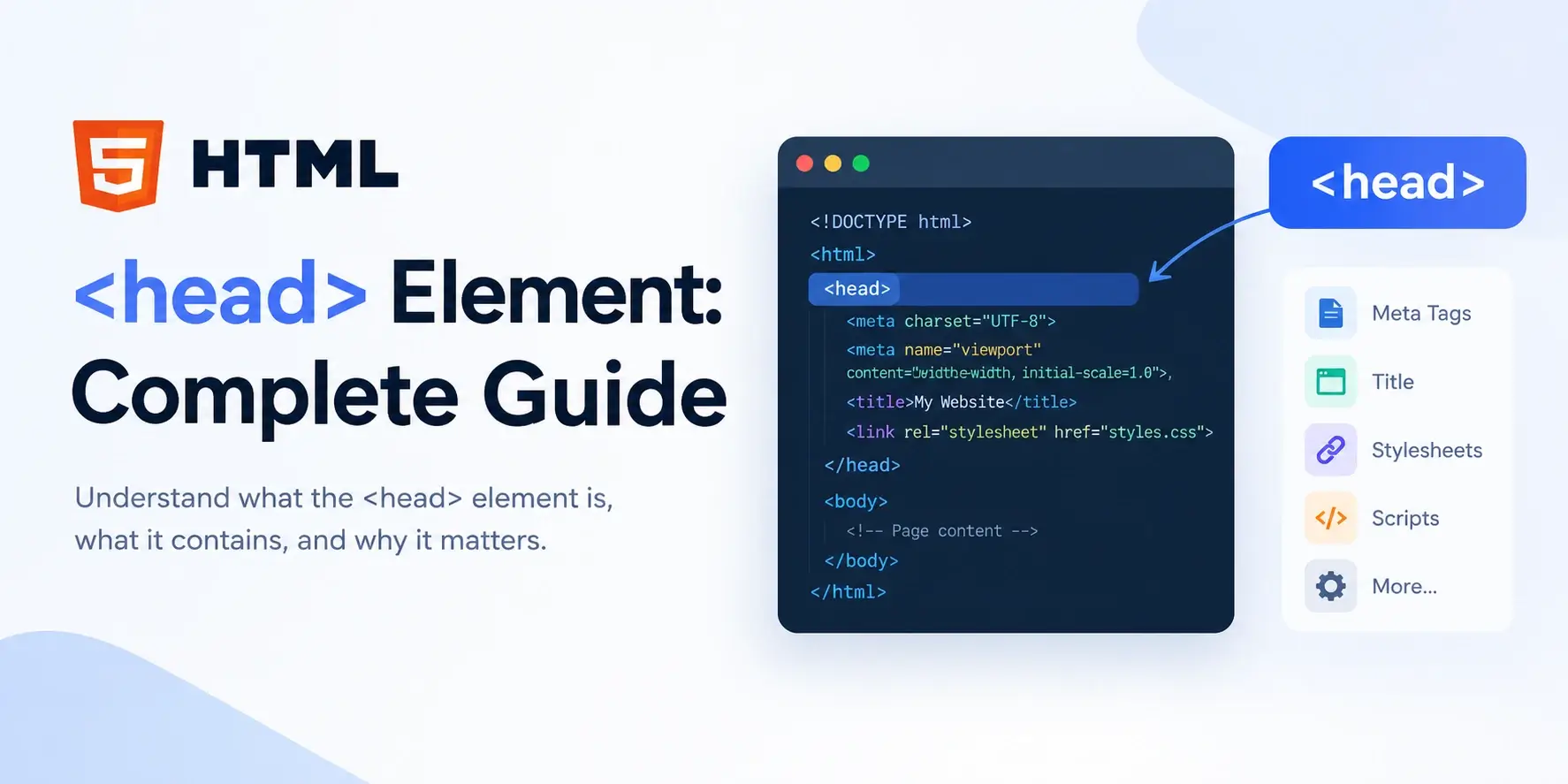
Every HTML document has two visible parts: a head and a body. The body is what visitors see — text, images, buttons, and forms. The head is invisible, but it carries everything the browser, search engines, and assistive technologies need to know about the page before any of that content is displayed.
In this guide, you will learn what the <head> element does, every tag
you can put inside it, the correct order for those tags, what does not belong in
the head, and the mistakes that cause real bugs in real projects.
<head> element is the container
for all metadata about an HTML document — the title, character encoding, viewport
settings, stylesheet links, and script references — and nothing inside it is displayed in
the main page area.
What Is the <head> Element?
The <head> element is the first child of <html>. It
holds information about the page rather than the page’s visible content. Think of
it as the shipping label on a package: the visitor never sees the label, but the delivery
system uses it to route and process what’s inside.
A minimal document with a head looks like this:
<!DOCTYPE html>
<html lang="en">
<head>
    <meta charset="UTF-8">
    <title>My Page</title>
</head>
<body>
    <p>Hello, world!</p>
</body>
</html>
Nothing between <head> and </head> appears on the
page. The visitor only sees what is inside <body>.
What the element represents
Metadata container
Everything in the head describes the page rather than showing content on it.
Browser instructions
The browser reads the head before rendering anything — it determines encoding, viewport, and stylesheets first.
Search engine data
The title, description, canonical URL, and structured data all live in the head.
Resource connections
Stylesheets, fonts, favicons, and scripts are linked from here.
If you are unsure whether something belongs in the head or the body, ask one question: “Will the visitor see this on the page?” If yes, it goes in the body. If no, it goes in the head.
Syntax and Anatomy
The <head> element is a normal, non-void element. It has an opening
tag, content (its metadata children), and a closing tag.
<head>
    <meta charset="UTF-8">
    <title>My Page</title>
</head>
Here is the structure broken down:
The <head> element is not void. It has content (the metadata tags),
so it requires both an opening tag and a closing tag. Writing <head />
is invalid HTML5.
Where the <head> Element Sits
The <head> element is the first child of <html>,
and the <body> comes right after it. Nothing appears between them.
The <head> must come before the <body>. If you
accidentally put the body first, browsers will rearrange them — but the resulting DOM may
not match what you wrote, and some styles or scripts may behave unexpectedly.
A document can have exactly one <head> element. If you write a
second one, browsers merge the contents — but the markup is invalid.
What Goes Inside the Head
The head accepts a specific set of elements. Every one of them is metadata — a description or instruction about the page. Here is the complete list of what belongs there.
| Element | Purpose | Required? |
|---|---|---|
<meta> |
Document metadata: charset, viewport, description, and more. | charset strongly recommended |
<title> |
The page title, shown in the browser tab and search results. | Recommended on every page |
<link> |
Links to external resources: stylesheets, favicons, preconnect hints. | Common but optional |
<style> |
Embedded CSS rules. | Optional |
<script> |
JavaScript, either inline or via src. |
Optional |
<base> |
Sets the base URL for all relative links in the document. | Rarely used |
<noscript> |
Fallback content shown when JavaScript is disabled. | Optional |
<template> |
Reusable HTML fragments, not rendered until used by JavaScript. | Optional |
Anything not on that list does not belong inside the head. If you put visible elements
there — like <h1>, <p>, or <div>
— the browser will move them into the body automatically, which is not what you intended.
If the element produces visible content on the page, it belongs in the body. Everything else goes in the head.
The <title> Element
The <title> element sets the page title. It is required by the HTML
spec, and it is one of the most impactful things you can write for both user experience
and SEO.
<title>What Is HTML? A Beginner’s Guide — Inar Learn</title>Where the title appears:
- In the browser tab at the top of the window
- In browser bookmarks
- As the clickable headline in search results
- In the browser history list
- When the page is shared on some social platforms
Keep it under about 60 characters so it does not get truncated in search results. Put the most important information first. Every page on a site should have a unique title — never copy the same one across multiple pages.
The <meta charset> Tag
The charset declaration tells the browser how to decode the characters in the file. Without it, browsers guess — and they often guess wrong, which causes accented letters, currency symbols, and emoji to display as garbled text.
<meta charset="UTF-8">UTF-8 is the universal standard. It supports every character in every language, plus symbols and emoji. Unless you have a specific reason to use something else, always set charset to UTF-8.
The <meta charset> tag must appear within the first 1024 bytes of the
document. In practice, that means putting it as the very first element inside the head —
before the title, before anything else. If it comes too late, the browser may have
already decoded some content incorrectly.
What happens without charset
Café · €10 · Résumé

<!-- May render as: -->
Café · €10 · RésuméCafé · €10 · Résumé
<!-- Renders correctly -->
Café · €10 · RésuméThe <meta viewport> Tag
The viewport meta tag tells mobile browsers how to scale the page. Without it, phones and tablets render the page at desktop width and then shrink it — which makes everything unreadably small.
<meta name="viewport" content="width=device-width, initial-scale=1.0">Breaking down the values:
You cannot have a responsive website without the viewport meta tag. Every modern web project includes it. It is one of the few tags that is effectively required today.
The <meta description> Tag
The description meta tag provides a short summary of the page. Search engines often use it as the snippet below the clickable title in results.
<meta name="description" content="Learn what HTML is, how it works, and see beginner-friendly code examples in this complete guide.">The description does not directly affect rankings, but it strongly affects click-through rate. A well-written description tells users exactly what to expect if they click.
Aim for 150–160 characters. Anything longer gets cut off in search results, and anything shorter leaves unused space. Write for humans — search engines will not penalize a short description, but users will skip a bad one.
Other Useful <meta> Tags
Beyond charset, viewport, and description, several other meta tags are useful for specific purposes. Here are the ones you are most likely to use.
If your site is shared on social media, Open Graph tags decide whether the preview shows a compelling image and title — or nothing at all. Spend the extra five minutes to add them.
The <link> Element
The <link> element establishes a relationship between the current
document and an external resource. It is most commonly used for stylesheets, but it also
handles favicons, preloading hints, and canonical URLs.
Linking a stylesheet
<link rel="stylesheet" href="css/styles.css">
The rel="stylesheet" attribute declares the relationship, and the
href attribute points to the file. This is the most important link on most
pages.
Linking a favicon
<link rel="icon" href="favicon.ico">
<link rel="icon" type="image/svg+xml" href="favicon.svg">
The favicon is the small image in the browser tab. Modern sites often provide an SVG favicon for crisp rendering at any size.
Preconnect and preload hints
<link rel="preconnect" href="https://fonts.googleapis.com">
<link rel="preload" href="fonts/inter.woff2" as="font" type="font/woff2" crossorigin>
These hints tell the browser to start connecting or downloading before it encounters the resource naturally. They can significantly improve load time.
Canonical URL
<link rel="canonical" href="https://inarlearn.com/what-is-html/">The canonical tag tells search engines which URL is the “official” version of a page when the same content exists at multiple URLs. It is important for SEO.
The <style> Element
The <style> element holds CSS rules directly inside the HTML file.
Everything between <style> and </style> is CSS, not
HTML.
<!DOCTYPE html>
<html lang="en">
<head>
    <meta charset="UTF-8">
    <title>Embedded CSS</title>
    <style>
        body {
            font-family: system-ui, sans-serif;
            max-width: 640px;
            margin: 40px auto;
            padding: 24px;
            background: #f8fafc;
            color: #0f172a;
        }
        h1 { color: #0891b2; }
    </style>
</head>
<body>
    <h1>Hello, world!</h1>
    <p>The styling comes from a style block in the head.</p>
</body>
</html>
Embedded styles are useful for small projects or critical CSS that needs to load before the main stylesheet. For larger projects, an external stylesheet is easier to maintain.
Because CSS uses the cascade, styles embedded in the head apply before styles linked from external files. If both define the same property on the same element, the one that loads later — usually the external file — wins.
The <script> Element in the Head
The <script> element loads JavaScript. It can appear in the head or
the body, and the difference matters for performance.
Blocking script (avoid)
<head>
    <script src="js/app.js"></script>
</head>
A plain script in the head pauses HTML parsing while it loads. If the script is large or the network is slow, the entire page is blank until it finishes — which is a real performance problem.
Deferred script (recommended for head)
<head>
    <script src="js/app.js" defer></script>
</head>
The defer attribute tells the browser to download the script in parallel
with HTML parsing, but wait until the DOM is fully built before running it. This is the
best option when you need a script available early.
Async script
<head>
    <script src="analytics.js" async></script>
</head>
The async attribute downloads in parallel but runs as soon as it is ready —
without waiting for anything. It is useful for independent scripts like analytics or ads.
| Approach | Downloads | Runs | Best for |
|---|---|---|---|
none |
Pauses parsing | Immediately | Small, critical scripts only |
defer |
In parallel | After HTML parsed | Most scripts that need the DOM |
async |
In parallel | As soon as ready | Independent third-party scripts |
The Recommended Order Inside the Head
HTML5 does not require a strict order for the metadata tags, but browsers, search engines, and validators expect a conventional order. Following it prevents subtle bugs and makes the file easier to read.
- <meta charset=”UTF-8″> Must come first so the browser decodes the rest of the file correctly.
- <meta name=”viewport”> Ensures the mobile viewport is set before anything else renders.
- <title> The page title, in the right place for browsers and search engines.
- Other <meta> tags Description, keywords, robots, Open Graph, Twitter cards, theme color.
- <link> tags Stylesheets, favicons, preconnect hints, canonical URL.
- <style> blocks Embedded CSS, usually critical CSS that needs to load early.
-
<script> tags
JavaScript — ideally with
defer, or at the end of the body.
The charset tag must be first because the browser needs to know how to decode the file before it can read anything else. All the rest is convention, but consistency makes files easier to scan and maintains compatibility with expected behavior.
A Complete Head in Practice
Here is a head that includes everything a typical modern page needs — charset, viewport, title, description, canonical, Open Graph tags, favicon, stylesheet, and a deferred script.
<!DOCTYPE html>
<html lang="en">
<head>
    <meta charset="UTF-8">
    <meta name="viewport" content="width=device-width, initial-scale=1.0">

    <title>What Is HTML? A Beginner’s Guide — Inar Learn</title>

    <meta name="description" content="Learn what HTML is, how it works, and see beginner-friendly examples in this complete guide.">
    <meta name="author" content="Inar Learn">

    <!-- Open Graph -->
    <meta property="og:type" content="article">
    <meta property="og:title" content="What Is HTML? A Beginner’s Guide">
    <meta property="og:description" content="Learn what HTML is and see real code examples.">
    <meta property="og:image" content="https://inarlearn.com/images/what-is-html.jpg">
    <meta property="og:url" content="https://inarlearn.com/what-is-html/">

    <!-- Canonical URL -->
    <link rel="canonical" href="https://inarlearn.com/what-is-html/">

    <!-- Favicon -->
    <link rel="icon" href="/favicon.ico">

    <!-- Stylesheet -->
    <link rel="stylesheet" href="/css/styles.css">

    <!-- JavaScript with defer -->
    <script src="/js/app.js" defer></script>
</head>
<body>
    <h1>Hello, world!</h1>
</body>
</html>
Everything in this head follows the conventions covered in this guide. The charset comes
first, the title and description are next, and the script uses defer so it
does not block rendering.
Common <head> Mistakes
A handful of mistakes come up again and again in real projects. Here are the ones to watch for.
1. Forgetting charset or putting it too late
<head>
    <title>Café Menu</title>
    <meta charset="UTF-8">
    <!-- title decoded before charset -->
</head><head>
<meta charset="UTF-8">
<title>Café Menu</title>
</head>2. Putting visible content in the head
<head>
    <title>Page</title>
    <h1>Welcome</h1>
    <p>This will not render here.</p>
</head><head>
<title>Page</title>
</head>
<body>
<h1>Welcome</h1>
<p>This renders.</p>
</body>3. Missing the viewport tag
<head>
    <meta charset="UTF-8">
    <title>Page</title>
</head>

<!-- Page is rendered at desktop width
and shrunk on mobile --><head>
<meta charset="UTF-8">
<meta name="viewport"
content="width=device-width, initial-scale=1.0">
<title>Page</title>
</head>4. Blocking scripts in the head
<head>
    <script src="big-app.js"></script>
</head>

<!-- Page stays blank while
the script downloads and runs --><head>
<script src="big-app.js" defer></script>
</head>5. Duplicate title tags
<head>
    <title>First Title</title>
    <title>Second Title</title>
</head>

<!-- Browsers use the first title,
but this is invalid markup --><head>
<title>My Page</title>
</head>6. Missing the closing </head> tag
<head>
    <meta charset="UTF-8">
    <title>Page</title>

<body>
    <p>Content</p>
</body>

<!-- Browser auto-inserts /head
but the markup is invalid --><head>
<meta charset="UTF-8">
<title>Page</title>
</head>
<body>
<p>Content</p>
</body>7. Two viewport tags with conflicting values
<meta name="viewport" content="width=device-width">
<meta name="viewport" content="width=1024">

<!-- Unpredictable behavior --><meta name="viewport"
content="width=device-width, initial-scale=1.0">The W3C Markup Validation Service will catch most head-structure mistakes — missing charset, visible content in the head, duplicate tags, and misplaced scripts. Running every page through it before publishing is a habit worth building.
Best Practices
A few habits make the head of a document clean, effective, and predictable.
Start with a template
Save a boilerplate HTML file with a complete head and copy it for every new page.
Charset always first
Put <meta charset="UTF-8"> as the very first tag in the head.
Always include viewport
Responsive design depends on the viewport meta tag being present and correct.
Unique title and description
Every page should have a distinct title and meta description written for that page.
Add a canonical URL
Prevents duplicate content issues when the same page is reachable at multiple URLs.
Include Open Graph tags
Controls how the page appears when shared on social platforms.
Defer scripts
Use defer for scripts in the head, or load them at the end of the body.
Validate before publishing
Run every page through the W3C validator to catch structural problems early.
Charset first, viewport second, then title, then everything else. Never put visible content in the head.
Frequently Asked Questions
1. What is the head element in HTML?
The <head> element is a container for metadata about the document.
It holds the title, character encoding, viewport settings, stylesheet links, and
script references. Nothing inside the head is displayed in the main page area.
2. Is the head element required?
Yes, effectively. Browsers will insert an empty <head>
automatically if one is missing, but a valid HTML document should always include an
explicit head element with at least a title and meta charset.
3. What is the difference between head and body?
The head contains metadata about the page — information for browsers, search engines, and other software. The body contains everything the visitor sees: headings, paragraphs, images, and interactive elements.
4. What goes inside the head?
Common elements inside the head include meta charset,
meta viewport, title, meta description,
link (for stylesheets and favicons), style (embedded CSS),
script (JavaScript), and base (base URL for relative links).
5. Can I have more than one head element?
No. A document must have exactly one <head> element, and it must be
the first child of the <html> element. Any content that appears
after the head closes belongs to the body.
6. What order should the head tags be in?
The recommended order is: meta charset first, then
meta viewport, then title, then other meta tags, then
link tags for stylesheets, and finally script tags. Charset
must come first so the browser decodes the rest of the file correctly.
7. Can I put visible content in the head?
No. Elements that produce visible content — like h1, p,
div, or img — are not allowed in the head. If placed there,
the browser will move them into the body automatically.
8. What is the title element?
The <title> element sets the page title. It appears in the browser
tab, in bookmarks, and as the clickable headline in search engine results. Every page
should have a unique, descriptive title.
9. What is meta charset?
meta charset declares the character encoding of the document. Setting it
to UTF-8 ensures that accents, symbols, and emoji display correctly across languages.
10. What is the meta viewport tag?
The viewport meta tag tells mobile browsers how to scale the page.
width=device-width makes the page match the device width, which is the
foundation of responsive design.
11. Where should scripts go — head or body?
Scripts are best placed at the end of the body, or loaded in the head with the
defer attribute. This ensures the page renders before JavaScript runs,
which improves perceived load speed.
12. Does the head affect SEO?
Yes. The title, meta description, canonical link, and structured data inside the head all influence how search engines index and display a page. A well-structured head is essential for good SEO.
Key Takeaways
- The
<head>element holds metadata about the document — nothing visible on the page. - It is the first child of
<html>; the body is the second. - Every document has exactly one head, and it must include a title and meta charset.
- The recommended order is: charset, viewport, title, other meta tags, link tags, style, script.
- The charset tag must come first so the browser decodes the rest of the file correctly.
- Visible content belongs in the body, not the head — the browser will move it automatically if misplaced.
- The
<link>element handles stylesheets, favicons, preconnect hints, and canonical URLs. - Scripts in the head should use
deferto avoid blocking HTML parsing. - The head is critical for SEO: title, description, canonical, and social sharing tags all live there.
- Validate your HTML to catch missing charset, duplicate titles, and misplaced content.
What to Learn Next
Now that you understand the <head> element, the next step is to
strengthen your foundational skills. Start with
HTML <html> Element: Syntax and Examples
for the parent element that contains the head, then explore
HTML DOCTYPE: What It Is and Why You Need It
and
HTML File Structure.
For deeper coverage, explore HTML Elements, HTML Attributes, and HTML Syntax Explained. To understand how the browser processes the head before rendering, read How Web Browsers Work and How Websites Work.
Practice Challenge
Build a complete HTML document with a fully populated head that demonstrates everything from this guide. Your page should include:
- An
<html lang="en">element wrapping a head and a body - A
<meta charset="UTF-8">as the first tag in the head - A
<meta name="viewport">tag with the standard values - A
<title>that describes the page in under 60 characters - A
<meta name="description">that summarizes the page in 150–160 characters - At least two Open Graph tags (title and description)
- A
<link rel="canonical">pointing to your page’s URL - A
<link rel="stylesheet">pointing tostyles.css - A
<script>with thedeferattribute
Once your page is complete, run it through the W3C validator. A clean result means your head is correctly structured — and you have mastered the metadata layer of every HTML page.
As a final test, open DevTools and inspect the head in the Elements panel. Confirm that every tag is present, in the right order, and none are misplaced.

 Inar Learn