
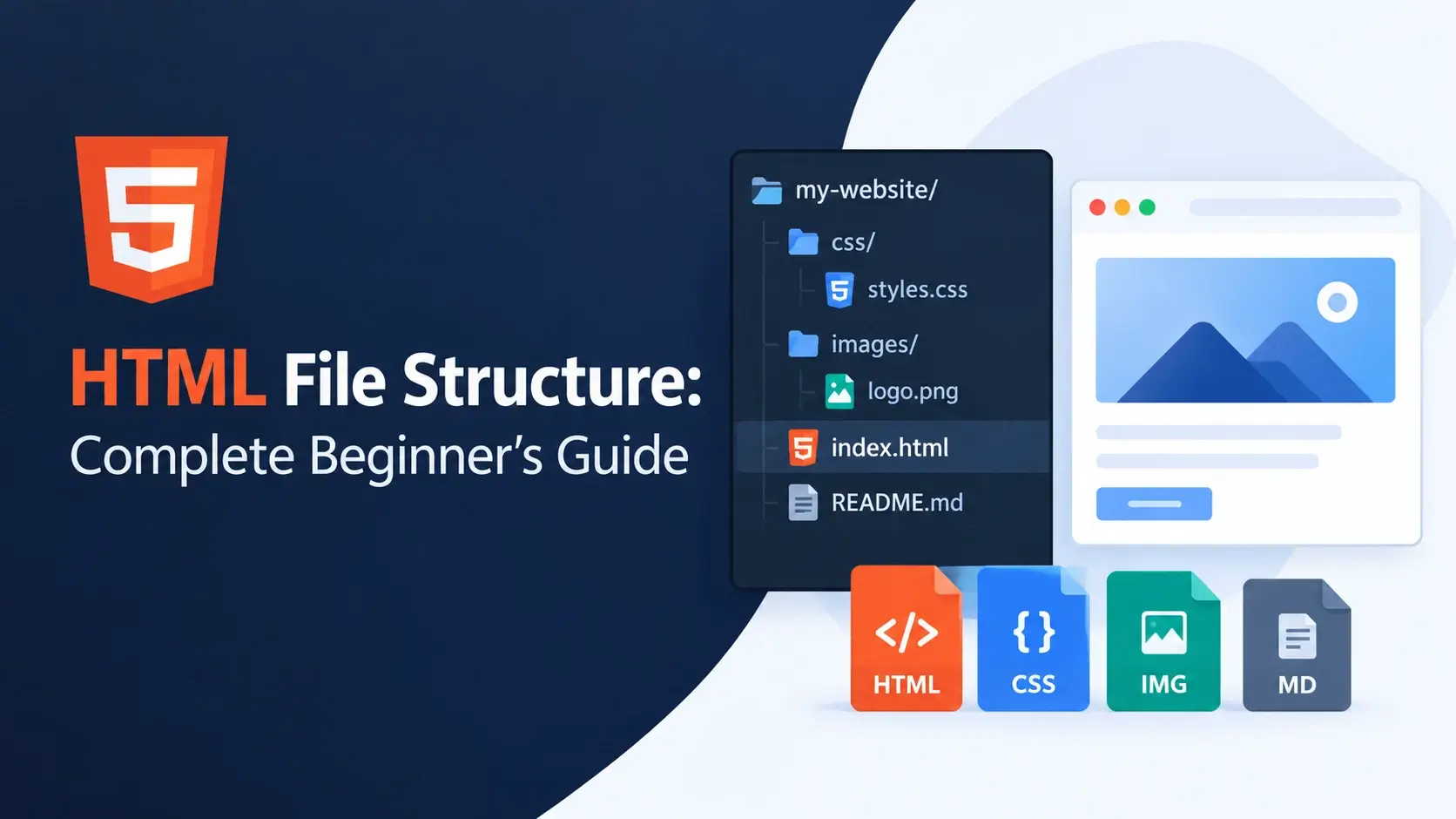
Every HTML file has the same skeleton. Whether it is a single-page website or a large
application with dozens of files, the structure inside each page follows the same rules:
a DOCTYPE, a head, and a body, wrapped inside an <html> element.
In this guide, you will learn the complete structure of an HTML file, what goes into the head versus the body, how to name and organize your files, how relative and absolute paths work, and how to link stylesheets and scripts from a page. Every concept is paired with a real, runnable example.
<html> element containing a <head> (metadata) and a
<body> (visible content).
Quick Overview at a Glance
Here is the entire structure of an HTML file in one table. Everything after this is a deeper explanation with examples.
| Part | Purpose | Visible on page? |
|---|---|---|
<!DOCTYPE html> |
Tells the browser to use HTML5 standards mode | No |
<html> |
The root element that contains everything else | No |
<head> |
Metadata: title, charset, viewport, stylesheets, scripts | No |
<body> |
Everything visible on the page | Yes |
That is the whole skeleton. The rest of this guide explains what goes inside the head and body, how to name files, and how to organize them into a project.
The Anatomy of a Single HTML File
Here is a complete, minimal HTML file. Every well-formed page follows this pattern.
<!DOCTYPE html>
<html lang="en">
<head>
    <meta charset="UTF-8">
    <meta name="viewport" content="width=device-width, initial-scale=1.0">
    <title>My Page</title>
</head>
<body>

    <h1>Hello, world!</h1>
    <p>This is my page.</p>

</body>
</html>
The structure breaks into clearly defined layers:
Every HTML file follows this order. There are no exceptions and no alternate arrangements.
Do not try to memorize this by heart. Copy this pattern into every new file you create. After a few projects, you will write it from memory automatically.
The DOCTYPE Declaration
The very first line of every HTML file is a declaration, not a tag. It tells the browser which version of HTML the document uses.
<!DOCTYPE html>This is the HTML5 doctype. It is short because HTML5 does not require a version number or a reference to a DTD file. Older HTML versions used much longer declarations:
<!DOCTYPE HTML PUBLIC
  "-//W3C//DTD HTML 4.01//EN"
"http://www.w3.org/TR/html4/strict.dtd"><!DOCTYPE html>Why the doctype matters
Without the doctype, browsers fall back to quirks mode — a legacy rendering mode that mimics bugs from the 1990s. In quirks mode, CSS and layout behave differently, and many modern features do not work correctly.
With <!DOCTYPE html>, the browser uses standards mode,
which follows the modern spec.
Always put <!DOCTYPE html> as the very first line of every HTML file.
It has no closing tag and nothing comes before it — not even a blank line.
Inside the Head: Document Metadata
The <head> section holds information about the page. Nothing
inside the head is displayed in the main page area, but everything in it affects how the
page behaves.
<head>
    <meta charset="UTF-8">
    <meta name="viewport" content="width=device-width, initial-scale=1.0">
    <meta name="description" content="A beginner's guide to HTML.">
    <title>Page Title</title>
    <link rel="stylesheet" href="styles.css">
    <link rel="icon" href="favicon.ico">
</head>
What goes in the head
charset
<meta charset="UTF-8"> tells the browser how to interpret characters. UTF-8 covers every character in every language.
viewport
<meta name="viewport"> makes the page scale properly on mobile devices.
title
The page title shown in the browser tab and used by search engines in results.
meta description
A short summary that may appear in search engine results below the title.
link (stylesheet)
Connects an external CSS file to the page. Usually the most important tag in the head.
link (icon)
Sets the favicon — the small image that appears in the browser tab.
script
Links or inlines JavaScript. Best placed at the end of the body, but sometimes in the head with the defer attribute.
Other meta tags
Open Graph tags, Twitter cards, theme colors, and more — used for social sharing and browser behavior.
Order matters
Inside the head, the most important tags go first. The standard order is:
charset— before anything else, so text decodes correctly.viewport— so mobile layout is correct from the start.title— the page name.- Other
metatags — description, social cards, etc. linktags — stylesheets, favicon.scripttags — JavaScript (or better, at the end of the body).
The browser must know the character encoding before it can read any text. If
charset appears late, the browser may have already decoded some content
incorrectly.
Inside the Body: Visible Content
The <body> section contains everything the visitor actually sees:
headings, paragraphs, images, links, forms, and interactive elements. If it is on the
page, it is in the body.
<!DOCTYPE html>
<html lang="en">
<head>
<meta charset="UTF-8">
<title>Body Structure</title>
</head>
<body>
<header>
<h1>My Website</h1>
<nav>
<a href="https://inarlearn.com/">Home</a>
<a href="https://inarlearn.com/html-syntax/">HTML</a>
</nav>
</header>
<main>
<h2>Welcome</h2>
<p>This content lives in the body.</p>
</main>
<footer>
<p>© 2025 Inar Learn</p>
</footer>
</body>
</html>
Notice how semantic elements (header, nav, main,
footer) organize the body into clear sections. This structure helps both
readers and search engines understand the page.
What goes in the body
- Headings —
<h1>through<h6> - Paragraphs —
<p> - Links —
<a> - Images —
<img> - Lists —
<ul>,<ol>,<li> - Tables —
<table>and its children - Forms —
<form>,<input>,<button> - Semantic landmarks —
<header>,<nav>,<main>,<article>,<section>,<aside>,<footer>
A document has exactly one <body>. If you write a second body tag,
browsers will merge them into one. Do not try to work around this — one body is the
correct structure.
Head vs Body: A Side-by-Side Comparison
The distinction between head and body is the most important structural rule in HTML. Here it is in one table.
| Aspect | Head | Body |
|---|---|---|
| Visible on page | No | Yes |
| Purpose | Information about the page | The page content itself |
| Typical elements | meta, title, link, style, script |
h1, p, img, a, div |
| Order | Comes first inside html |
Comes second inside html |
| Required? | Yes (though can be empty) | Yes |
| Number per page | One | One |
A simple rule of thumb: if you see it on the page, it is in the body. If it affects how the page behaves but is invisible, it is in the head.
File Naming Conventions
How you name your HTML files matters more than most beginners expect. Some names have special meaning to web servers, and some naming styles break on different operating systems.
index.html is special
The file index.html is the default file that servers return when someone
visits a folder URL. When a visitor types example.com, the server looks for
index.html in the root folder and serves it automatically.
Some servers also recognize default.html as an alternative, but
index.html is the universal standard.
Rules for naming HTML files
- Use lowercase.
about.html, notAbout.html. - Use hyphens, not spaces or underscores.
about-us.html, notabout us.htmlorabout_us.html. - Always end with .html. Not
.htm,.xhtml, or no extension. - Use descriptive names.
pricing-plans.html, notpage2.html. - Keep them short. A few words is usually enough.
File names are case-sensitive on Linux servers (which host most of the web). If your
link points to About.html but the file is about.html, it will
work on Windows and macOS but break in production. Always use lowercase.
Organizing a Project Folder
A single HTML file does not need a folder structure. But as soon as you add a stylesheet, a script, and some images, you need somewhere to put them.
Here is a standard folder structure used by most web projects:
This structure is not required by the browser — but it keeps projects clean as they grow. Every experienced developer recognizes it instantly.
The folder conventions
- Root folder — holds the HTML files, especially
index.html. - css/ — all stylesheets.
- js/ — all JavaScript files.
- images/ — all image assets, or
img/for short. - fonts/ — custom web fonts, if any.
Do not over-organize. Two levels deep is plenty for most projects. Deeply nested folders make paths long and error-prone.
Relative vs Absolute Paths
When you link to a stylesheet, an image, or another page, you use a path to tell the browser where the file lives. There are two kinds of paths.
| Type | Starts with | Example | Resolved from |
|---|---|---|---|
| Relative | A file or folder name | css/styles.css |
The current HTML file’s location |
| Root-relative | A forward slash | /css/styles.css |
The website root |
| Absolute URL | http:// or https:// |
https://inarlearn.com/css/styles.css |
The full URL |
Relative paths
A relative path is resolved from the location of the HTML file that contains the link. This is what you will use most of the time.
<!-- From index.html in the project root -->

<!-- Same folder -->
<img src="photo.jpg" alt="Photo">

<!-- Subfolder -->
<img src="images/photo.jpg" alt="Photo">

<!-- Parent folder -->
<img src="../assets/photo.jpg" alt="Photo">

<!-- Two levels up -->
<img src="../../shared/photo.jpg" alt="Photo">
The ../ sequence means “go up one folder.” Two of them mean “go up two
folders.” This is how you reach files outside the current directory.
Root-relative paths
A path that starts with / is resolved from the root of the website, no matter
where the current file lives.
<!-- Always resolves to the site's root -->
<link rel="stylesheet" href="/css/styles.css">
<img src="/images/logo.svg" alt="Logo">
<a href="/about.html">About</a>
Root-relative paths are useful when the same file is included from multiple pages at different folder depths. They always resolve the same way.
Absolute URLs
An absolute URL contains the full address, including the protocol and domain. Use these when linking to a different website.
<a href="https://inarlearn.com/about/">About Inar Learn</a>
<img src="https://inarlearn.com/images/logo.svg" alt="Inar Learn logo">Use relative paths for files within your own project. Use absolute URLs for external resources. Use root-relative paths only when you have a specific reason — otherwise relative paths are simpler and more portable.
Linking External Files
Real projects separate structure, style, and behavior into different files. Here is how to link them from the head and the body.
Linking a stylesheet
The <link> element in the head connects an external CSS file. It is a
void element, so it has no closing tag.
<head>
    <link rel="stylesheet" href="css/styles.css">
</head>
The rel="stylesheet" attribute declares the relationship — this is a
stylesheet. The href attribute points to the file.
Linking a JavaScript file
The <script> element links JavaScript. Place it at the end of the body
so the page renders first, or use the defer attribute in the head.
<body>
    <!-- page content -->

    <script src="js/script.js"></script>
</body>
Unlike <link>, <script> is not a void element. It
has a closing tag, even when the content is empty.
Linking another page
The <a> element links between pages using relative paths.
<nav>
    <a href="index.html">Home</a>
    <a href="about.html">About</a>
    <a href="contact.html">Contact</a>
</nav>Stylesheets and scripts load in the order they appear. Load CSS before the visible content renders, and load JavaScript after the DOM is ready. This is why stylesheets go in the head and scripts go at the end of the body.
A Complete Project Example
Here is a complete, well-structured HTML file that demonstrates everything in this guide — a proper doctype, a complete head, semantic body structure, and linked external files.
<!DOCTYPE html>
<html lang="en">
<head>
<meta charset="UTF-8">
<meta name="viewport" content="width=device-width, initial-scale=1.0">
<meta name="description" content="A complete HTML file structure example.">
<title>Complete File Structure Example</title>
<link rel="stylesheet" href="css/styles.css">
</head>
<body>
<header>
<h1>My Website</h1>
<nav>
<a href="index.html">Home</a>
<a href="about.html">About</a>
</nav>
</header>
<main>
<h2>Welcome</h2>
<p>This page follows the standard HTML file structure.</p>
<img src="images/hero.jpg" alt="A sample image">
</main>
<footer>
<p>© 2025 Inar Learn</p>
</footer>
<script src="js/script.js"></script>
</body>
</html>Everything in this file follows the rules from earlier sections:
- The doctype is the first line.
- The head contains charset, viewport, description, title, and a stylesheet link.
- The body is organized with semantic landmarks.
- External files are linked with relative paths.
- The script is at the end of the body so the page renders first.
This is what every professional HTML file looks like. Save this as your template, and you will never have to rebuild the structure from scratch.
Common Structure Mistakes
A handful of file structure mistakes come up again and again. Here are the ones to watch for.
1. Forgetting the DOCTYPE
<html lang="en">
<head>...</head>
<body>...</body>
</html>

<!-- Quirks mode triggered --><!DOCTYPE html>
<html lang="en">
<head>...</head>
<body>...</body>
</html>2. Putting visible content in the head
<head>
    <title>Page</title>
    <h1>This will not show</h1>
</head><head>
<title>Page</title>
</head>
<body>
<h1>This shows</h1>
</body>3. Missing charset
<head>
    <title>Page</title>
</head>

<!-- "café" may render as "café" --><head>
<meta charset="UTF-8">
<title>Page</title>
</head>4. Wrong file extension
index.html.txt
index.htm
about.xhtmlindex.html
about.html
contact.html5. Spaces in file names
about us.html

<!-- URL becomes:
about%20us.html -->about-us.html
<!-- URL becomes:
about-us.html -->6. Absolute paths for local files
<img src="C:\Users\Sam\project\photo.jpg"><img src="images/photo.jpg" alt="Photo">7. Placing script in the head without defer
<head>
    <script src="app.js"></script>
</head>

<!-- Page blocks until the script
loads and runs --><!-- Option A -->
<script src="app.js" defer></script>
<!-- Option B -->
<script src="app.js"></script>
</body>The W3C Markup Validation Service catches structural errors — missing doctype, malformed head, invalid nesting. Run every page through it before publishing.
Best Practices
A few habits make your HTML files clean, portable, and easy to maintain.
Start with a template
Save a boilerplate file and copy it for every new page. Consistency from the start.
Use charset first, always
Put <meta charset="UTF-8"> as the first tag in the head.
Include the viewport tag
It makes every page responsive on mobile devices with no extra effort.
Name files lowercase with hyphens
about-us.html, pricing-plans.html — never spaces or uppercase.
Group assets in folders
css/, js/, images/ — standard conventions everyone recognizes.
Use relative paths
They are portable. Absolute paths break when you move the project or deploy it.
Defer scripts
Load JavaScript at the end of the body or with defer so the page renders first.
Validate before publishing
Run every page through validator.w3.org to catch structure errors early.
Doctype first, then head for metadata, then body for content. Name files lowercase with hyphens. Group assets in folders. Use relative paths. Defer scripts. Repeat.
Frequently Asked Questions
1. What is the structure of an HTML file?
An HTML file has three top-level parts: the DOCTYPE declaration, a head section for
metadata, and a body section for visible content. All of this is wrapped inside the
html element.
2. What does every HTML file need?
Every HTML file needs a DOCTYPE declaration, an html element, a
head with a title, and a body. The
meta charset declaration is also effectively required to display text
correctly.
3. What goes in the head vs body?
The head contains metadata — the title, character encoding, viewport settings, stylesheet links, and script references. The body contains everything the visitor sees on the page: text, images, links, forms, and interactive elements.
4. Why is index.html special?
index.html is the default file that web servers return when a visitor
requests a directory URL. When someone visits example.com, the server
looks for index.html in that directory and serves it automatically.
5. How should I name my HTML files?
Use lowercase letters, hyphens instead of spaces, and the .html
extension. For example: index.html, about-us.html,
contact.html. Avoid uppercase letters, spaces, and underscores.
6. What file extensions should I use?
Use .html for HTML files, .css for stylesheets,
.js for JavaScript files, and standard image extensions like
.jpg, .png, .webp, or .svg.
Always write extensions in lowercase.
7. How do I organize a project folder?
Put index.html in the root. Create subfolders like css/,
js/, images/, and fonts/ for assets. Group
related files together and keep the structure shallow — one or two levels deep is
usually enough.
8. What is the difference between relative and absolute paths?
A relative path is resolved from the location of the current file — for example,
images/photo.jpg. An absolute path starts from the site root or a full
URL — for example, /images/photo.jpg or
https://inarlearn.com/images/photo.jpg.
9. Can I put CSS directly in an HTML file?
Yes. You can write CSS inside a style element in the head, or inline
with the style attribute on individual elements. For anything beyond
small experiments, use an external stylesheet linked with the link
element.
10. Can I put JavaScript directly in an HTML file?
Yes. You can write JavaScript inside a script element, either in the
head or at the end of the body. For anything beyond small snippets, link to an
external .js file for easier maintenance.
11. What order should elements appear in?
DOCTYPE first, then html, then head, then body.
Inside the head, put meta charset first, then viewport, then
title, then stylesheet links. Inside the body, put visible content in the
order you want it read.
12. How do I link to an external stylesheet?
Use the link element in the head:
<link rel="stylesheet" href="styles.css">. The rel
attribute declares the relationship, and the href attribute points to
the CSS file.
Key Takeaways
- Every HTML file follows the same structure: DOCTYPE, then
html, thenhead, thenbody. - The
<!DOCTYPE html>declaration must be the very first line — it prevents quirks mode. - The
headholds metadata: charset, viewport, title, description, stylesheets, and scripts. - The
bodyholds everything the visitor sees on the page. index.htmlis the default file served when a visitor requests a directory URL.- Use lowercase filenames with hyphens —
about-us.html, notAbout Us.html. - Organize assets into
css/,js/, andimages/folders. - Relative paths (
images/photo.jpg) are resolved from the current file. Absolute URLs (https://...) are full addresses. - Link stylesheets in the head with
<link>; load scripts at the end of the body or withdefer. - Validate your HTML with the W3C validator to catch structural errors early.
What to Learn Next
Now that you understand HTML file structure, the next step is to strengthen your foundational skills. Start with How to Create Your First HTML Page and HTML Syntax Explained for the underlying rules.
For deeper coverage, explore HTML Elements, HTML Attributes, and HTML Nesting Explained. To understand how the browser parses the file, see How Web Browsers Work and How Websites Work.
Practice Challenge
Build a small multi-page website that demonstrates everything you learned about file structure. Your project should include:
- An
index.htmlfile with the complete head structure (charset, viewport, description, title, stylesheet link) - At least two additional pages —
about.htmlandcontact.html— following the same structure - A
css/folder containing astyles.cssfile - A
js/folder containing ascript.jsfile - An
images/folder with at least one image file - A navigation menu on each page linking to the others with relative paths
- All three pages loading the same external stylesheet
Once your project is built, open index.html in your browser and click through
the navigation. Confirm that styles load consistently across all pages, that images
display, and that no paths are broken.
If your multi-page site works and every file loads correctly, you have mastered the file structure that every web project depends on.

 Inar Learn