
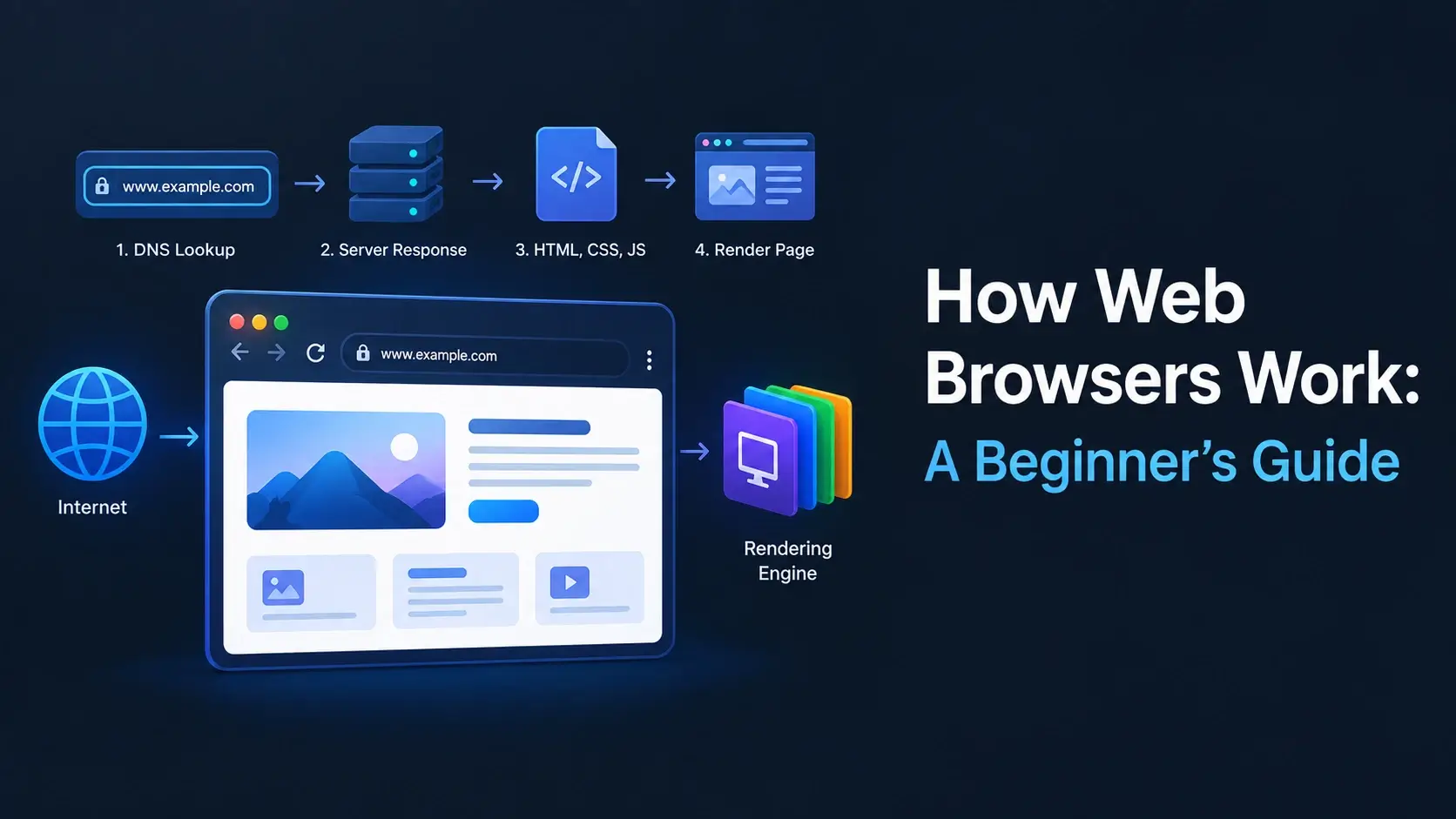
Every day, you use a web browser to read the news, shop, watch videos, and check your email. But have you ever stopped to think about what is actually happening behind that address bar? A browser is one of the most sophisticated pieces of software on your computer, and it does an enormous amount of work in the blink of an eye.
In this guide, you will learn what a web browser is, what its main parts do, and how it turns raw HTML, CSS, and JavaScript files into the interactive pages you see. Every concept comes with a real code example and a live preview.
What Is a Web Browser?
A web browser is a software application that retrieves and displays web pages. When you type an address or click a link, the browser handles everything needed to turn that request into a page you can read, click, and interact with.
The most common browsers today are:
- Google Chrome — the most widely used browser, built on the Blink engine
- Mozilla Firefox — an independent, open-source browser using the Gecko engine
- Apple Safari — the default browser on Apple devices, using WebKit
- Microsoft Edge — Microsoft’s modern browser, also built on Blink
- Brave, Opera, Vivaldi — alternative browsers that add privacy features or customization
All of these browsers follow the same web standards, so the vast majority of websites work across all of them. But internally, they are built from different components — and those components shape how a page renders.
A browser is not the same thing as a search engine. A browser is the application. A search engine (like Google or Bing) is a website you visit inside the browser.
The Main Parts of a Web Browser
A modern browser is made of several internal components, each with a distinct job. Here are the important ones.
User Interface
The parts you interact with directly — the address bar, back and forward buttons, tabs, and bookmarks.
Browser Engine
Coordinates the UI with the rendering engine. It decides when to reload pages and how to handle navigation.
Rendering Engine
Turns HTML and CSS into pixels. Chrome and Edge use Blink, Firefox uses Gecko, Safari uses WebKit.
JavaScript Engine
Parses and runs JavaScript. Chrome uses V8, Firefox uses SpiderMonkey, Safari uses JavaScriptCore.
Networking
Handles HTTP and HTTPS requests — including DNS lookups, TCP connections, and TLS handshakes.
Data Storage
Manages cookies, localStorage, IndexedDB, and the HTTP cache that make repeat visits fast.
Each of these components plays a specific role — but you rarely need to think about them individually. They work together invisibly, and the result is the page you see.
Browsers follow the same web standards (HTML, CSS, and JavaScript specs), but they implement them differently. This is why a page can look or behave slightly differently across browsers — a phenomenon historically known as browser quirks.
What Happens When You Visit a URL?
When you type an address into your browser and press Enter, a long chain of events begins. Each step typically takes only a few milliseconds, but together they determine how fast the page loads.
- You type a URL — for example,
https://inarlearn.com/. - The browser checks its cache — if a fresh copy of the page exists locally, it may serve it directly.
- DNS lookup — the browser translates the domain name into an IP address by asking a DNS server.
- TCP connection — the browser opens a connection to that IP address using a TCP three-way handshake.
- TLS handshake — for HTTPS sites, the browser and server negotiate encryption.
- HTTP request — the browser sends a GET request asking for the page.
- Server response — the server sends back the HTML document, along with headers describing the response.
- Parsing begins — the browser starts reading the HTML from top to bottom while additional resources load.
Every one of these steps is a potential source of delay. That is why page performance is often about reducing round trips, caching aggressively, and serving files from servers close to the user.
You can watch every one of these steps in real time using your browser’s DevTools. Open the Network tab and reload the page — you will see each request and its timing.
How the Browser Renders a Page
Once the browser has the HTML, it begins turning text into pixels. This process is called rendering, and it happens in several stages.
1. HTML is parsed into the DOM
The browser reads the HTML from top to bottom and builds the DOM (Document Object Model) — a tree of objects representing each element.
<!DOCTYPE html>
<html>
<body>
    <h1>Title</h1>
    <p>First paragraph</p>
    <p>Second paragraph</p>
</body>
</html>
This small HTML produces a DOM tree with an <html> root, a
<body> child, and three children beneath it: an <h1>
and two <p> elements.
2. CSS is parsed into the CSSOM
When the browser encounters a stylesheet, it parses the CSS into the CSSOM (CSS Object Model). Like the DOM, this is a tree, but it represents the style rules that apply to each element.
<!DOCTYPE html>
<html>
<head>
    <style>
        h1 { color: #0891b2; }
        p { color: #475569; }
    </style>
</head>
<body>
    <h1>Title</h1>
    <p>First paragraph</p>
    <p>Second paragraph</p>
</body>
</html>
3. DOM and CSSOM combine into the render tree
The browser merges the DOM and CSSOM into a render tree. This tree contains
only the elements that will actually appear on screen, along with the styles that apply to
them. Elements like <head> or hidden elements are not included.
4. Layout (reflow)
The browser calculates the exact position and size of every visible element. This step is called layout (or reflow). It is where the browser figures out how wide each box should be, where it sits, and how it relates to the elements around it.
5. Paint
The browser then paints the pixels — drawing text, colors, borders, shadows, images, and everything else onto layers.
6. Composite
Finally, the browser composites those layers together and sends the result to your screen. If the page uses transforms, opacity, or scrolls smoothly, the composite step makes it feel fluid.
Understanding the rendering path explains why certain performance techniques work. For example, blocking the render tree with a large stylesheet delays the first paint — so critical CSS should load first.
What the Browser Does with JavaScript
JavaScript is handled differently from HTML and CSS. Instead of describing content or style, it is a programming language that the browser’s JavaScript engine parses, compiles, and runs.
When the browser encounters a <script> tag, it pauses HTML parsing, fetches
the script, executes it, and then continues parsing. This is why scripts placed at the top of
a page can slow down rendering — they block the parser.
<!DOCTYPE html>
<html lang="en">
<head>
    <meta charset="UTF-8">
    <title>DOM Manipulation</title>
    <style>
        body {
            font-family: system-ui, sans-serif;
            text-align: center;
            padding: 40px 20px;
            background: #f8fafc;
            color: #0f172a;
        }
        h1 { color: #0891b2; margin: 0 0 20px; }
        button {
            padding: 12px 24px;
            font-size: 15px;
            font-weight: 600;
            border: 0;
            border-radius: 10px;
            background: #0891b2;
            color: #fff;
            cursor: pointer;
        }
        button:hover { background: #0e7490; }
        ul {
            list-style: none;
            padding: 0;
            margin: 24px auto 0;
            max-width: 280px;
        }
        li {
            padding: 10px 14px;
            background: #fff;
            border-radius: 8px;
            margin-bottom: 8px;
            border: 1px solid #e2e8f0;
        }
    </style>
</head>
<body>
    <h1>Shopping List</h1>
    <button id="addBtn">Add Item</button>
    <ul id="list"></ul>

    <script>
        var items = [];
        document.getElementById("addBtn").addEventListener("click", function () {
            items.push("Item " + (items.length + 1));
            var list = document.getElementById("list");
            list.innerHTML = "";
            for (var i = 0; i < items.length; i++) {
                var li = document.createElement("li");
                li.textContent = items[i];
                list.appendChild(li);
            }
        });
    </script>
</body>
</html>
In this example, JavaScript reads the DOM, creates new elements, and inserts them into the page — all without reloading. The browser then recomputes layout and repaints the affected area of the screen.
Blocking vs. non-blocking scripts
There are three ways to load a script, and they affect page loading very differently.
| Attribute | Behavior | When to use |
|---|---|---|
none |
Stops HTML parsing, fetches and runs the script, then resumes. | Rarely — only for critical scripts needed before rendering. |
defer |
Fetches in parallel, runs after HTML parsing finishes. | Scripts that need the full DOM available. |
async |
Fetches in parallel, runs as soon as it is ready. | Independent scripts like analytics. |
The simplest rule: put scripts at the bottom of the <body>, or use the
defer attribute. Both ensure the HTML has been parsed before the script runs.
Browser Storage: Cookies, Cache, and Local Storage
Browsers do not just display pages — they also remember things. Understanding what they store and where is essential for building and debugging modern websites.
| Storage | Size | Sent to server? | Typical use |
|---|---|---|---|
| Cookies | ~4 KB each | Yes, with every matching request | Login sessions, tracking |
| localStorage | ~5–10 MB | No | Persistent user preferences |
| sessionStorage | ~5–10 MB | No | Data that clears when the tab closes |
| IndexedDB | Hundreds of MB | No | Structured client-side data |
| HTTP cache | Configurable | Managed by headers | Caching files, images, and assets |
Cookies
Cookies are small pieces of text the server can set in the browser. The browser then sends them back automatically on every matching request. They are most commonly used for sessions and authentication.
localStorage and sessionStorage
These are simple key-value stores available to JavaScript. Unlike cookies, their contents stay on the client and are never sent automatically. This makes them larger and more private — but also means the server cannot read them directly.
<script>
    localStorage.setItem("theme", "dark");
    var theme = localStorage.getItem("theme");
    console.log(theme); // "dark"
</script>
HTTP cache
The HTTP cache stores responses to previous requests. When the browser needs the same file again — such as a logo or a stylesheet — it can reuse the cached copy instead of downloading it. This makes repeat visits dramatically faster.
Storage decisions affect both performance and privacy. Cookies increase request size; localStorage is faster but client-only; the HTTP cache determines how often users actually download your assets.
Popular Web Browsers Compared
All modern browsers follow the same web standards, but they use different internal engines and ship different features. Here is a quick comparison.
| Browser | Rendering engine | JavaScript engine | Notes |
|---|---|---|---|
| Chrome | Blink | V8 | Most widely used; frequent updates |
| Firefox | Gecko | SpiderMonkey | Independent, open-source engine |
| Safari | WebKit | JavaScriptCore | Default on Apple devices; strong efficiency |
| Edge | Blink | V8 | Built on Chromium; strong Windows integration |
| Brave | Blink | V8 | Privacy-focused; blocks ads by default |
In practice, most websites work identically across all of them. But subtle differences can appear in CSS layout, form controls, and JavaScript APIs — and that is why developers test on multiple browsers.
You do not need to install every browser to test. Browser vendors provide virtual machines and cloud services that let you preview your site in Safari, Edge, and older browser versions from any machine.
What Browser Developer Tools Can Do
Every modern browser includes a powerful set of developer tools. They are your best window into what the browser is actually doing. Open them with F12, or by right-clicking a page and choosing Inspect.
Elements / Inspector
View and edit the DOM and CSS live. Great for testing small changes without editing source files.
Console
Run JavaScript, inspect objects, and read errors or logs produced by the page.
Network
See every request the page made, its size, its status, and its timing. Perfect for performance debugging.
Performance
Record and analyze how the browser spent time rendering the page. Identifies slow scripts and layout shifts.
Application / Storage
Inspect cookies, localStorage, sessionStorage, and IndexedDB — see exactly what the site has stored.
Lighthouse
Audits performance, accessibility, SEO, and best practices — and gives concrete suggestions.
If you are learning web development, spending time in DevTools is one of the fastest ways to understand how browsers really work. Every assumption you have about a page can be tested directly in these tools.
Common Misconceptions About Browsers
A few myths come up repeatedly when beginners start learning how browsers work.
“A browser just displays files.”
No. A browser parses, styles, executes, and renders. Turning three text files into an interactive page is a huge amount of work — the fact that it feels instant is a modern engineering achievement.
“All browsers work the same way.”
They follow the same standards, but their internal engines are different. Most of the time that does not matter, but occasionally it does.
“JavaScript runs on the server.”
Not usually. In the browser, JavaScript runs on the client — your machine. It can also run on the server (Node.js), but that is a different environment.
“The browser remembers everything you visit.”
Not necessarily. Cookies, cache, and history can be cleared at any time — and private browsing modes limit what is stored at all.
“If a page is slow, the browser is slow.”
Usually not. Slow pages are almost always caused by the server, the network, or unoptimized assets — the browser is just waiting.
“You need to know how browsers work to build a website.”
You can absolutely build a website without understanding the rendering engine. But once you understand it, you build faster, more accessible, and more reliable pages.
Assuming that Chrome’s behavior is “the correct” behavior. All browsers implement the same standards, but Chromium’s dominance can hide real differences. Always test on multiple engines if your site has significant traffic.
Frequently Asked Questions
1. What is a web browser?
A web browser is a software application that requests web pages from servers, reads their HTML, CSS, and JavaScript, and displays the rendered result on your screen. Chrome, Firefox, Safari, and Edge are the most common browsers.
2. What is the difference between a browser and a search engine?
A browser is the application that loads and displays websites. A search engine is a website (like Google or Bing) that helps you find other websites. You use a browser to visit a search engine.
3. Which web browser should I use?
Any modern browser is a good choice: Chrome, Firefox, Safari, Edge, or Brave. They all follow the same web standards, so most websites work everywhere. Pick the one that fits your device and privacy preferences.
4. What is a rendering engine?
A rendering engine is the part of the browser that turns HTML and CSS into the pixels you see on screen. Chrome and Edge use Blink, Firefox uses Gecko, and Safari uses WebKit.
5. What is the DOM?
The DOM (Document Object Model) is the tree of objects that the browser builds from an HTML document. Each HTML element becomes a node. JavaScript can read and modify the DOM to update the page.
6. What is the critical rendering path?
The critical rendering path is the sequence of steps a browser takes to convert HTML, CSS, and JavaScript into pixels: build the DOM, build the CSSOM, combine them into a render tree, compute layout, paint pixels, and composite layers.
7. Does the browser send cookies with every request?
Cookies that match the domain and path of the request are sent automatically. This is why cookies are small and why they matter for authentication and tracking.
8. What is the browser cache?
The browser cache stores copies of files such as images, stylesheets, and scripts so it can reuse them instead of downloading them again. It makes repeat visits much faster.
9. What is the difference between localStorage and cookies?
Cookies are small (about 4 KB each) and are sent to the server with every matching request. localStorage is larger (about 5–10 MB), stays on the client only, and is not sent automatically.
10. What is JavaScript’s role in the browser?
JavaScript runs inside the browser’s JavaScript engine, such as V8 in Chrome or SpiderMonkey in Firefox. It can modify the DOM, respond to user input, fetch data from servers, and update the page without reloading.
11. What are browser developer tools?
Developer tools are built-in panels in every modern browser that let you inspect the DOM, view and edit CSS, monitor network requests, debug JavaScript, and measure performance. Open them with F12 or right-click → Inspect.
12. How can I make my website load faster?
Common techniques include compressing and caching assets, reducing the number of requests, optimizing images, deferring non-critical JavaScript, and minimizing render-blocking CSS. Understanding the rendering path is the first step.
Key Takeaways
- A web browser is an application that requests files from servers and turns HTML, CSS, and JavaScript into rendered pages.
- Browsers have several parts: the user interface, browser engine, rendering engine, JavaScript engine, networking layer, and storage.
- When you visit a URL, the browser performs a DNS lookup, opens a TCP/TLS connection, and sends an HTTP request.
- The rendering path goes: HTML → DOM, CSS → CSSOM, then render tree, layout, paint, and composite.
- JavaScript runs in the browser’s JavaScript engine and can modify the DOM to update the page without reloading.
- Browsers store data in cookies, localStorage, sessionStorage, IndexedDB, and the HTTP cache — each with a different purpose.
- Developer tools let you inspect, debug, and measure everything the browser is doing, making them the best learning tool available.
What to Learn Next
Now that you understand what browsers do, the next step is learning the languages they render. Start with What Is HTML? for a full beginner’s guide to structure, then explore How Websites Work: HTML, CSS and JavaScript Explained and HTML vs CSS vs JavaScript: What’s the Difference?.
If you want a deeper look at the languages themselves, see HTML Elements and HTML Document Structure.
Practice Challenge
Explore how a real browser works using a page you already know. Pick any website you visit often and do the following:
- Open DevTools and go to the Network tab. Reload the page and count how many requests it makes.
- Look at the Elements panel and inspect a heading. Change its text or color in the DOM to see how it updates live.
- Open the Console and run
document.titleto see the page title as the browser stores it. - Switch to Application → Storage and check whether the site has set any cookies or localStorage keys.
- Run a Lighthouse audit and read the performance recommendations.
If you can do all five of those on a real website, you have moved past using a browser as a black box — you now understand what is happening under the hood.

 Inar Learn