
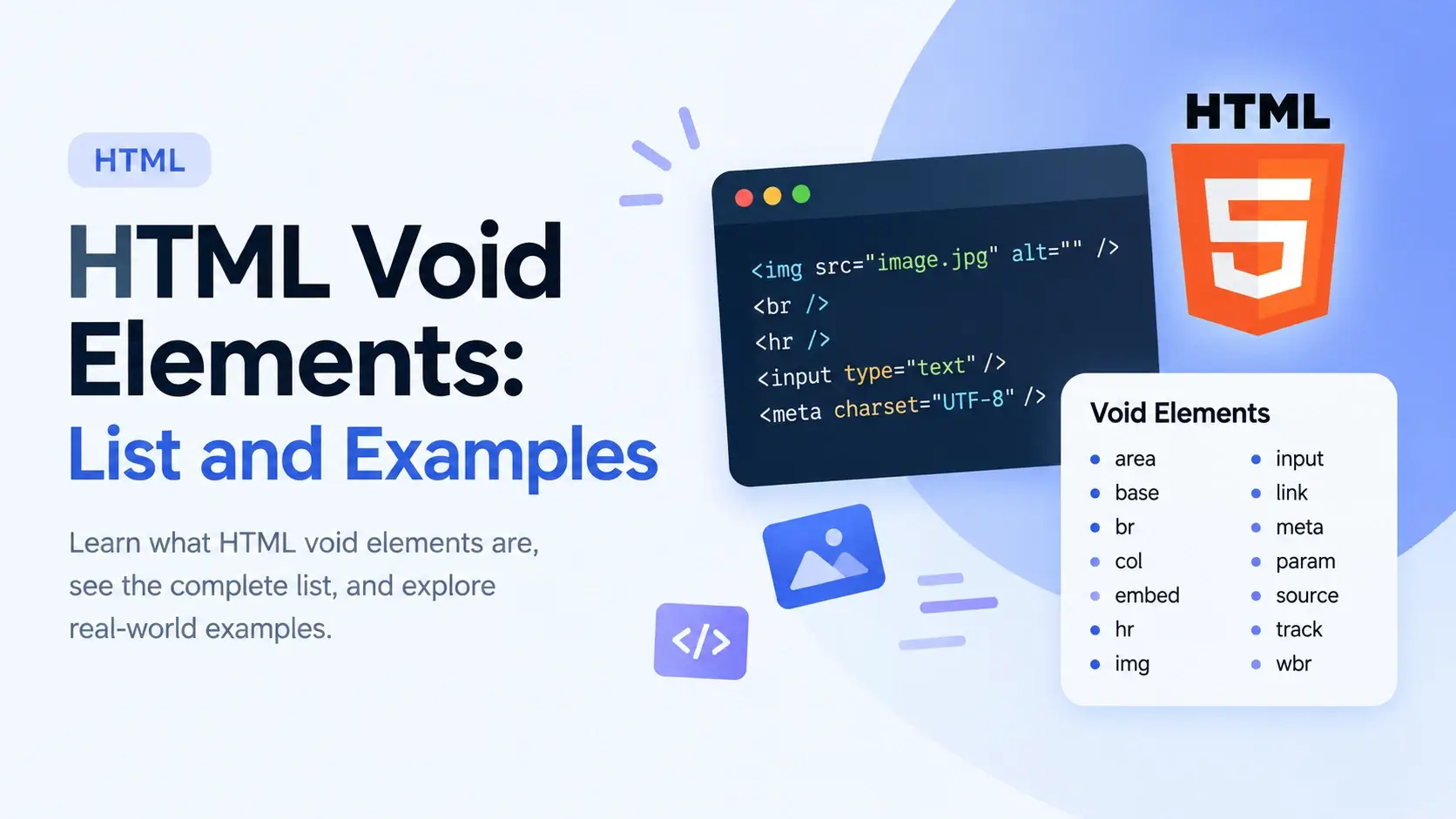
Almost every HTML element comes in pairs: an opening tag and a closing tag, with content in between. But there is a small family of elements that break that pattern. They have no content, no closing tag, and are complete in a single tag.
These are called void elements. In this guide, you will learn what they are, why they exist, the complete list of all 14 of them, how to write them correctly, and the common mistakes beginners make when using them.
What Are Void Elements?
A void element is an element that the HTML specification defines as having no content. Because it has no content, it also has no closing tag. It is complete in a single tag.
Most elements work like this:
<p>Content goes here</p>A void element works like this:
<img src="photo.jpg" alt="A landscape">
There is no </img>. The single tag is the whole element.
The anatomy of a void element
Void elements are not a different kind of element — they are ordinary HTML elements that
the specification declares should never have content. The rule is fixed: you cannot add
content to an <img> or a <br>, no matter what.
Why Do Void Elements Exist?
Void elements exist because some HTML elements represent things that simply do not have content. A line break has no content. An image has no content — its content is the picture file. A form input has no content — it is a control. Metadata has no content.
For these elements, an opening tag and a closing tag would be meaningless. What would go
between <br> and </br>? Nothing. So the spec defines
them as void.
What void elements represent
Breaks
A line break or thematic break — br, hr, wbr.
External resources
Images, embeds, and media — img, embed, source, track.
Form controls
Inputs and related fields — input.
Document metadata
Information about the page — meta, link, base.
Table structure
Column definitions — col.
Image maps
Clickable areas on an image — area.
In every case, the element is a “pointer” to something — a resource, a break, a control, or a piece of metadata. It has no content of its own.
The Complete List of Void Elements
HTML5 has exactly 14 void elements. Every other element in the language has a closing tag. Here is the full list, with a short description of each.
| Element | Purpose | Example |
|---|---|---|
<area> |
Defines a clickable area inside an image map. | <area shape="rect" coords="0,0,80,80" href="..."> |
<base> |
Sets the base URL for all relative URLs in the document. | <base href="https://inarlearn.com/"> |
<br> |
Inserts a line break within text. | <br> |
<col> |
Defines a column inside a table’s column group. | <col span="2"> |
<embed> |
Embeds external content such as a plugin. | <embed src="file.pdf" type="application/pdf"> |
<hr> |
Draws a thematic break — a horizontal rule. | <hr> |
<img> |
Embeds an image. | <img src="photo.jpg" alt="Photo"> |
<input> |
Creates a form control such as a text field or checkbox. | <input type="text"> |
<link> |
Links to an external resource, usually a stylesheet. | <link rel="stylesheet" href="styles.css"> |
<meta> |
Provides metadata about the document. | <meta charset="UTF-8"> |
<source> |
Specifies a media source for picture, video, or audio. |
<source src="movie.mp4" type="video/mp4"> |
<track> |
Adds subtitles or captions to a video or audio element. | <track src="subs.vtt" kind="subtitles"> |
<wbr> |
Suggests an optional line break opportunity. | <wbr> |
<param> |
Defines a parameter for an <object>. Deprecated. |
<param name="autoplay" value="true"> |
That is the entire list. If an element is not on this list, it is not a void element — it has a closing tag. There are no others in HTML5.
The Most Common Void Elements in Detail
Six of the 14 void elements appear on nearly every page you will ever build. Here they are, with full working examples.
<img> — the image element
The <img> element embeds an image from an external file. Its two
required attributes are src (which file) and alt (a text
description).
<img src="https://inarlearn.com/images/photo.jpg"
     alt="A mountain at sunrise"
     width="640"
     height="480">
The alt attribute is critical for accessibility — screen readers read it
aloud, and browsers display it if the image fails to load.
<br> — the line break
The <br> element inserts a line break inside a block of text. It is
useful for addresses, poems, or song lyrics — content where the line breaks are part of
the meaning.
<!DOCTYPE html>
<html lang="en">
<head>
    <meta charset="UTF-8">
    <title>Line Break Example</title>
</head>
<body>
    <p>
        Inar Learn<br>
        123 Example Street<br>
        Dubai, UAE
    </p>
</body>
</html>
Each <br> creates a real line break in the rendered paragraph. Without
them, all the text would appear on one line.
<hr> — the thematic break
The <hr> element represents a thematic break between sections of
content. It renders as a horizontal line by default, but the meaning is semantic — it
marks a shift in topic.
<!DOCTYPE html>
<html lang="en">
<head>
    <meta charset="UTF-8">
    <title>Thematic Break</title>
</head>
<body>
    <p>First section of the page.</p>
    <hr>
    <p>A different section begins here.</p>
</body>
</html>
<input> — the form control
The <input> element creates a form control. Its behavior changes
dramatically based on its type attribute.
<!DOCTYPE html>
<html lang="en">
<head>
    <meta charset="UTF-8">
    <title>Input Types</title>
    <style>
        body { font-family: system-ui, sans-serif; padding: 24px; background: #f8fafc; }
        label { display: block; margin: 10px 0 4px; font-weight: 600; font-size: 14px; }
        input { padding: 7px 11px; border: 1px solid #cbd5e1; border-radius: 8px; font-size: 14px; width: 100%; max-width: 320px; }
    </style>
</head>
<body>
    <label>Text input</label>
    <input type="text" placeholder="Your name">

    <label>Email input</label>
    <input type="email" placeholder="you@inarlearn.com">

    <label>Checkbox</label>
    <input type="checkbox"> Subscribe
</body>
</html>
<meta> — document metadata
The <meta> element lives inside <head> and provides
information about the page — its character encoding, viewport, description, and
so on.
<meta charset="UTF-8">
<meta name="viewport" content="width=device-width, initial-scale=1.0">
<meta name="description" content="A beginner's guide to HTML.">
<link> — external resource link
The <link> element creates a relationship between the current document
and an external resource. It is most commonly used to load a stylesheet.
<link rel="stylesheet" href="styles.css">
<link rel="icon" href="favicon.ico">
Elements like <img>, <video>, and
<iframe> are called replaced elements — their content comes
from an external resource rather than from the HTML itself. Not all replaced elements
are void (<video> has a closing tag), but many void elements are
replaced.
A Closer Look at Each Void Element
Here is the complete set of 14 void elements in a compact reference format, with a working example for each.
A clickable region inside an image map.
<area shape="rect" coords="0,0,80,80" href="#">Sets the base URL for relative links in the document.
<base href="https://inarlearn.com/">A line break inside text.
Line one<br>Line twoDefines a column inside a table’s column group.
<col span="2">Embeds external content into the page.
<embed src="file.pdf" type="application/pdf">A thematic break between sections.
<hr>Embeds an image from a file.
<img src="photo.jpg" alt="Photo">A form control — text field, checkbox, etc.
<input type="text">Links to an external stylesheet or resource.
<link rel="stylesheet" href="styles.css">Provides metadata about the page.
<meta charset="UTF-8">Specifies a media source for a media element.
<source src="movie.mp4" type="video/mp4">Adds subtitles or captions to video/audio.
<track src="subs.vtt" kind="subtitles">A suggested word break opportunity.
super<wbr>cali<wbr>fragilisticDeprecated. Defines a parameter for an object.
<param name="autoplay" value="true">Syntax: With or Without the Trailing Slash
Void elements can be written in two ways. Both are valid HTML5.
<br>
<hr>
<img src="photo.jpg" alt="Photo">
<input type="text"><br />
<hr />
<img src="photo.jpg" alt="Photo" />
<input type="text" />The trailing slash is a legacy of XHTML, which required XML-style self-closing tags. HTML5 keeps the syntax for backward compatibility but does not require it.
Which should you use?
The modern convention is to omit the trailing slash. Most major style guides, the HTML spec itself, and every mainstream code formatter use the shorter form. The trailing slash has no effect on rendering.
<!-- Both of these render identically -->
<br>
<br />

<!-- Both of these are complete elements -->
<img src="photo.jpg" alt="Photo">
<img src="photo.jpg" alt="Photo" />
<br/> and <br /> are both valid. The space is a
cosmetic choice — some developers prefer it for readability. Neither is required.
Self-closing syntax on non-void elements
The trailing slash syntax only works on void elements. Writing
<div /> does not close a div in HTML5 — it is interpreted as
an opening tag with no closing tag, and the browser will try to auto-close it.
<div />

<p>The div above stays open!</p>

<!-- The browser closes the div
at the end of the document. --><div></div>
<p>The div is properly closed.</p>The trailing slash only works on the 14 void elements. On any other element, it does nothing — the element still needs a proper closing tag.
Void Elements vs. Empty Elements
Void and empty are two different concepts. Confusing them is a common beginner mistake.
| Term | Definition | Closing tag? | Example |
|---|---|---|---|
| Void element | Defined by the HTML spec as having no content. | Never | <img>, <br> |
| Empty element | A regular element that happens to have no content. | Always | <div></div>, <p></p> |
A void element cannot have content — it is defined that way. An empty element could have content but happens not to. Both look “empty” on the page, but only one has no closing tag.
<!-- Void: no closing tag exists -->
<br>
<img src="photo.jpg" alt="Photo">

<!-- Empty: opening and closing tags, no content -->
<div></div>
<p></p>A void element is void of both content and a closing tag. An empty element is only void of content.
Void Elements and the DOM
When the browser builds the DOM, each void element becomes a leaf node — a node with no children. This is a direct consequence of the fact that void elements have no content.
Here is a small page and its DOM tree:
<body>
    <img src="photo.jpg" alt="Photo">
    <br>
    <p>A paragraph</p>
</body>
The <img> and <br> are siblings of the
<p>, but they have no children. The <p> has a text
node child.
In JavaScript, you can check whether an element is void by looking at its
children or childNodes property — it will always be empty.
If the browser tries to add a child to a void element — say, from a script — the child is ignored. This is a strong confirmation that void elements genuinely cannot have content.
Common Mistakes with Void Elements
A handful of void-element mistakes come up again and again. Here are the ones to watch for.
1. Adding a closing tag
<br></br>
<hr></hr>
<img src="photo.jpg"></img><br>
<hr>
<img src="photo.jpg" alt="Photo">2. Trying to add content inside a void element
<img src="photo.jpg" alt="Photo">
    This text is ignored.
</img><img src="photo.jpg" alt="Photo">3. Using self-closing syntax on a non-void element
<div />
<span />
<p /><div></div>
<span></span>
<p></p>4. Confusing void elements with empty elements
<!-- Thinking this is a void element -->
<div></div>

<!-- Removing the closing tag -->
<div><!-- div is not void — always closed -->
<div></div>
<!-- br IS void — never closed -->
<br>5. Adding a closing tag to a void element that “needs” one
<input type="text"></input>
<meta charset="UTF-8"></meta><input type="text">
<meta charset="UTF-8">6. Forgetting the alt attribute on images
<img src="team.jpg"><img src="team.jpg" alt="The Inar Learn team">7. Using <br> for spacing instead of margins
<p>First</p>
<br><br><br>
<p>Second</p><p style="margin-bottom: 32px;">
First
</p>
<p>Second</p>The W3C Markup Validation Service will catch every mistake on this list — extra closing tags, self-closing syntax on non-void elements, and structural issues. Running your HTML through it before publishing is a habit worth building.
Best Practices
A few habits make your void elements clean, valid, and easy to maintain.
Never add a closing tag
Void elements are complete in a single tag. Adding </br> or </img> is invalid.
Pick one style and stick with it
Choose either <br> or <br /> and use it consistently across the file.
Always include alt on images
The alt attribute is essential for accessibility and required by the spec.
Use br only for meaningful breaks
Addresses, poems, song lyrics — not for layout. Use CSS margins for spacing.
Keep void elements shallow
Void elements are always leaf nodes. Do not try to nest anything inside them.
Validate your markup
Run your page through the W3C validator to catch void-element errors early.
When in doubt, look at the tag. If it ends with a forward slash before the closing
bracket (like <br />), it is a void element written in XHTML style.
If it does not (like <br>), it is a void element written in modern
style. Either way, there is no closing tag.
Frequently Asked Questions
1. What is a void element in HTML?
A void element is an HTML element that has no content and therefore no closing tag. It
is complete in a single tag. Common examples include <img>,
<br>, <hr>, <input>,
<meta>, and <link>.
2. How many void elements are there in HTML5?
There are 14 void elements in HTML5: area, base,
br, col, embed, hr,
img, input, link, meta,
source, track, wbr, and the deprecated
param.
3. Do void elements need a closing tag?
No. Void elements never have a closing tag. Writing <br></br>
or <img></img> is invalid HTML, even though browsers will
ignore the extra tag.
4. Can void elements contain content?
No. Void elements cannot contain any content, including text or other elements. All their information comes from attributes.
5. Should I use a trailing slash on void elements?
It is optional. Both <br> and <br /> are valid
HTML5. The trailing slash is a legacy of XHTML. Modern HTML convention is to omit it.
6. Is a void element the same as an empty element?
No. A void element is defined by the spec as having no content and no closing tag. An
empty element is a regular element with an opening and closing tag but no content in
between, like <div></div>.
7. Which void elements are most common?
The most common void elements are img, br,
hr, input, meta, and link. These
appear in nearly every HTML document.
8. Can I add a closing tag to a void element anyway?
You can, but you should not. The extra closing tag is ignored by browsers but makes your HTML invalid. Validators will flag it as an error.
9. What is the difference between <br> and <br />?
There is no functional difference. Both produce a line break.
<br /> is XHTML-style syntax that is still valid in HTML5, while
<br> is the modern convention.
10. Why can void elements be self-closing in HTML5?
HTML5 keeps the trailing slash syntax for backward compatibility with XHTML. It is
purely cosmetic — the browser treats <br>,
<br/>, and <br /> the same way.
11. Can void elements have attributes?
Yes. Attributes are how void elements carry all their information. For example,
<img src="photo.jpg" alt="Photo"> uses src and
alt attributes to describe the image.
12. What is a replaced element in HTML?
A replaced element is an element whose content is defined by an external resource
rather than by the HTML itself. Common replaced elements include img,
video, and iframe. Many replaced elements are also void
elements.
Key Takeaways
- A void element is an HTML element with no content and no closing tag — it is complete in a single tag.
- HTML5 has exactly 14 void elements:
area,base,br,col,embed,hr,img,input,link,meta,source,track,wbr, and the deprecatedparam. - Void elements exist because they represent things with no content — a line break, an image, a form control, or metadata.
- The trailing slash (
<br />) is optional. Modern HTML convention is to omit it. - Void elements cannot contain content, and adding a closing tag to them is invalid.
- Void elements are not the same as empty elements. Empty elements have an opening and closing tag but no content.
- In the DOM, every void element is a leaf node with no children.
- Attributes carry all the information a void element needs.
- Self-closing syntax (
<div />) only works on void elements — it does nothing on regular elements. - Always include the
altattribute on<img>, and use<br>only for meaningful line breaks, not for spacing.
What to Learn Next
Now that you understand void elements, the next step is to strengthen your foundational HTML skills. Start with HTML Elements vs Tags and HTML Syntax Explained for the underlying rules.
For deeper coverage, explore HTML Elements, HTML Attributes, and Block vs Inline Elements. To understand how the browser parses and builds the DOM, see How Web Browsers Work and How Websites Work.
Practice Challenge
Build a small HTML page that uses void elements correctly. Your page should include:
- An
<img>element withsrc,alt,width, andheightattributes - Two or three
<br>elements creating a real line break inside a paragraph - An
<hr>element separating two sections - A form with at least three
<input>elements of different types - A
<meta charset="UTF-8">in the head - A
<link rel="stylesheet">to an external stylesheet - At least one
<wbr>in a long word to control word wrapping
Once your page renders, open it in a browser and inspect the DOM with DevTools. Confirm that each void element is a leaf node with no children. Then run the page through the W3C validator — a clean result means your void elements are correctly written.
If you can build a page that uses all the common void elements correctly, you have mastered one of the small but essential details of HTML.

 Inar Learn