
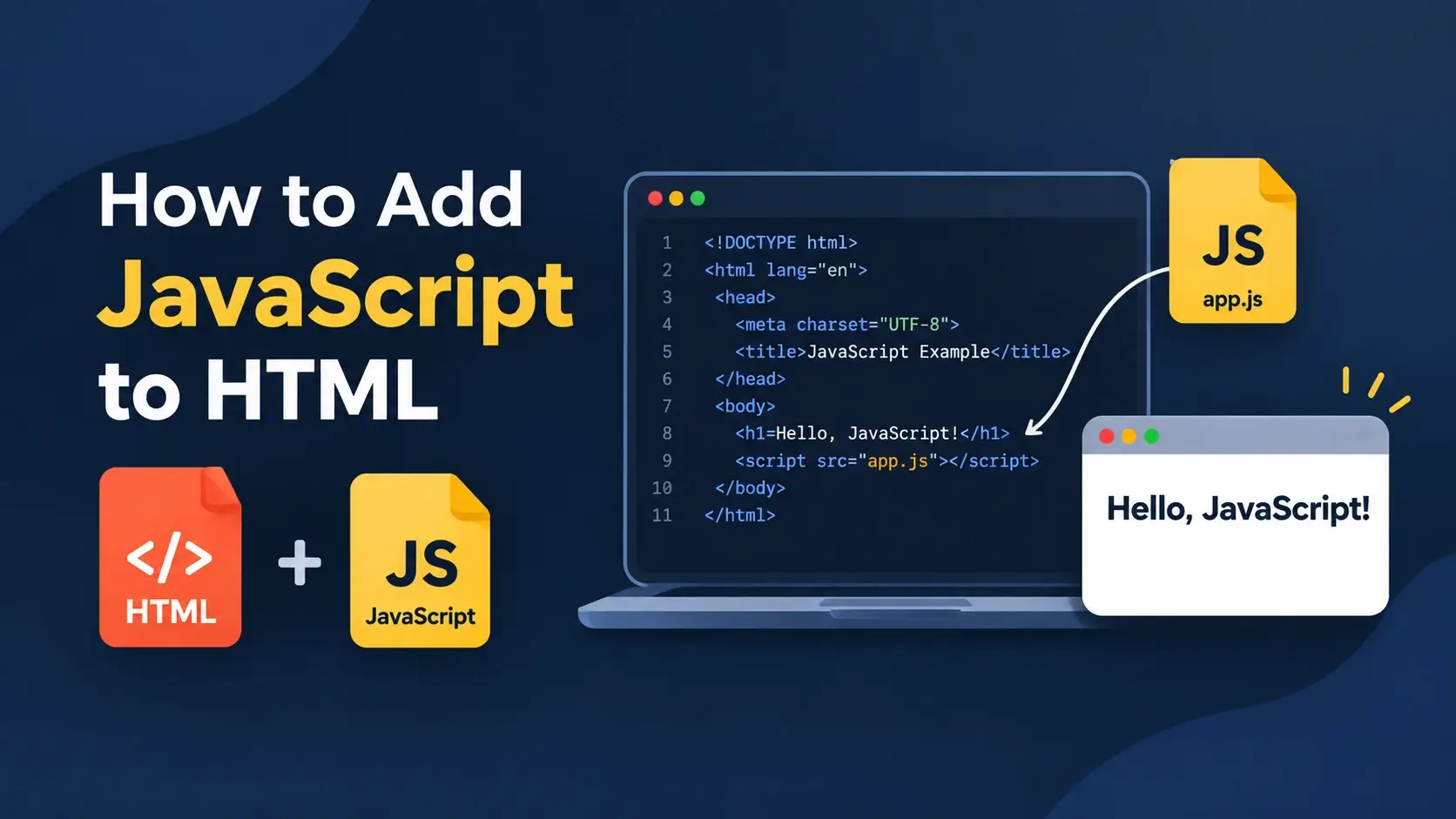
You have written your HTML. You have styled it with CSS. Now you want the page to do something — respond to a click, validate a form, load data from a server. That requires JavaScript, and the first question is always the same: where does it go?
There are three ways to attach JavaScript to an HTML document, plus a fourth option that changes how the browser loads it. Each one has a different effect on parsing, on the cascade of execution, and on how maintainable the codebase turns out to be.
This guide covers all of them: external files, internal script blocks, inline event
handlers, and ES modules — along with script placement, the difference between
async and defer, how to load scripts dynamically, what a Content
Security Policy blocks, and the mistakes that make a script silently fail to run.
<script> element — either pointing at an external file with
src, or containing the code directly — and where you place it determines
whether it blocks parsing or waits for the DOM.
The Three Methods at a Glance
Before the detail, here is the whole picture. All three methods run the same JavaScript. They differ in where the code lives and how much of the page it can reach.
External file
A separate .js file linked with <script src="...">.
Reusable, cacheable, and the standard choice for every real project.
Internal block
Code written directly inside a <script> element.
Applies to that one page only. Good for small scripts and experiments.
Inline handler
JavaScript in an HTML attribute such as onclick="...".
Works, but mixes behavior into markup. Best avoided in new code.
And the fourth option, which is really a variation on the first two:
ES module
<script type="module"> — deferred by default, own scope, supports import.
The way modern applications are structured.
Obsolete attributes
type="text/javascript", language="javascript", and javascript: URLs.
Unnecessary in HTML5 and best removed entirely.
Use an external file for almost everything, an internal block for a small script that belongs to one page, and an inline handler only when nothing else is possible.
The Script Element
Every method centers on the same element. Understanding its attributes makes the rest of the guide straightforward.
Two attributes are worth noting for what they don’t need. The
type attribute is unnecessary in HTML5 — JavaScript is the default. And the
language attribute is long obsolete.
<script type="text/javascript"
        language="javascript"
        src="app.js"></script>

<!-- Every attribute here is
unnecessary or obsolete --><script src="app.js" defer></script>
<!-- One attribute. That is all
you need. -->
Unlike <link> or <img>, a
<script> element cannot be self-closing. Writing
<script src="app.js" /> causes the parser to treat everything after it
as the script’s content, which breaks the rest of the page.
Method 1 — External File
An external script is a separate .js file connected to the
HTML with the src attribute. It is how virtually every real project is built.
The two files
The HTML side
<!DOCTYPE html>
<html lang="en">
<head>
    <meta charset="UTF-8">
    <title>My Page</title>
</head>
<body>
    <h1 id="title">Hello</h1>
    <button id="action">Click me</button>

    <script src="app.js" defer></script>
</body>
</html>
The JavaScript side
The app.js file contains JavaScript and nothing else — no
<script> tag, no HTML wrapper:
// app.js

const title  = document.getElementById('title');
const button = document.getElementById('action');

let clicks = 0;

button.addEventListener('click', function () {
    clicks = clicks + 1;
    title.textContent = 'Clicked ' + clicks + ' time' + (clicks === 1 ? '' : 's');
});
Relative and absolute paths
<!-- Same folder as the HTML file -->
<script src="app.js" defer></script>

<!-- Inside a subfolder -->
<script src="js/app.js" defer></script>

<!-- One folder up -->
<script src="../shared/utils.js" defer></script>

<!-- From the site root (leading slash) -->
<script src="/assets/js/app.js" defer></script>

<!-- From another domain -->
<script src="https://cdn.example.com/lib.js" defer></script>
A missing file produces a 404 in the Network tab and a red error in the console, but the page itself still renders. If your script does not appear to run, check the Network tab first — it will show whether the browser even requested the file.
Why this is the default choice
What you get
The browser caches the file once for the whole site, so every other page loads faster.
Structure and behavior stay separate — the HTML is clean and readable.
Editors provide syntax highlighting, linting, and autocomplete for a real .js file.
What to watch for
One extra network request on the first visit, though it is cached afterward.
A wrong path produces no visual warning — only a console error.
Opening the HTML from file:// may block the request in some browsers.
Method 2 — Internal Script Block
An internal script writes the JavaScript directly inside a
<script> element in the HTML document, with no src
attribute.
<!DOCTYPE html>
<html lang="en">
<head>
    <meta charset="UTF-8">
    <title>Internal Script</title>
    <style>
        body {
            font-family: system-ui, sans-serif;
            padding: 32px;
            background: #f8fafc;
            text-align: center;
            margin: 0;
        }
        h1 { color: #0f172a; margin: 0 0 16px; }
        button {
            padding: 12px 24px;
            border: 0;
            border-radius: 10px;
            background: #0891b2;
            color: #fff;
            font: inherit;
            font-weight: 600;
            cursor: pointer;
        }
        button:hover { background: #0e7490; }
    </style>
</head>
<body>

    <h1 id="message">Click the button</h1>
    <button id="myButton">Click me</button>

    <script>
        // The code lives directly in the HTML document
        const heading = document.getElementById('message');
        const button  = document.getElementById('myButton');

        let clicks = 0;

        button.addEventListener('click', function () {
            clicks = clicks + 1;
            heading.textContent = 'You clicked ' + clicks + ' time' + (clicks === 1 ? '' : 's');
        });
    </script>

</body>
</html>
Notice that the content inside <script> is raw JavaScript — no escaping,
no wrapping. The parser reads it exactly as it would read an external file.
Where it belongs
- At the end of the body — the safest position. The DOM above it is already parsed.
- In the head with
defer— also safe, and runs after parsing. - In the head without
defer— blocks parsing. Avoid unless the script must run before the page renders.
The defer attribute only applies to scripts with a src. An
inline script has nothing to defer — it runs at the moment the parser reaches it, no
matter what attributes it carries.
When internal scripts make sense
- A single-page site. If there is only one page, a separate file adds a request for no benefit.
- Quick experiments. One file, ready to share, no folder structure needed.
- A small page-specific behaviour. A tiny script that only matters on this one document.
- An anti-flash theme script. A few lines in the head that must run before the page renders.
Why use it
No extra request — the code arrives with the HTML.
Everything is in one file, which is convenient for demos and single pages.
Useful for a script that must run before the body renders.
What to watch for
The code cannot be reused by any other page on the site.
It is re-downloaded on every page load instead of being cached.
No separate syntax highlighting or linting from a real .js file.
Method 3 — Inline Event Handlers
An inline handler writes JavaScript directly in an HTML attribute, such as
onclick or onmouseover. It is the oldest way to attach behavior,
and the one to avoid in new code.
<!DOCTYPE html>
<html lang="en">
<head>
    <meta charset="UTF-8">
    <title>Inline Handlers</title>
    <style>
        body {
            font-family: system-ui, sans-serif;
            padding: 32px;
            background: #f8fafc;
            text-align: center;
            margin: 0;
        }
        h1 { color: #0f172a; margin: 0 0 16px; }
        button {
            padding: 12px 24px;
            border: 0;
            border-radius: 10px;
            background: #0891b2;
            color: #fff;
            font: inherit;
            font-weight: 600;
            cursor: pointer;
            margin: 0 4px;
        }
        button:hover { background: #0e7490; }
    </style>
</head>
<body>

    <h1 id="message">Click a button</h1>

    <!-- The JavaScript lives in the attribute -->
    <button onclick="document.getElementById('message').textContent = 'Hello!'">
        Say hello
    </button>

    <button onclick="changeColor()">
        Change color
    </button>

    <script>
        function changeColor() {
            const heading = document.getElementById('message');
            heading.style.color = heading.style.color === 'red' ? '#0f172a' : 'red';
        }
    </script>

</body>
</html>
Both buttons work. The first runs a statement directly; the second calls a function defined in a script block below. That second form — calling a named function — was the standard pattern for years.
Why inline handlers are discouraged
- They mix behavior into markup. Presentation, structure, and behavior all end up in the same file, which undoes the separation the web is built on.
- They cannot be cached. The code is part of the HTML response, so it downloads on every page load.
- They are blocked by strict CSP. A Content Security Policy that forbids inline script disables every one of them with no error visible to the user.
- They are hard to debug. A bug is a fragment of code buried in an attribute, not a named function you can search for.
- They cannot be removed cleanly. Detaching an inline handler means editing the HTML, not calling a function.
- Quoting gets ugly fast. Strings inside strings inside attributes require layered escaping.
Writing a string inside an inline handler means escaping it for HTML, then escaping it again for JavaScript. Something as simple as setting a text value becomes a nest of quotes that is easy to get wrong and hard to read.
The modern replacement
<button onclick="
    document.getElementById('msg')
        .textContent = 'Hi'"
    id="btn">
    Click
</button>

<!-- Behavior is in the markup.
     Hard to find, hard to test,
blocked by strict CSP. --><button id="btn">Click</button>
// In a script:
const btn = document.getElementById('btn');
const msg = document.getElementById('msg');
btn.addEventListener('click', function () {
msg.textContent = 'Hi';
});
// Behavior is in JavaScript where
// it belongs. One listener per element,
// easy to find and easy to remove.
Inline handlers are sometimes used in HTML email, because email clients strip
<script> blocks and ignore external files. Outside that niche, use
addEventListener.
Where to Put the Script Tag
Placement determines whether a script delays parsing, and whether it can find the elements it needs. There are three positions, and they behave differently.
querySelector returns null.
See the difference
The third row is the goal. Parsing runs uninterrupted, and the script runs the moment the DOM is ready. Nothing is delayed and nothing is missed.
<!-- Approach 1: at the end of the body -->
<body>
    <h1>Content</h1>
    <script src="app.js"></script>
</body>

<!-- Approach 2: in the head with defer -->
<head>
    <script src="app.js" defer></script>
</head>

<!-- Both are correct. The second is preferred because
the download starts earlier. -->The browser discovers the file sooner, starts downloading in parallel with the HTML, and still waits until the DOM is ready before running it. There is no downside.
async vs defer vs Nothing
These three attributes control when a script runs relative to parsing. The differences matter most when you have several scripts that depend on each other.
Nothing
<script src=”app.js”>Parser stops. Downloads. Runs. Then parsing resumes.
Order is guaranteed. Everything waits.
async
<script async src=”app.js”>Downloads in parallel. Runs the moment it arrives — even mid-parse.
Order is not guaranteed.
defer
<script defer src=”app.js”>Downloads in parallel. Runs after the DOM is fully parsed.
Order is guaranteed.
| Attribute | Blocks parsing? | When it runs | Order preserved? |
|---|---|---|---|
| (none) | Yes | Immediately, at its position | Yes |
async |
No | As soon as it downloads | No |
defer |
No | After HTML parsing completes | Yes |
type="module" |
No | After parsing, like defer |
Yes |
Order matters with several scripts
<!-- With defer, the order is guaranteed -->
<script src="jquery.js" defer></script>
<script src="plugin.js" defer></script>
<script src="app.js" defer></script>
<!-- jquery runs, then plugin, then app -->

<!-- With async, the order depends on download speed -->
<script src="jquery.js" async></script>
<script src="plugin.js" async></script>
<script src="app.js" async></script>
<!-- If app.js finishes downloading first, it runs first —
     and crashes because jquery does not exist yet. -->
Use async for analytics, ads, and third-party widgets that nothing else
depends on. For your own application code, use defer — it is faster than no
attribute and safer than async.
import or export?
→
type=”module”
ES Modules
A script with type="module" is treated as an ES module. It is the modern way
to structure JavaScript, and it changes several defaults at once.
<script type="module" src="app.js"></script>// utils.js — exports
export function formatPrice(value) {
return '$' + value.toFixed(2);
}
export const TAX_RATE = 0.2;
// app.js — imports
import { formatPrice, TAX_RATE } from './utils.js';
console.log(formatPrice(99.99 * (1 + TAX_RATE)));What modules change
What you get
Automatic defer — modules never block parsing.
Own scope — top-level variables do not leak to window.
Strict mode by default — silent bugs become errors.
Explicit dependencies — a file’s imports tell you what it needs.
Loaded once — a module imported by three files still executes only once.
What to watch for
Must be served over HTTP — file:// is blocked by CORS.
Imports must include the extension: ./utils.js, not ./utils.
Each module is a separate request unless you bundle them.
Older browsers need a nomodule fallback.
Inline modules are also deferred
A module does not have to be an external file. An inline module gets the same treatment — deferred, strict, and scoped.
<script type="module">
    // Deferred automatically, strict mode, own scope
    const heading = document.querySelector('h1');
    heading.textContent = 'Loaded as a module';
</script>
Modules are discovered by following imports. The browser fetches
app.js, parses it, finds it imports utils.js, fetches that,
finds its imports, and so on. Deeply nested modules can create a slow chain of requests,
which is why production builds usually bundle everything into one file.
Loading a Script Dynamically
You can also add a script at runtime, from JavaScript itself. This is how analytics, third-party widgets, and lazy-loaded code are often handled.
// Create the element
const script = document.createElement('script');

// Set its source
script.src = 'https://example.com/widget.js';

// Optional: run it after the page has loaded
script.async = true;

// Optional: something to do when it arrives
script.onload = function () {
    console.log('Script loaded');
};

script.onerror = function () {
    console.error('Script failed to load');
};

// Attach it — the browser fetches and runs it
document.head.appendChild(script);
The moment the element is added to the document, the browser requests the file and runs it
when it arrives. This is exactly what a static <script> tag does — you
are just doing it later, from code.
Loading a script only when needed
function loadScript(src) {
    return new Promise(function (resolve, reject) {
        const script = document.createElement('script');
        script.src = src;
        script.onload = resolve;
        script.onerror = reject;
        document.head.appendChild(script);
    });
}

// Load only when the user opens the chart panel
chartButton.addEventListener('click', async function () {
    await loadScript('https://cdn.example.com/charting.js');
    renderChart();   // now safe to call
});
For your own code, import() is cleaner than creating script elements. It
returns a promise and works from anywhere:
const { renderChart } = await import('./chart.js');
Content Security Policy
A Content Security Policy is an HTTP header that tells the browser which sources of code are allowed to run. It is a security feature — and it is the most common reason a script stops working on a site that used to load fine.
// A typical CSP header
Content-Security-Policy: script-src 'self' https://cdn.example.com
That header says: scripts may only load from your own domain and from
cdn.example.com. Anything else is blocked, and the browser logs an error in
the console.
| Directive | Effect |
|---|---|
'self' |
Only scripts from the same origin as the page |
'none' |
No scripts at all |
'unsafe-inline' |
Allows inline <script> blocks and inline handlers |
'unsafe-eval' |
Allows eval() and the Function constructor |
https://cdn.example.com |
Allows scripts from that specific domain |
'nonce-abc123' |
Allows one specific inline script carrying that nonce |
Without 'unsafe-inline', every inline handler and inline
<script> block is blocked — which is one of the strongest arguments
against both. External files are unaffected.
When you genuinely need one inline script — an anti-flash theme switcher in the head, for
example — a CSP can whitelist exactly that one by nonce. The server
generates a random value per request and adds it as an attribute on the script tag. Every
other inline script stays blocked.
Common Mistakes
Each of these produces a script that silently does nothing, with the real cause hidden in the console. They are the ones that come up most often.
1. A wrong file path
<script src="app.js" defer></script>

<!-- Browser looks in the project root.
     The file is actually at js/app.js.
Result: 404, nothing runs. --><script src="js/app.js" defer></script>Paths are relative to the HTML file, not to the project root. Check the Network tab — if the request is red, the path is wrong.
2. The script runs before the DOM exists
<head>
    <script src="app.js"></script>
</head>
<body>
    <h1 id="title">Hello</h1>
</body>

// app.js:
const title = document.getElementById('title');
title.textContent = 'Changed';h1 has not been parsed yet, so getElementById returns null.
Three fixes, in order of preference: add defer, move the script to the end of
the body, or wrap the code in a DOMContentLoaded listener.
3. Using a self-closing script tag
<script src="app.js" />
<p>This paragraph will not render.</p>

<!-- The parser treats the paragraph
     as the script's content.
Nothing after this point appears. --><script src="app.js"></script>
<p>This paragraph renders normally.</p>4. Adding type=”text/javascript”
<script type="text/javascript" src="app.js">

<!-- Works, but the attribute
     has been unnecessary since
HTML5. --><script src="app.js" defer></script>5. Inline handlers blocked by CSP
<button onclick="save()">Save</button>

<!-- With a CSP lacking 'unsafe-inline',
     the click does nothing at all.
The user sees no error. --><button id="save">Save</button>
// in app.js
document.getElementById('save')
.addEventListener('click', save);6. Loading a module from file://
<script type="module" src="app.js"></script>

<!-- Opening index.html directly from
     the file system fails:

     Access to script at 'file:///...'
     from origin 'null' has been blocked
by CORS policy --># Any local server works
python3 -m http.server 8000
# then visit http://localhost:8000
<script type="module" src="app.js"></script>7. Forgetting the file extension in an import
import { format } from './utils';

// Failed to resolve module specifier
// './utils'. Relative references must
// start with '/', './' or '../' — and
// in the browser, include the extension.import { format } from './utils.js';8. Two scripts that both declare the same variable
<script src="a.js"></script>
<script src="b.js"></script>

// a.js
const user = { name: 'Ada' };

// b.js
const user = { name: 'Grace' };

// SyntaxError: Identifier 'user'
// has already been declared<script type="module" src="a.js"></script>
<script type="module" src="b.js"></script>
// Each module has its own scope.
// No collision, ever.9. Using async when order matters
<script src="jquery.js" async></script>
<script src="plugin.js" async></script>

// If plugin.js downloads first, it
// runs first — and throws because
// jQuery does not exist yet.
// The failure is intermittent,
// which makes it very hard to debug.<script src="jquery.js" defer></script>
<script src="plugin.js" defer></script>
// jquery always runs first,
// then plugin. Every time.10. Placing the script after the closing body tag
</body>
<script src="app.js"></script>
</html>

// Browsers usually tolerate this and
// move the script inside the body,
// but it is invalid HTML and can
// behave inconsistently.<body>
...
<script src="app.js"></script>
</body>
</html>JavaScript, unlike CSS, reports every problem — a 404, a blocked script, a null reference, a name collision. Open DevTools, read the first red message, and it will almost always name the exact file and line.
Best Practices
These habits keep the connection between HTML and JavaScript clean as a project grows.
Keep scripts in their own file
An external .js file, linked once, reused everywhere.
Use defer
It downloads in parallel, runs after parsing, and preserves order.
Put scripts in a folder
A js/ directory keeps paths predictable and the root tidy.
Avoid inline handlers
Use addEventListener instead. It works with CSP and is testable.
Bundle for production
Modules are great in development. Combine them at build time to avoid a request waterfall.
Never put secrets in client JS
Everything in a script file is visible to every visitor. API keys belong on the server.
Use modules for real projects
type="module" gives scope, strict mode, and explicit dependencies.
Name files by purpose
gallery.js and checkout.js, not script2.js.
Check the Network tab first
Before debugging anything, confirm the file was actually requested and returned 200.
One external file, linked with defer from the head, organized with
addEventListener inside, and bundled for production.
Frequently Asked Questions
1. What are the ways to add JavaScript to HTML?
There are three main ways: an external file linked with the src attribute
on a script tag, an internal script block written directly inside a
<script> element, and inline event handlers written as attributes
such as onclick. External files are the recommended approach for almost
every project.
2. Where should I put the script tag?
At the end of the body, or in the head with the defer attribute. Either
approach guarantees the HTML is parsed before the script runs. A plain script tag in
the head without defer pauses parsing and delays the first paint.
3. What is the difference between async and defer?
Both download the script in parallel with parsing. defer waits until the
HTML is fully parsed before running, and preserves the order of multiple scripts.
async runs the script as soon as it finishes downloading, which means the
order is not guaranteed.
4. Is type=”text/javascript” required?
No. In HTML5 the type attribute is unnecessary on a script tag because
JavaScript is the default. The attribute was required in HTML4 and XHTML but should be
omitted in modern code.
5. Why is my external script not working?
The most common causes are a wrong file path in the src attribute, a
missing or misplaced script tag, the file being loaded before the DOM exists, or the
script being blocked by a Content Security Policy. Check the browser console and the
Network tab first.
6. Can I put a script tag in the body?
Yes. Placing the script at the end of the body is a common and valid pattern. It ensures the DOM is fully parsed before the script runs, which means the script can safely query any element on the page.
7. What is an inline event handler?
An inline event handler is JavaScript written directly in an HTML attribute such as
onclick="doSomething()". It works, but it mixes behavior into markup, is
hard to maintain, and is often blocked by Content Security Policy. Modern code uses
addEventListener instead.
8. What is type=”module”?
A script with type="module" is treated as an ES module. It is deferred by
default, runs in strict mode, has its own scope, and supports import and
export statements. It is the modern way to structure JavaScript.
9. Why does my script run before the HTML exists?
A plain script tag in the head without defer runs immediately, before the
parser has reached the body. Any querySelector call returns
null, and the code throws a TypeError. Fix it by using
defer, moving the script to the end of the body, or wrapping the code in a
DOMContentLoaded listener.
10. Can I load a script dynamically?
Yes. Create a script element with document.createElement, set its
src, and append it to the document. The browser fetches and runs it
asynchronously. This is how analytics and third-party widgets are often loaded on
demand.
11. What is a Content Security Policy and why does it block my script?
A Content Security Policy is an HTTP header that tells the browser which sources of scripts are allowed. If inline scripts or a particular domain are not whitelisted, the browser refuses to run them and logs an error in the console.
12. Should I use one large script file or several small ones?
In development, several small files organized by purpose are easier to work with. For production, a build step usually combines them into one file so the browser makes a single request. Loading many separate files directly in production slows the page down.
Key Takeaways
- There are three ways to add JavaScript: external, internal, and inline handlers.
- External files are the default choice — cached, reusable, and lintable.
- A wrong
srcpath fails silently except for a 404 in the Network tab. - Internal scripts belong at the end of the body, or in the head with
defer. - Inline handlers mix behavior into markup and are blocked by strict CSP.
deferdownloads in parallel and runs after parsing, in order.asyncdownloads in parallel and runs whenever it is ready — order not guaranteed.type="module"is deferred by default, strict, and scoped.- Modules require the file extension in imports and will not load from
file://. - Scripts can be loaded dynamically by creating a script element and appending it.
- A Content Security Policy can block inline scripts and third-party domains.
- The
<script>element always needs a closing tag.
What to Learn Next
Now that the script is connected, the next step is the language itself. Start with JavaScript Syntax Explained and What Is JavaScript?.
From there, explore How JavaScript Works for the call stack and the event loop, and How JavaScript Runs in a Browser for the parsing and rendering pipeline. When you are ready to build, read Working with the DOM and JavaScript Events.
If you are still connecting the pieces, read HTML DOCTYPE, How to Add CSS to HTML, and HTML vs CSS for the surrounding context.
Practice Challenge
The fastest way to understand how scripts load is to try each method and watch the difference in DevTools. This exercise takes about twenty-five minutes.
- Create
index.htmlandapp.jsin the same folder. - In the HTML, add a heading with
id="title"and a button withid="action". - In
app.js, write a click handler that updates the heading text with a counter. - Link the script from the end of the body with no attributes. Confirm it works.
- Now move the script to the head with no attributes. Reload and read the console error. Note the exact message.
- Add
deferto the head script. Confirm it works again, and note that the download starts earlier in the Network waterfall. - Change
defertoasync. Reload a few times with the network throttled and observe that the timing varies. - Add a second script
utils.jsthat defines a function the first script calls. Withasyncon both, watch it break intermittently. Switch both todeferand confirm the order is now fixed. - Rewrite both files as ES modules with
type="module"and animportstatement. Confirm they still work. - Break the import deliberately by removing the
.jsextension. Read the module resolution error. - Now break the path: change
src="app.js"tosrc="app.js2". Reload, open the Network tab, and find the 404. - Finally, add an inline
onclickhandler to the button and confirm it works — then think about why you would not ship it that way.
If you complete those steps, you have used all three methods, watched a script fail because
the DOM did not exist yet, seen async produce a race condition, fixed it with
defer, converted everything to modules, and caused two different loading errors
by hand. That sequence — connection, order, failure, fix — is the whole subject of adding
JavaScript to HTML.

 Inar Learn