
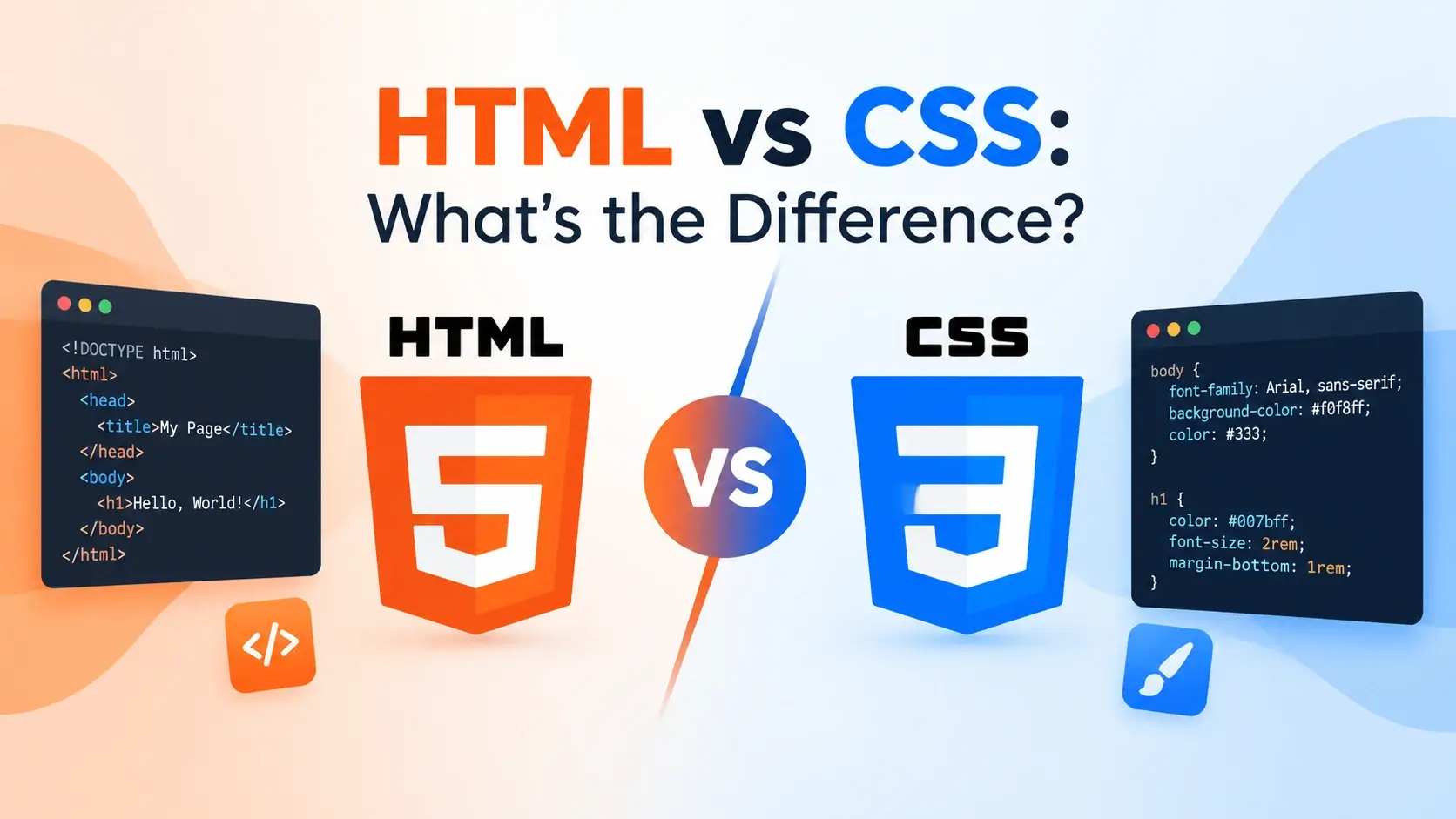
If you have ever opened a webpage’s source code, you have seen them side by side: HTML tags wrapped in angle brackets, and CSS rules full of curly braces and semicolons. They appear in the same file, they are learned together, and beginners often treat them as one subject.
They are not. HTML and CSS are two separate languages with two entirely different jobs, maintained as separate specifications, and understanding the split between them is the single most clarifying idea in front-end development.
The Short Answer
Here is the distinction in its simplest form. HTML answers “what is this?” CSS answers “what should it look like?”
HTML
Structure & MeaningMarks up content so the browser knows what each piece is.
“This is a heading. This is a paragraph. This is a list of links.”
CSS
Presentation & LayoutDescribes how those pieces should be displayed.
“Headings are dark blue and 2rem. Links are teal and underlined on hover.”
The classic analogy is a house. HTML is the bricks, the walls, the rooms, and the doors — the actual structure. CSS is the paint, the flooring, the furniture, and the lighting. You can change every finish in the house without moving a single wall, and you can rearrange the walls without changing a single color.
A second analogy works well for developers: HTML is the data model, CSS is the view layer. One describes what exists; the other describes how it is rendered.
Ask yourself: “if I removed all styling, would this still be meaningful content?” If yes, it belongs in HTML. If it only exists to make something look a certain way, it belongs in CSS.
HTML: The Structure Layer
HTML stands for HyperText Markup Language. It is a markup language, not a programming language — it has no variables, no loops, and no logic. Its only job is to describe the structure and meaning of content.
HTML is written with elements, which are made of an opening tag, some content, and a closing tag:
<h1>A heading</h1>
<p>A paragraph of text.</p>
<img src="photo.jpg" alt="A description">
The tag name is the element’s meaning. <h1> says “this is the most
important heading on the page.” <p> says “this is a paragraph.”
<nav> says “this is a block of navigation links.”
Elements can also carry attributes, which provide extra information:
<a href="/pricing">See pricing</a>
<img src="cat.jpg" alt="A sleeping cat" width="400">
<input type="email" required>
What HTML decides
- What content exists on the page and in what order.
- What each piece of content means — a heading, a list, a table, a form field.
- Where links point and where images come from.
- The document’s metadata: title, description, language, character encoding.
- The hooks — classes and IDs — that CSS and JavaScript attach to.
Crucially, HTML says nothing about appearance. It does not know what color a heading is, how wide a paragraph is, or where anything sits on the screen.
What a page looks like with HTML alone
When a browser loads an HTML file with no CSS at all, it applies its own default stylesheet — the “user agent stylesheet.” Headings are black and bold, paragraphs are plain text with spacing between them, and links are blue and underlined.
This default rendering is why a bare HTML page is still perfectly usable. It is the baseline that CSS builds on top of.
Choosing the right element is not just tidiness. Screen readers, search engines, and
browser features all use the meaning of your tags. A <button> is
keyboard-accessible by default; a <div> styled to look like a button
is not.
CSS: The Presentation Layer
CSS stands for Cascading Style Sheets. Where HTML describes what content is, CSS describes how it should be displayed.
A CSS rule has a selector followed by a block of declarations:
h1 {
    color: #0891b2;
    font-size: 2rem;
    margin-bottom: 16px;
}
Read it as: “for every h1 element, make the text teal, set the size to
2rem, and add 16 pixels of space below.”
What CSS decides
- Typography — font family, size, weight, line height, alignment.
- Color — text, backgrounds, borders, gradients, transparency.
- Layout — where boxes sit, using Flexbox, Grid, or positioning.
- Spacing — padding inside elements, margins between them.
- Effects — shadows, rounded corners, filters, blur.
- Motion — transitions, animations, and transforms.
- Responsiveness — how everything adapts across screen sizes.
- State — how an element looks on hover, focus, or when disabled.
Just as importantly, CSS says nothing about meaning. A rule that colours a heading teal does not change the fact that it is a heading. Styling is entirely separate from semantics.
Like HTML, CSS is declarative. You describe the result you want and the browser works out how to produce it. It has no loops, no functions, and no application state.
Side-by-Side Comparison
Here is the full comparison in one table.
| Aspect | HTML | CSS |
|---|---|---|
| Full name | HyperText Markup Language | Cascading Style Sheets |
| Purpose | Structure and meaning of content | Presentation and layout of content |
| Type of language | Markup language | Style sheet language |
| File extension | .html |
.css |
| Syntax | Tags and attributes in angle brackets | Selectors and declaration blocks in curly braces |
| Example | <p>Hello</p> |
p { color: teal; } |
| Can it be inline? | Yes — elements sit directly in the document | Yes — via the style attribute, but discouraged |
| Affects content | Yes — it is the content | No — it only changes appearance |
| Affects SEO | Directly — semantics, headings, alt text, metadata | Indirectly — through layout stability and responsiveness |
| Required? | Yes — a page cannot exist without it | No — a page works without it, just unstyled |
| Relative difficulty | Small vocabulary, quicker to learn | Large vocabulary, longer to master |
| Learn it | First | Second |
If you remember only one line from that table, make it this: HTML is required, CSS is optional. A page without CSS still works. A page without HTML does not exist.
The Same Page, With and Without CSS
The clearest way to feel the difference is to see it. Below is the same HTML document rendered twice — first with no styling at all, then with a stylesheet attached.
Version 1 — HTML only
This file contains nothing but HTML. No <style> block, no linked
stylesheet, not a single CSS declaration.
<!DOCTYPE html>
<html lang="en">
<head>
    <meta charset="UTF-8">
    <title>No CSS</title>
</head>
<body>
    <h1>My First Page</h1>
    <p>This page has no CSS at all. The browser is using its
    own default styles.</p>
    <ul>
        <li>Headings are bold and black</li>
        <li>Links are blue and underlined</li>
        <li>There is no custom layout</li>
    </ul>
    <p><a href="#">A default link</a></p>
</body>
</html>
Everything is readable and the meaning is completely clear. But it looks like a document from 1995, because it is being rendered by the browser’s built-in stylesheet rather than anything you wrote.
Version 2 — the same HTML, plus CSS
The HTML below is almost identical. The only additions are a
<style> block in the head and a class on one element.
<!DOCTYPE html>
<html lang="en">
<head>
    <meta charset="UTF-8">
    <title>With CSS</title>
    <style>
        body {
            font-family: system-ui, sans-serif;
            background: #f8fafc;
            padding: 32px;
            line-height: 1.7;
            max-width: 620px;
            margin: 0 auto;
        }
        h1 {
            color: #0891b2;
            font-size: 2rem;
            margin: 0 0 16px;
        }
        p { color: #475569; }
        ul {
            background: #fff;
            border: 1px solid #e2e8f0;
            border-radius: 12px;
            padding: 20px 20px 20px 40px;
            list-style: none;
        }
        li {
            padding-left: 24px;
            position: relative;
            margin-bottom: 8px;
        }
        li::before {
            content: "✓";
            position: absolute;
            left: 0;
            color: #16a34a;
            font-weight: 700;
        }
        a {
            color: #7c3aed;
            font-weight: 600;
            text-decoration: none;
            border-bottom: 2px solid #7c3aed;
        }
    </style>
</head>
<body>
    <h1>My First Page</h1>
    <p>This page has CSS applied. The HTML content is identical.</p>
    <ul>
        <li>Headings are teal and larger</li>
        <li>Links are purple with a custom underline</li>
        <li>The list sits in a styled card</li>
    </ul>
    <p><a href="#">A styled link</a></p>
</body>
</html>
Same content. Same words. Same structure. A completely different impression.
This is the entire point of the split. The HTML describes what the page contains and the CSS decides how it is presented. Neither one is doing the other’s job.
Notice that the second version did not change a single word of the content. It only
added a <style> block and one class attribute. That is
what “separation of concerns” looks like in practice.
How HTML and CSS Connect
HTML and CSS are independent, but they need a way to find each other. That connection happens through three mechanisms, and understanding them makes the relationship concrete.
1. The link element
An external stylesheet is attached with a <link> in the document head.
This is the connection point between the two files:
<head>
    <link rel="stylesheet" href="styles.css">
</head>
2. Classes and IDs — the hooks
HTML marks up elements with class and id attributes. CSS uses
those as selectors. They are the shared vocabulary between the two languages:
<article class="card" id="featured">
    <h2 class="card__title">Hello</h2>
</article>
.card { border-radius: 16px; }
.card__title { color: #0891b2; }
#featured { border: 2px solid #7c3aed; }
Nothing in the HTML says what a .card looks like, and nothing in the CSS says
what a .card contains. The class name is simply the agreed meeting point.
3. Element selectors
CSS can also target HTML elements directly by tag name, with no classes involved:
h1 { font-size: 2rem; }
p  { line-height: 1.7; }
a  { color: #0891b2; }
This works because the tag names are part of the HTML vocabulary. It is the loosest form of connection between the two languages.
Think of class attributes as sockets in the HTML and CSS selectors as
plugs. Nothing connects until the names match, which is why a typo in either file
produces silently broken styling.
Why the Separation Matters
Keeping structure in HTML and presentation in CSS is not a stylistic preference. It has concrete consequences for how a project scales.
One stylesheet, many pages
A single CSS file can style an entire website. A change to the brand color happens in one place instead of on every page.
Reskin without rewriting
The same HTML can be presented as a desktop layout, a print layout, or a high-contrast accessible layout just by swapping CSS.
Cache once, use everywhere
Browsers cache external stylesheets. Visitors download the CSS once and every subsequent page loads faster.
There is also a maintenance argument. When a page mixes presentation into its markup — old
<font> tags, bgcolor attributes, inline styles on every
element — a redesign means editing every file by hand. When the two are separated, a
redesign means editing one stylesheet.
An example: the same HTML, two themes
Because the styles live in variables rather than in the markup, the exact same HTML can produce two completely different presentations:
/* Light theme */
:root {
    --bg: #ffffff;
    --text: #0f172a;
    --accent: #0891b2;
}

/* Dark theme — same HTML, different values */
@media (prefers-color-scheme: dark) {
    :root {
        --bg: #0b1020;
        --text: #e2e8f0;
        --accent: #22d3ee;
    }
}

body {
    background: var(--bg);
    color: var(--text);
}
The HTML never changes. Only the CSS does. That is the payoff of keeping them apart.
It breaks the moment you write <h1 style="color: red"> or give an
element a class named .red-text. Inline styles and appearance-based class
names pull presentation back into the structure, and the benefits start to disappear.
What Each Language Can and Cannot Do
Another way to see the difference is to look at the edges of each language.
Can do
Create headings, paragraphs, lists, tables, links, images, forms, and semantic sections.
Give content meaning that search engines and screen readers can interpret.
Provide the classes and IDs that CSS and JavaScript hook into.
Cannot do
Set colors, fonts, or spacing in a modern, valid way.
Build a layout, a grid, or a responsive design.
Animate anything, or respond to hover and focus states.
Can do
Control every visual aspect of an element: type, color, size, spacing, and position.
Build complex responsive layouts with Flexbox and Grid.
Animate, transform, and adapt to user preferences like dark mode.
Cannot do
Create content. There is no text, image, or heading that exists only in CSS.
Change what an element means — a styled div is still a div.
Perform logic, fetch data, or manage application state.
The boundary is clean: HTML owns content and meaning, CSS owns appearance, and JavaScript owns behavior. Anything you find yourself trying to do that crosses those lines is usually a sign you are using the wrong tool.
Common Confusions and Myths
A handful of misunderstandings cause beginners to blur the two languages together. Here are the ones that come up most.
-
“CSS is part of HTML.” They are separate languages with separate
specifications. CSS can be written inside an HTML file, but that is just a
delivery method, like JavaScript in a
<script>tag. The language itself is independent — it also styles SVG and XML. -
“You can style a page with HTML.” Old HTML had presentational tags
like
<font>and<center>, and attributes likebgcolor. All of them are deprecated, and none of them can build a modern layout. Presentation belongs in CSS. - “HTML is a programming language.” It is a markup language. There is no logic, no branching, and no state. Neither HTML nor CSS is a programming language, and that is not a criticism — they are not meant to be.
- “They are basically the same thing.” The only thing they share is that they both appear in web pages. Their syntax, their purpose, their file formats, and the skills required to use them are entirely different.
- “You only need one of them.” You need HTML to have a page at all. You need CSS to make that page presentable, usable on mobile, and on-brand. Real projects use both.
- “CSS is the easy one.” HTML has a small, stable vocabulary. CSS has hundreds of properties, a cascade with specificity rules, and a layout system that takes real time to master. Most developers find CSS the harder of the two.
If a change would alter the meaning of the page — what it says, what it contains, what it links to — it belongs in HTML. If it would only alter how the page appears, it belongs in CSS.
Which Should You Learn First?
If you are starting from zero, the order is straightforward: learn HTML first.
The reason is structural rather than arbitrary. CSS selects and styles HTML elements, so you cannot write a meaningful selector without knowing what elements exist. Trying to learn CSS before HTML is like learning to paint before you have a surface to paint on.
A practical learning order
In practice, most beginners cover the essentials of HTML in a few days and then spend the next several weeks — realistically, months — getting comfortable with CSS. The two overlap constantly, so you will keep picking up more HTML as you go.
What to learn in each
HTML essentials
Document structure, headings, paragraphs, lists, links, images, tables, forms, and semantic elements.
CSS essentials
Selectors, the box model, color, typography, the cascade, Flexbox, Grid, and media queries.
As soon as you can write a heading and a paragraph, start styling them. Building a small page from scratch — HTML first, then CSS — teaches the split between the two far better than reading about it.
The Same Element, Two Languages
The clearest illustration is a single element viewed from both sides. Below is one button, written in HTML, then styled in CSS.
The HTML — what it is
<button class="btn" type="button">
    Save changes
</button>
That markup says exactly three things: this is a button, it has the class
btn for styling, and its label is “Save changes.” Nothing about appearance.
The CSS — how it looks
.btn {
    background: #0891b2;
    color: #ffffff;
    font-family: inherit;
    font-size: 0.95rem;
    font-weight: 600;
    padding: 12px 24px;
    border: 0;
    border-radius: 10px;
    cursor: pointer;
    transition: background 0.2s ease, transform 0.2s ease;
}

.btn:hover {
    background: #7c3aed;
    transform: translateY(-2px);
}

.btn:focus-visible {
    outline: 2px solid #7c3aed;
    outline-offset: 3px;
}
That CSS says nothing about what the element is. Change the class and the same styles apply to a link, or a div, or anything else. The two languages are in completely different business — one declares meaning, the other declares appearance.
Together
<!DOCTYPE html>
<html lang="en">
<head>
    <meta charset="UTF-8">
    <title>HTML + CSS</title>
    <style>
        body {
            font-family: system-ui, sans-serif;
            background: #f8fafc;
            padding: 40px;
            text-align: center;
        }
        .btn {
            background: #0891b2;
            color: #fff;
            font: inherit;
            font-weight: 600;
            padding: 12px 24px;
            border: 0;
            border-radius: 10px;
            cursor: pointer;
            transition: background 0.2s ease, transform 0.2s ease;
        }
        .btn:hover {
            background: #7c3aed;
            transform: translateY(-2px);
        }
    </style>
</head>
<body>
    <button class="btn" type="button">Save changes</button>
</body>
</html>
The HTML did its job — it defined a real, accessible, keyboard-focusable button. The CSS did its job — it made that button look like it belongs in a modern interface. Neither could have done the other’s work.
Common Mistakes When Learning the Difference
These are the habits that blur the line between structure and presentation. Catching them early saves a lot of rework later.
1. Styling with deprecated HTML tags
<center>
    <font color="red" size="5">
        Welcome
    </font>
</center><!-- HTML -->
<h1 class="welcome">Welcome</h1>
/* CSS */
.welcome {
color: red;
font-size: 1.5rem;
text-align: center;
}2. Putting presentation in class names
<div class="red-big-box">
    <div class="blue-text">Alert!</div>
</div><div class="alert">
<div class="alert__message">Alert!</div>
</div>3. Using inline styles everywhere
<p style="color:#0891b2;
          font-size:16px;
          margin-bottom:12px;">
    Text
</p><p class="lead">Text</p>
/* In the stylesheet */
.lead {
color: #0891b2;
font-size: 1rem;
margin-bottom: 12px;
}4. Using divs where semantic elements exist
<div class="header">
    <div class="nav">...</div>
</div>
<div class="main">...</div><header>
<nav>...</nav>
</header>
<main>...</main>5. Trying to change content with CSS
<div class="price"></div>

.price::after {
    content: "$49 per month";
}<div class="price">
$49 per month
</div>
Text written with content: is invisible to screen readers and search engines
in most contexts, cannot be selected or translated reliably, and disappears entirely if
the CSS fails to load.
6. Linking CSS in the wrong place
<body>
    <link rel="stylesheet" href="styles.css">
    <h1>Hello</h1>
</body><head>
<link rel="stylesheet" href="styles.css">
</head>
<body>
<h1>Hello</h1>
</body>The W3C Markup Validation Service checks HTML, and the W3C CSS Validation Service checks CSS. Running both catches errors that browsers silently ignore — which is most of them.
Best Practices
These habits keep the boundary between the two languages clean as a project grows.
Keep CSS in its own file
Link one external stylesheet from the head instead of scattering inline styles.
Write semantic HTML first
Choose elements for meaning, not for their default appearance.
Name classes by purpose
.alert and .card survive redesigns; .red and .left do not.
Avoid inline styles
They cannot be reused, are hard to override, and mix presentation into markup.
Keep specificity low
Favour single class selectors over IDs and long descendant chains.
Set box-sizing globally
* { box-sizing: border-box; } removes an entire class of sizing bugs.
Prefer relative units
rem, em, and % scale with user settings.
Never trade semantics for looks
Use the right element and style it — not the wrong element disguised with CSS.
Validate both languages
HTML and CSS both fail silently. A validator is the fastest way to catch mistakes.
Put meaning in HTML, appearance in CSS, and behavior in JavaScript — and never let one do another’s job.
Frequently Asked Questions
1. What is the main difference between HTML and CSS?
HTML defines the structure and meaning of content — headings, paragraphs, images, and links. CSS defines how that content looks — its colors, fonts, spacing, layout, and responsiveness. HTML is the structure; CSS is the presentation.
2. Is CSS part of HTML?
No. They are two separate languages with separate specifications. CSS can be written inside an HTML file, but that is only a delivery method — the language itself is independent and can also be used with SVG, XML, and other markup.
3. Can I use CSS without HTML?
CSS needs something to style, so it is normally used with HTML or XML. It cannot display content on its own. However, it can style SVG, XML documents, and other markup, so HTML is not strictly required.
4. Can I use HTML without CSS?
Yes. A plain HTML page displays all of its content using the browser’s default styles. It is readable but unstyled, with no custom colors, fonts, or layout.
5. Which one should I learn first, HTML or CSS?
Learn HTML first. CSS selects and styles HTML elements, so you need to understand tags, attributes, and document structure before styling makes sense. Most learners pick up the basics of HTML in a few days and then start CSS.
6. Is HTML a programming language?
No. HTML is a markup language. It describes the structure and meaning of content but has no logic, variables, loops, or conditionals. CSS is a style sheet language, and it is also not a programming language.
7. Is CSS harder than HTML?
CSS is generally considered harder to master. HTML has a relatively small set of elements to learn, while CSS has hundreds of properties and a more complex system of cascading, specificity, and layout that takes longer to become fluent in.
8. Can I put CSS inside HTML?
Yes, in two ways: an internal <style> block inside the
<head> element, or inline styles on individual elements using the
style attribute. Both work, but external stylesheets are preferred for
real projects.
9. Can I style a page using HTML alone?
Not properly. Old HTML had presentational tags such as <font> and
<center>, and attributes such as bgcolor, but these
are deprecated. Presentation belongs in CSS.
10. Which one matters more for SEO?
HTML matters more directly, because semantic elements, headings, alt text, and metadata give search engines the meaning of the page. CSS matters indirectly through Core Web Vitals such as layout stability and responsiveness.
11. Do HTML and CSS use the same syntax?
No. HTML uses tags wrapped in angle brackets with attributes, such as
<a href="#">. CSS uses selectors followed by declaration blocks of
property and value pairs inside curly braces.
12. Can I learn HTML and CSS at the same time?
You can, and many beginners do. A common approach is to learn the core HTML elements first, then start styling them with CSS while continuing to pick up more HTML as you go.
Key Takeaways
- HTML defines structure and meaning; CSS defines appearance and layout.
- HTML is required for a page to exist; CSS is optional but nearly always used.
- They are separate languages with separate syntax, files, and specifications.
- A page without CSS still works, using the browser’s default stylesheet.
- CSS connects to HTML through
<link>, classes, IDs, and element selectors. - Separating them means one stylesheet can style an entire website.
- Neither HTML nor CSS is a programming language; both are declarative.
- HTML cannot build layouts, and CSS cannot create content.
- Learn HTML first, then CSS, then layout and responsive design.
- Avoid deprecated presentational tags, inline styles, and appearance-based class names.
What to Learn Next
Now that the distinction is clear, the natural next step is to go deeper on each language separately. Start with HTML File Structure and What Is CSS? A Beginner’s Guide.
From there, explore HTML Syntax Explained, CSS Selectors Explained, and The CSS Box Model. When you are ready to build real layouts, read CSS Flexbox Guide and CSS Grid Guide, then move on to Responsive Web Design.
If you want the bigger picture of how these pieces fit together, read How Web Browsers Work.
Practice Challenge
The fastest way to internalize the HTML/CSS split is to build the same page twice. This exercise takes about fifteen minutes.
- Create
index.htmlandstyles.cssin the same folder. - Write the HTML for a small page: a heading, two paragraphs, a list of three items, and a link. Use only semantic elements — no
<div>wrappers yet. - Open it in a browser. Note how it looks with no styling at all.
- Add
<link rel="stylesheet" href="styles.css">to the head. - In the stylesheet, style the body with a font family, a background color, and padding.
- Style the heading with a color and a
font-sizeinrem. - Give the paragraphs a
max-widthinchand a comfortableline-height. - Style the list with a custom marker using
::before. - Give the link a
:hoverstate with a transition. - Finally, inspect the page in DevTools and confirm that not one word of the HTML content changed.
When you finish, you will have a page whose meaning lives entirely in HTML and whose appearance lives entirely in CSS — which is exactly the answer to the question this guide set out to answer. Once you have felt that separation in your own code, it stops being a definition you memorized and becomes a habit you build with.

 Inar Learn