
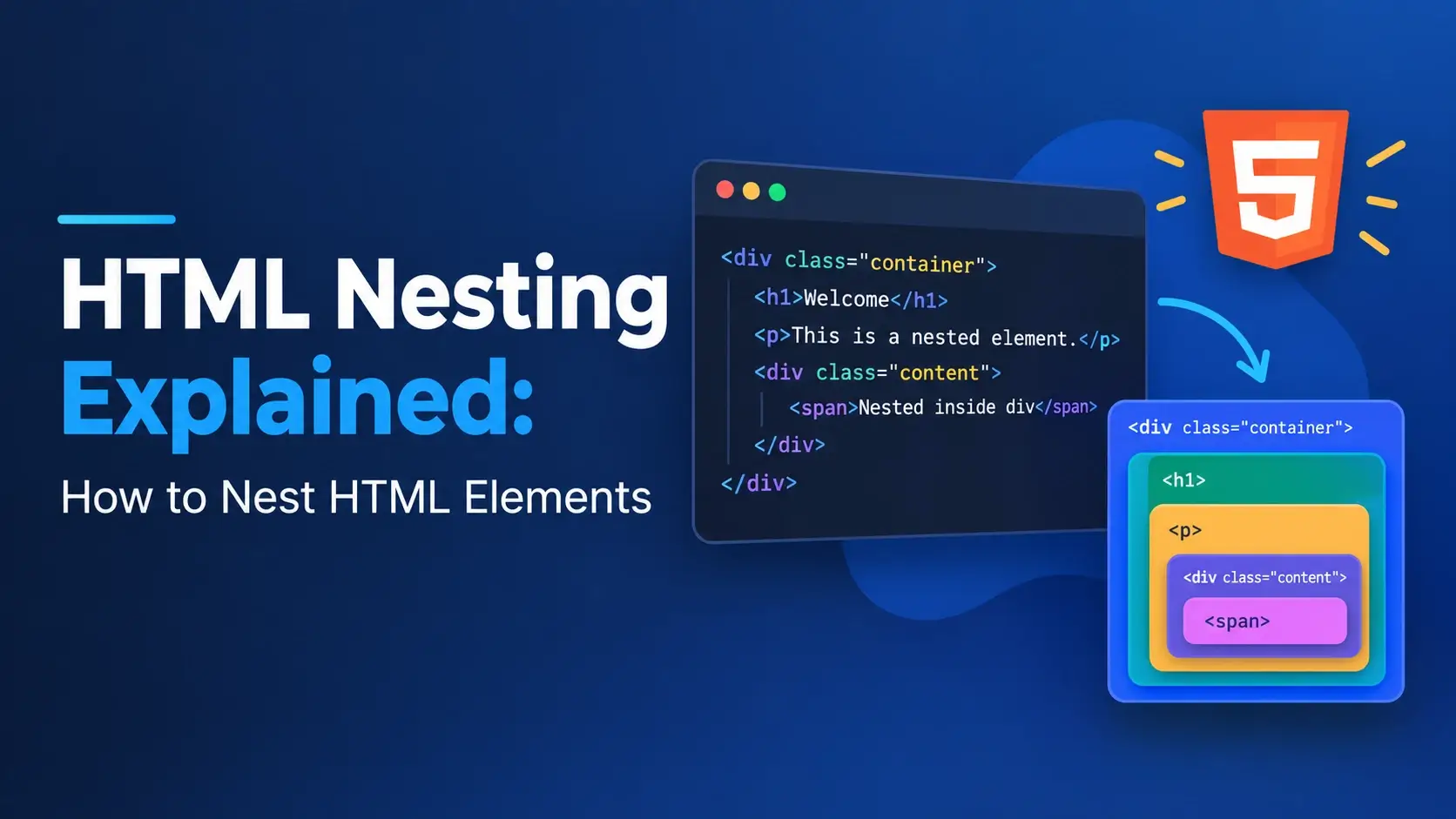
Almost every real HTML page you will ever write uses nesting. A heading inside a section, a paragraph inside a div, a bold word inside a paragraph — this is how HTML organizes content into a meaningful tree.
In this guide, you will learn the HTML nesting rule, the parent-child-sibling relationships, how the browser turns your nested markup into a DOM tree, which elements can and cannot be nested inside each other, and the mistakes that most beginners make. Every concept comes with a live, runnable example.
What Is HTML Nesting?
Nesting is the practice of putting one HTML element inside another. The outer element contains the inner element. This is how a simple document grows into a hierarchy of content — sections inside a body, headings inside a section, emphasis inside a paragraph.
<!DOCTYPE html>
<html lang="en">
<head>
    <meta charset="UTF-8">
    <title>A Nested Page</title>
</head>
<body>
    <article>
        <h1>Welcome</h1>
        <p>
            This paragraph contains a <strong>bold word</strong>
            nested inside it.
        </p>
    </article>
</body>
</html>
Look closely and you can see several levels of nesting:
- The
<body>contains an<article> - The
<article>contains an<h1>and a<p> - The
<p>contains a<strong>
Every element is inside another element, except for the outermost one. That is nesting.
If you can answer “what contains what?” you understand nesting. The browser’s job is to build a tree from that containment relationship.
The Golden Rule of Nesting
Every HTML element has two tags: an opening tag and a closing tag (except for void elements). When you nest elements, the closing tags must appear in the exact reverse order of the opening tags.
This is called the LIFO rule — last in, first out. The most recently opened element must be closed first.
<article>
    <h1>Title</h1>
    <p>
        <strong>Important</strong>
    </p>
</article><article>
<h1>Title</h1>
<p>
<strong>Important</p>
</strong>
</article>
In the incorrect version, the <p> closes before the
<strong>. The two elements overlap instead of nesting cleanly.
Visualizing the rule
Read from left to right, the sequence is: open, open, close, close. The inner element opens second and closes first.
When tags overlap, the browser has to guess what you meant. It will rearrange the tree to recover, but the result will not match what you wrote. This can break CSS selectors, JavaScript lookups, and accessibility.
Parent, Child, and Sibling
HTML nesting uses family tree terminology. Understanding these three words makes it much easier to describe relationships in any HTML document.
- Parent
- The element that directly contains another element.
- Child
- An element that is directly contained by another element.
- Sibling
- Two elements that share the same parent.
- Ancestor
- Any element that contains a given element, at any depth.
- Descendant
- Any element contained by a given element, at any depth.
Here is the same vocabulary applied to a small HTML snippet:
<!DOCTYPE html>
<html lang="en">
<head>
    <meta charset="UTF-8">
    <title>Family Tree</title>
</head>
<body>
    <main>
        <h1>Page Title</h1>
        <p>
            A paragraph with a <strong>bold</strong> word.
        </p>
    </main>
</body>
</html>
In that example:
<main>is the parent of<h1>and<p>.<h1>is a child of<main>.<h1>and<p>are siblings — they share the same parent.<strong>is a descendant of<main>, and<main>is an ancestor of<strong>.
CSS selectors and JavaScript traversals use these terms constantly. When you read about “the parent element” or “a child node,” you will know exactly what is meant.
Nesting and the DOM Tree
The browser reads your HTML and builds a tree structure called the DOM (Document Object Model). Each element becomes a node, and nested elements become children of their parent.
Take this small snippet:
<main>
    <h1>Title</h1>
    <p>
        A <strong>bold</strong> word.
    </p>
</main>
The browser builds a tree that looks like this:
The <main> element is at the top. Its children are
<h1> and <p>. The <p> has one
child: <strong>.
Why the DOM matters
The DOM is what CSS styles and what JavaScript interacts with. When you select
document.querySelector("p strong"), you are telling JavaScript to traverse
this tree and find a <strong> inside a <p>.
If your nesting is wrong, the tree is wrong — and everything that depends on the tree (styling, scripts, screen readers, search engines) will behave unpredictably.
The DOM is built from your HTML, but the two can differ. If the browser fixes up your markup (because of bad nesting), the DOM will show the corrected version — not the markup you wrote.
Correct Nesting in Practice
Real HTML is a stack of nested elements. Here are common patterns you will see again and again.
Sections inside main
<!DOCTYPE html>
<html lang="en">
<head>
    <meta charset="UTF-8">
    <title>Nested Sections</title>
</head>
<body>
    <main>
        <section>
            <h2>Introduction</h2>
            <p>The intro paragraph.</p>
        </section>
        <section>
            <h2>Details</h2>
            <p>More information here.</p>
        </section>
    </main>
</body>
</html>
Lists inside list items
<!DOCTYPE html>
<html lang="en">
<head>
    <meta charset="UTF-8">
    <title>Nested Lists</title>
</head>
<body>
    <ul>
        <li>
            Front-end
            <ul>
                <li>HTML</li>
                <li>CSS</li>
                <li>JavaScript</li>
            </ul>
        </li>
        <li>
            Back-end
            <ul>
                <li>Node.js</li>
                <li>Python</li>
            </ul>
        </li>
    </ul>
</body>
</html>
Notice how each nested list is inside its parent list item, and every element closes in the correct order.
Anchors inside paragraphs
<!DOCTYPE html>
<html lang="en">
<head>
    <meta charset="UTF-8">
    <title>Nested Anchors</title>
</head>
<body>
    <p>
        Visit <a href="https://inarlearn.com">Inar Learn</a>
        to explore the HTML guide.
    </p>
</body>
</html>
Tables with nested structure
<!DOCTYPE html>
<html lang="en">
<head>
    <meta charset="UTF-8">
    <title>Nested Table Structure</title>
</head>
<body>
    <table>
        <thead>
            <tr>
                <th>Name</th>
                <th>Role</th>
            </tr>
        </thead>
        <tbody>
            <tr>
                <td>Inar Learn</td>
                <td>Web Development Education</td>
            </tr>
        </tbody>
    </table>
</body>
</html>
Tables are one of the deepest nesting patterns in everyday HTML — <table>
contains <thead>, which contains <tr>, which contains
<th>. Every level is properly closed before its parent.
Notice how each nested level is indented further than its parent. Indentation has no effect on rendering, but it makes the nesting hierarchy instantly visible.
Block Elements vs. Inline Elements
Not every element can contain every other element. There is a general rule based on whether an element is “block-level” or “inline.”
| Type | Behavior | Examples | Can contain |
|---|---|---|---|
| Block | Starts on a new line; takes full width | <div>, <p>, <section>, <h1> |
Block and inline elements (with rules) |
| Inline | Flows within text; only takes needed width | <span>, <strong>, <em>, <a> |
Other inline elements |
Block inside inline: not allowed
In general, a block element cannot be placed inside an inline element. The following is invalid:
<span>
    <div>A block element</div>
</span><div>
<span>An inline element</span>
</div>
Some browsers will still render the first example, but it is invalid HTML. The
<div> will be moved outside the <span> when the
browser builds the DOM.
Inline inside block: perfectly fine
Putting an inline element inside a block element is standard, valid nesting — and it is what happens constantly in real HTML:
<!DOCTYPE html>
<html lang="en">
<head>
    <meta charset="UTF-8">
    <title>Inline Inside Block</title>
</head>
<body>
    <p>
        This is a paragraph with
        <strong>bold text</strong>,
        <em>italic text</em>, and a
        <a href="https://inarlearn.com">link</a>
        all nested inside.
    </p>
</body>
</html>
In HTML5, an anchor element <a> is allowed to wrap block-level content
— such as a card with a heading and a paragraph. This was invalid in HTML4 but is valid
today. Use it carefully, however, since it can create accessibility issues.
Content Models: What Each Element Can Contain
HTML has formal rules about what each element may contain. These are called content models. They are more precise than the block/inline distinction.
Flow content
Most elements belong to this category. It includes headings, paragraphs, lists, tables, and text — almost anything that can appear in the body.
Phrasing content
Text-level content. Includes span, strong, em, a, code, and text itself. Fits inside sentences.
Heading content
Headings only — h1 through h6 and hgroup. They contain phrasing content.
Sectioning content
article, section, nav, and aside. Each defines a new section in the document outline.
Embedded content
img, video, audio, iframe, canvas. External resources embedded in the page.
Interactive content
a, button, input, select, textarea. Designed for user interaction.
The rules matter when you nest. For example, a <p> element can contain
phrasing content but not sectioning content. That is why you cannot put a
<div> or a <section> inside a paragraph.
Example: what a paragraph can contain
<p>
    Text with <strong>bold</strong>
    and <em>italic</em>.
</p><p>
Text with
<div>a block element</div>
</p>
The invalid example will be fixed by the browser: the <p> will close
before the <div>, and the paragraph will contain only the text before it.
Browsers almost never complain about bad nesting. They simply fix it silently and render a page. The DOM will not match your markup, and the resulting bugs can be extremely hard to diagnose. Use a validator to catch these early.
Common Invalid Nesting Patterns
A handful of invalid nesting patterns appear in beginner code constantly. Here are the ones to watch for.
1. Anchor inside anchor
<a href="https://inarlearn.com">
    Visit <a href="https://inarlearn.com/inar-guides/web-development-guide/html-guide/">the guide</a>
</a><p>
<a href="https://inarlearn.com">Home</a>
<a href="https://inarlearn.com/inar-guides/web-development-guide/html-guide/">HTML Guide</a>
</p>2. Block element inside a paragraph
<p>
    Intro text
    <div>A block element</div>
</p><p>Intro text</p>
<div>A block element</div>3. List item outside a list
<li>Item one</li>
<li>Item two</li><ul>
<li>Item one</li>
<li>Item two</li>
</ul>4. Table row outside a table
<tr>
    <td>Cell</td>
</tr><table>
<tr>
<td>Cell</td>
</tr>
</table>5. Button inside a link
<a href="https://inarlearn.com">
    <button>Click me</button>
</a><a href="https://inarlearn.com"
class="button">Click me</a>6. Overlapping tags
<p>
    <strong>Important
</p>
</strong><p>
<strong>Important</strong>
</p>Use the W3C Markup Validation Service. It catches every one of these patterns and tells you exactly which element is in the wrong place.
Indentation and Readability
Indentation has no effect on how the browser parses or renders HTML. But it makes nesting relationships visible to human readers, and it is a universal convention in professional code.
<article><header><h1>Title</h1></header>
<section><p>Text</p></section></article><article>
<header>
<h1>Title</h1>
</header>
<section>
<p>Text</p>
</section>
</article>
Both snippets produce exactly the same DOM. But the second version makes the nesting
hierarchy obvious at a glance. A reader can immediately see that
<header> and <section> are children of
<article>.
Indentation convention
Two spaces or four spaces per level is the standard. Choose one and be consistent. Do not mix tabs and spaces — different editors will render them differently.
Most code editors can auto-format HTML on save. Prettier is a popular formatter that handles indentation consistently across an entire project.
How Deep Should Nesting Go?
There is no hard limit on nesting depth. But deeply nested HTML is harder to read, harder to style, and slower for the browser to process.
A reasonable guideline is to keep any content block within four or five levels of nesting. If you find yourself going deeper, it usually means the structure could be simplified.
<div>
  <div>
    <div>
      <div>
        <div>
          <p>Text</p>
        </div>
      </div>
    </div>
  </div>
</div><section>
<p>Text</p>
</section>
The five levels of <div> in the first example probably do nothing.
Removing them simplifies the markup without changing the page.
Excess nesting of <div> elements is sometimes called “divitis.” Modern
HTML encourages semantic elements like <article>,
<section>, and <nav> instead, which both reduce
nesting and improve accessibility.
Common Nesting Mistakes
Most HTML nesting bugs come from a small set of repeated mistakes. Here are the ones to watch for.
1. Overlapping tags
<p>
    <strong>Text
</p>
</strong><p>
<strong>Text</strong>
</p>2. Closing the wrong tag
<section>
    <p>Text</div>
</section><section>
<p>Text</p>
</section>3. Forgetting to close a parent
<div>
    <p>Text</p>

<div>
    <p>More text</p>
</div><div>
<p>Text</p>
</div>
<div>
<p>More text</p>
</div>4. Nesting interactive elements
<button>
    <a href="https://inarlearn.com">Visit</a>
</button><a href="https://inarlearn.com"
class="button">Visit</a>5. Nesting a list directly inside another list
<ul>
    <li>Item</li>
    <ul>
        <li>Sub-item</li>
    </ul>
</ul><ul>
<li>
Item
<ul>
<li>Sub-item</li>
</ul>
</li>
</ul>6. Placing block content inside an inline element
<span>
    <p>A paragraph</p>
</span><div>
<p>A paragraph</p>
</div>Bad nesting is easier to fix while the file is small. Once a page has hundreds of lines, untangling overlapping tags becomes slow and error-prone.
Best Practices for HTML Nesting
A few habits make your nested HTML cleaner and easier to maintain.
Indent one level per nesting depth
Two or four spaces per level. Be consistent across the file.
Use semantic elements
Prefer article, section, and nav over div where possible.
Keep nesting shallow
Four or five levels is usually enough. Deeply nested divs are a sign of over-structuring.
Validate your HTML
Run every page through the W3C validator to catch nesting errors early.
Inspect the DOM
Use DevTools to view the tree the browser actually built, not just the source you wrote.
Let your editor help
Auto-formatting tools like Prettier enforce consistent indentation automatically.
Well-nested HTML is boring on purpose. The goal is a structure that any developer can read at a glance — not a clever arrangement of tags.
Frequently Asked Questions
1. What is HTML nesting?
HTML nesting is the practice of placing one HTML element inside another. The outer element is called the parent, and the inner element is called the child. Nesting builds the tree structure of a web page.
2. What is the nesting rule in HTML?
Every nested element must be fully closed before its parent is closed. When you open a child element inside a parent, you must close the child first — then close the parent. This is sometimes called the LIFO rule: last in, first out.
3. Can any element be nested inside any other element?
No. HTML defines content models that determine what each element is allowed to contain.
For example, a paragraph cannot contain another paragraph or a div, and an
anchor cannot contain another anchor.
4. What are parent, child, and sibling elements?
The containing element is the parent. The element inside it is the child. Two elements inside the same parent are siblings. This terminology mirrors a family tree.
5. Can I nest a block element inside an inline element?
Generally no. Block elements cannot be nested inside inline elements like
span or a (with the modern exception of anchor elements which
can wrap block content in HTML5). The browser may still render it, but it is invalid
HTML.
6. What is the DOM tree?
The DOM tree is the hierarchical structure the browser builds from your HTML. Each element becomes a node, and nested elements become child nodes of their parent. JavaScript interacts with this tree.
7. What happens if I nest elements incorrectly?
Browsers try to recover from incorrect nesting by rearranging the tree. The page may still render, but the DOM may not match what you wrote, which can break CSS selectors, JavaScript lookups, and accessibility.
8. Can I nest links inside links?
No. Anchor elements cannot be nested inside other anchor elements. Browsers will automatically split the outer link in two. Use one link per nested group.
9. Can I nest a button inside a link?
No. Interactive content like buttons cannot be nested inside anchors. This is invalid HTML and creates confusing behavior for users and screen readers. Choose one interactive element.
10. How deep should HTML nesting go?
There is no hard limit, but deeply nested HTML is harder to read, style, and maintain. In practice, most pages should not go beyond four or five levels for any content block.
11. Does HTML nesting affect SEO?
Indirectly. Well-nested semantic HTML helps search engines understand the structure of a page. Poorly nested HTML that breaks the DOM can hurt SEO because search engine crawlers rely on the same tree structure.
12. Does indentation matter in HTML nesting?
No. Indentation has no effect on how the browser parses or renders the page. It is purely for human readability. However, well-indented code makes nesting relationships visible at a glance.
Key Takeaways
- HTML nesting means placing one element inside another — it is how every page gets its structure.
- The golden rule: every child element must be fully closed before its parent is closed.
- Nested elements form a tree — the DOM — that CSS and JavaScript both operate on.
- Parent, child, and sibling describe the relationships between nested elements.
- Not every element can contain every other element — content models define what is allowed.
- Block elements cannot go inside inline elements (with some HTML5 exceptions).
- Invalid nesting patterns include overlapping tags, anchors inside anchors, and lists without a wrapper.
- Browsers silently fix bad nesting, so the DOM may not match what you wrote. Use a validator.
- Indentation does not affect rendering, but it makes nesting hierarchies readable.
- Keep nesting shallow — four or five levels is usually enough for any content block.
What to Learn Next
Now that you understand HTML nesting, the next step is to apply it with confidence. Start with HTML Elements vs Tags and HTML Syntax Explained for the foundational concepts.
For deeper coverage, explore HTML Elements, HTML Attributes, and HTML Comments. To understand the tree your HTML becomes, see How Web Browsers Work and How Websites Work.
Practice Challenge
Build a small HTML page that demonstrates nested structure at several depths. Your page should include:
- A
<main>element that contains two<section>elements - Inside each section, a heading and at least one paragraph
- Inside at least one paragraph, an inline element like
<strong>or<a> - A nested list — a list item that contains another list
- A table with a proper
<thead>and<tbody>structure - Proper indentation throughout — every nesting level indented further than its parent
Once your page is complete, open it in a browser and use DevTools to inspect the DOM tree. Confirm that the tree matches the hierarchy you wrote in the source. Then run the page through the W3C validator — a clean result means your nesting is correct.
If you can build a page with correct nesting at multiple levels, you have mastered one of the most important skills in HTML.

 Inar Learn