
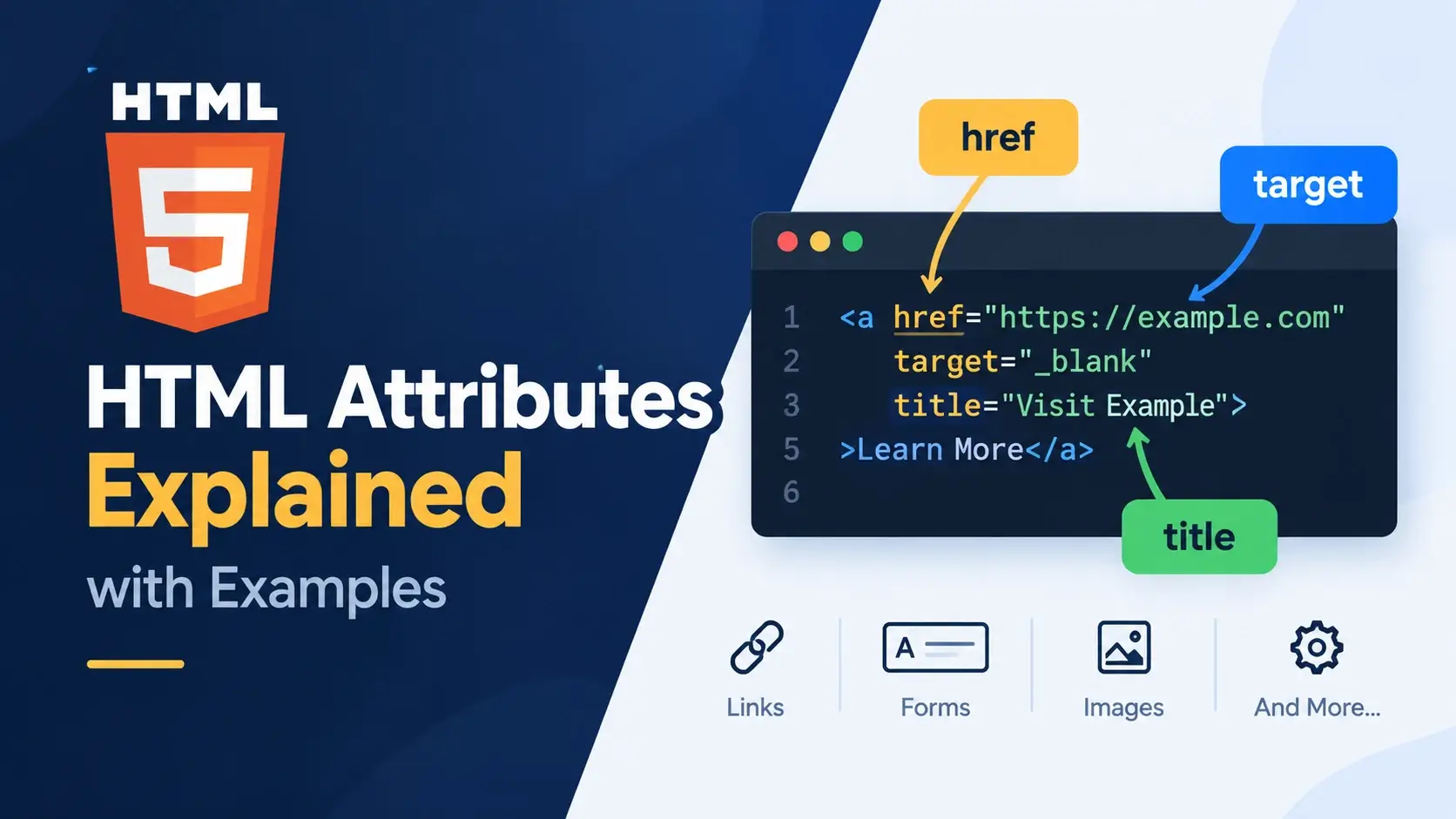
Tags give an element its identity. Attributes give it details. Without attributes, a link would not know where to go, an image would not know what to show, and a form input would not know what kind of data it accepts.
In this guide, you will learn what HTML attributes are, how they are written, how global and element-specific attributes differ, what boolean and data attributes do, and how to avoid the most common attribute mistakes. Every concept comes with a real, runnable example.
What Is an HTML Attribute?
An attribute is a piece of additional information about an element. It lives inside the opening tag, and it tells the browser something specific about that element — where it points, what it contains, or how it should behave.
<a href="https://inarlearn.com">Visit Inar Learn</a>
In this link, href is an attribute. It tells the browser where the link goes.
Without it, the anchor element would still exist, but it would not point anywhere.
Where attributes are written
Attributes are always written inside the opening tag. They never appear in the closing tag, and they are never placed inside the element’s content.
<a>
    <!-- attribute should not be here -->
</a href="https://inarlearn.com"><a href="https://inarlearn.com">
Visit Inar Learn
</a>Think of an element as a labeled box. The tag name is the label (“this is a link”), and attributes are instructions attached to that label (“and it points to inarlearn.com”).
The Syntax of Attributes
Attributes follow a simple pattern: a name, an equals sign, and a value wrapped in quotes.
Rules for writing attributes
- Written inside the opening tag — always.
- Name before the value — the pattern is
name="value". - One attribute per pair — separate attributes with a single space.
- Order does not matter —
srcbeforealtis the same asaltbeforesrc. - Values are quoted — double quotes are the convention, though single quotes work too.
Multiple attributes
An element can have many attributes. Here is an image with four of them:
<img src="photo.jpg" alt="A mountain at sunrise" width="640" height="480">
Each attribute handles a different concern. The src attribute points to the
file. The alt attribute provides a text description. The width
and height attributes set the display size.
Attributes can be written in any order. The browser processes each one independently of
the others. Consistent ordering (like always putting src before
alt) is a matter of style, not syntax.
Quotation Rules for Values
Attribute values should always be wrapped in quotes. Technically, quotation marks are optional when the value has no spaces or special characters — but omitting them causes real bugs the moment a value grows.
<img src=photo.jpg alt=Photo>

<input type=text value=hello><img src="photo.jpg" alt="Photo">
<input type="text" value="hello">Why unquoted values break
The moment an attribute value contains a space, the browser treats the text after the space as a new attribute. Here is what happens:
<!-- The browser reads "photo" as the alt value
     and "of" as a boolean attribute. -->
<img src="image.jpg" alt=Photo of a mountain>
With quotes, the value is preserved exactly:
<img src="image.jpg" alt="Photo of a mountain">Single vs. double quotes
Both single and double quotes are valid. Use whichever lets you avoid escaping the characters inside the value.
<!-- Outer double, inner single -->
<div title="It's a beautiful day"></div>

<!-- Outer single, inner double -->
<div title='She said "hello"'></div>
Always wrap attribute values in quotes. It costs nothing and prevents a class of bugs that are hard to spot. Many code editors and validators will warn about unquoted values for exactly this reason.
Global Attributes vs. Element-Specific Attributes
Not all attributes are equal. Some can be used on any element, while others only make sense on specific elements. Understanding this distinction helps you know which attributes apply where.
| Category | Applies to | Examples |
|---|---|---|
| Global | Any HTML element | id, class, style, title, lang, dir, hidden, data-* |
| Element-specific | Only certain elements | href (links), src (images), type (inputs), colspan (table cells) |
Global attributes — usable anywhere
Global attributes can be added to any element. They are used for identification, styling, accessibility, and metadata.
<!DOCTYPE html>
<html lang="en">
<head>
    <meta charset="UTF-8">
    <title>Global Attributes</title>
</head>
<body>
    <p id="intro" class="lead" title="Introduction">
        This paragraph has an id, a class, and a title.
    </p>
    <p hidden>This paragraph is hidden.</p>
    <p style="color: #0891b2;">This paragraph is styled inline.</p>
</body>
</html>
Element-specific attributes — only on certain elements
Element-specific attributes only apply to one kind of element. Using them elsewhere has no effect and is technically invalid.
<!DOCTYPE html>
<html lang="en">
<head>
    <meta charset="UTF-8">
    <title>Element-Specific Attributes</title>
</head>
<body>
    <!-- href only makes sense on links -->
    <a href="https://inarlearn.com">Visit Inar Learn</a>

    <!-- src and alt only make sense on images -->
    <img src="photo.jpg" alt="A landscape">

    <!-- type and placeholder only make sense on form inputs -->
    <input type="text" placeholder="Your name">
</body>
</html>If an attribute can be used on any element, it is global. If it only works on one or two elements, it is element-specific. When in doubt, check the MDN Web Docs for the element you are using.
Common Global Attributes
These global attributes appear in almost every real HTML document. Understanding them is essential to writing clean, maintainable markup.
Unique identifier
Gives an element a unique name within the document. Used for anchors, CSS, and JavaScript.
<div id="header"></div>Reusable classifier
Groups elements that share styling or behavior. Multiple classes are space-separated.
<p class="lead highlight"></p>Inline CSS
Applies CSS declarations directly to the element. Useful for quick tests, but avoid in production.
<p style="color: red;"></p>Advisory tooltip
Provides extra information shown as a tooltip when the user hovers over the element.
<abbr title="HyperText Markup Language">HTML</abbr>Language code
Tells browsers and screen readers what language the content is in. Usually set on the root element.
<html lang="en">Text direction
Sets the direction of text. Useful for right-to-left languages like Arabic and Hebrew.
<p dir="rtl"></p>Hide element
Hides the element from display. It remains in the DOM but is not rendered.
<p hidden></p>Tab order
Controls the keyboard tab order. 0 makes it focusable in normal order, -1 removes it from the tab order but allows programmatic focus.
<div tabindex="0"></div>
Attributes like lang, title, tabindex, and
hidden matter for accessibility. Screen readers use lang to
pronounce content correctly, and keyboard users rely on sensible tab order.
Common Element-Specific Attributes
These attributes only apply to certain elements. They are some of the most-used attributes in the entire language.
Link target
Specifies the destination of a link. Used on <a>, <link>, and <area> elements.
<a href="https://inarlearn.com">Visit</a>Resource source
Points to the file to load. Used on <img>, <script>, <video>, and <audio>.
<img src="photo.jpg" alt="Photo">Alternative text
Provides a text description for an image. Critical for accessibility and SEO.
<img src="photo.jpg" alt="Sunrise">Input or resource type
Used on <input>, <button>, and <script> to specify the kind of control or resource.
<input type="email">Input hint
Shows short helper text in an empty input field. Disappears when the user types.
<input type="text" placeholder="Your name">Link destination
Controls where a link opens. _blank opens a new tab, _self is the default.
<a href="..." target="_blank">Relationship
Describes the relationship between the current page and the linked resource. Common on links and external stylesheets.
<link rel="stylesheet" href="styles.css">Column span
Causes a table cell to span multiple columns. Used on <td> and <th>.
<td colspan="2">Total</td>
Element-specific attributes often have names that hint at their purpose:
src is “source,” href is “hypertext reference,” and
alt is “alternative.” Once you notice the pattern, new attributes become
easier to remember.
Boolean Attributes
Some attributes do not take a value at all. These are called boolean attributes. Their presence on an element turns a specific behavior on; their absence turns it off.
<!DOCTYPE html>
<html lang="en">
<head>
    <meta charset="UTF-8">
    <title>Boolean Attributes</title>
    <style>
        body { font-family: system-ui, sans-serif; padding: 24px; background: #f8fafc; }
        input { padding: 8px 12px; border: 1px solid #cbd5e1; border-radius: 8px; font-size: 14px; margin: 4px 0; }
        label { display: block; margin: 8px 0 4px; font-weight: 600; font-size: 14px; }
    </style>
</head>
<body>
    <label>Disabled input</label>
    <input type="text" value="You cannot edit me" disabled>

    <label>Required input</label>
    <input type="email" placeholder="Required" required>

    <label>Checkbox (checked)</label>
    <input type="checkbox" checked> Subscribe to newsletter
</body>
</html>
Common boolean attributes include:
disabled
Prevents user interaction with a form control.
required
Requires the user to fill in the field before submitting a form.
checked
Pre-checks a checkbox or radio button.
hidden
Hides the element from display.
readonly
Makes an input read-only but still submittable.
autofocus
Gives the element focus automatically when the page loads.
multiple
Allows the user to select multiple values.
novalidate
Turns off native browser validation on a form.
Three ways to write a boolean attribute
All three of these are valid and behave identically:
<input disabled>
<input disabled="">
<input disabled="disabled">
The last form — disabled="disabled" — is the historic XHTML-style pattern. It
is still valid in HTML5, but the shortest form (disabled) is preferred in
modern code.
Writing <input disabled="false"> does not disable
the attribute. Boolean attributes are on if present at all — the value is irrelevant.
To turn the behavior off, remove the attribute entirely.
Data Attributes: Storing Custom Information
You cannot invent arbitrary attribute names in HTML — but you can create custom attributes
that start with data-. These are called data attributes, and
they let you attach custom information to an element for use by JavaScript or CSS.
<!DOCTYPE html>
<html lang="en">
<head>
    <meta charset="UTF-8">
    <title>Data Attributes</title>
    <style>
        body { font-family: system-ui, sans-serif; padding: 24px; background: #f8fafc; }
        button {
            padding: 10px 18px;
            border: 0;
            border-radius: 8px;
            background: #0891b2;
            color: #fff;
            font-weight: 600;
            cursor: pointer;
        }
        button:hover { background: #0e7490; }
        p { margin-top: 16px; color: #475569; }
    </style>
</head>
<body>
    <button id="myBtn"
            data-product="Inar Learn Course"
            data-price="29.99"
            data-currency="USD">
        Show product info
    </button>
    <p id="output"></p>

    <script>
        document.getElementById("myBtn").addEventListener("click", function () {
            var name = this.dataset.product;
            var price = this.dataset.price;
            var currency = this.dataset.currency;
            document.getElementById("output").textContent =
                name + " costs " + price + " " + currency;
        });
    </script>
</body>
</html>
Rules for data attributes
- They must start with
data-, followed by a valid name. - The name after
data-should not contain uppercase letters — the convention is lowercase with hyphens. - They have no effect on the visual rendering of the element.
- They are accessible in JavaScript via the
datasetproperty. - They can be styled or selected with CSS attribute selectors.
In JavaScript, a data attribute like data-product is read as
element.dataset.product. Hyphenated names convert to camelCase — so
data-user-id becomes element.dataset.userId.
Use data attributes when you need to attach small, non-standard pieces of data to an
element for JavaScript or CSS. Do not use them for standard attributes like
href or id — those already exist.
Class and ID: The Two Most Important Global Attributes
Two attributes deserve special attention because they underpin nearly every interaction
between HTML, CSS, and JavaScript: class and id.
| Aspect | id | class |
|---|---|---|
| Uniqueness | Must be unique per page | Can appear on many elements |
| Number per element | One | Many (space-separated) |
| CSS selector | #intro |
.lead |
| JS lookup | getElementById() |
querySelectorAll() |
| Typical use | Anchors, unique elements | Reusable styling groups |
<!DOCTYPE html>
<html lang="en">
<head>
    <meta charset="UTF-8">
    <title>Class and ID</title>
    <style>
        body { font-family: system-ui, sans-serif; padding: 24px; background: #f8fafc; }
        .highlight {
            background: #fff8ec;
            padding: 12px 16px;
            border-left: 4px solid #e08b1f;
            border-radius: 6px;
            margin: 8px 0;
        }
        #intro { color: #0891b2; font-weight: 700; }
    </style>
</head>
<body>
    <p id="intro">This is the intro paragraph.</p>

    <p class="highlight">First highlighted paragraph.</p>
    <p class="highlight">Second highlighted paragraph.</p>
    <p class="highlight">Third highlighted paragraph.</p>
</body>
</html>
The id targets one unique element — the intro paragraph. The
class targets many elements that share a style — all three highlighted
paragraphs.
An element can have multiple classes separated by spaces:
class="card featured highlighted". This lets you compose styles from
several small rules.
Common Attribute Mistakes
Most attribute bugs come from a small set of repeated mistakes. Here are the ones to watch for.
1. Forgetting quotation marks around values
<img src=photo.jpg alt=A mountain><img src="photo.jpg" alt="A mountain">2. Assigning “false” to a boolean attribute
<input disabled="false"><input>3. Reusing the same id
<div id="card"></div>
<div id="card"></div><div id="card-1"></div>
<div id="card-2"></div>4. Using non-data custom attributes
<div product-id="42"></div><div data-product-id="42"></div>5. Using an element-specific attribute on the wrong element
<div href="https://inarlearn.com"></div><a href="https://inarlearn.com">Visit</a>6. Forgetting alt text on images
<img src="team.jpg"><img src="team.jpg" alt="The Inar Learn team">7. Mixing single and double quotes inside one value
<p title="She said 'hello'></p><p title="She said 'hello'"></p>The W3C Markup Validation Service will catch every one of these mistakes. Running your HTML through it before publishing is a habit worth building.
Frequently Asked Questions
1. What is an HTML attribute?
An HTML attribute is extra information attached to an element. It is written inside the
opening tag as a name and value pair, such as href in a link element or
src in an image element.
2. Where are attributes written?
Attributes are always written inside the opening tag of an element. They never appear inside the closing tag.
3. Do all attributes need a value?
No. Boolean attributes like disabled, checked, and
required do not need a value. Their presence alone is enough to enable the
behavior.
4. Do attribute values need quotation marks?
Quotation marks are technically optional when the value contains no spaces or special characters, but they are strongly recommended. Always wrap values in quotes to avoid subtle bugs.
5. Can an element have more than one attribute?
Yes. An element can have as many attributes as its specification allows. They are separated by spaces, and their order does not matter.
6. What are global attributes?
Global attributes are attributes that can be used on any HTML element. Common examples
include id, class, style, title,
lang, dir, hidden, and tabindex.
7. What is the difference between id and class?
An id must be unique within a document and identifies one specific
element. A class can be applied to many elements and is used for styling
or grouping.
8. What are data attributes?
Data attributes are custom attributes that start with data- and let you
store extra information on an element. They are accessible in JavaScript via
element.dataset.
9. What is the alt attribute used for?
The alt attribute provides a text description of an image. Screen readers
read it aloud, and browsers display it if the image fails to load. It is essential for
accessibility.
10. Are HTML attributes case-sensitive?
Attribute names are case-insensitive in HTML, but writing them in lowercase is the convention. Some attribute values, like class names, are case-sensitive.
11. What is the target attribute in a link?
The target attribute tells the browser where to open the link.
target="_blank" opens it in a new tab, while
target="_self" (the default) opens it in the current tab.
12. Can I create my own HTML attributes?
You can create custom attributes only if they start with data-. Any other
custom attribute is invalid HTML and may cause unpredictable behavior.
Key Takeaways
- An HTML attribute is a name-value pair written inside the opening tag that adds extra information to an element.
- Attributes always go inside the opening tag — never the closing tag.
- Always wrap attribute values in quotes, even when the browser does not require it.
- Global attributes like
id,class, andtitlecan be used on any element. - Element-specific attributes like
href,src, andtypeonly apply to certain elements. - Boolean attributes like
disabledandrequiredneed no value — their presence alone turns the behavior on. - Data attributes starting with
data-let you store custom information for JavaScript and CSS. idmust be unique per page;classcan be reused across many elements.- Validate your HTML to catch common attribute mistakes like unquoted values or duplicate ids.
What to Learn Next
Now that you understand attributes, the next step is to practice them. Start with HTML Elements for a complete reference, then explore HTML Syntax Explained and HTML Elements vs Tags for foundational context.
For broader perspective, see What Is HTML?, How Websites Work, and HTML vs CSS vs JavaScript. To understand how browsers parse and apply attributes, explore How Web Browsers Work.
Practice Challenge
Build a small HTML page that uses attributes in a range of ways. Your page should include:
- A paragraph with an
idand aclass - A link with
hrefandtarget="_blank" - An image with
src, a descriptivealt, andwidthandheight - A form with at least one boolean attribute like
requiredordisabled - A button with three
data-attributes that store product name, price, and currency - A short JavaScript script that reads the data attributes and displays them when the button is clicked
When your page runs, clicking the button should show the stored data. If it works, you have used global attributes, element-specific attributes, boolean attributes, and data attributes — the four most important kinds — in a single page.

 Inar Learn