
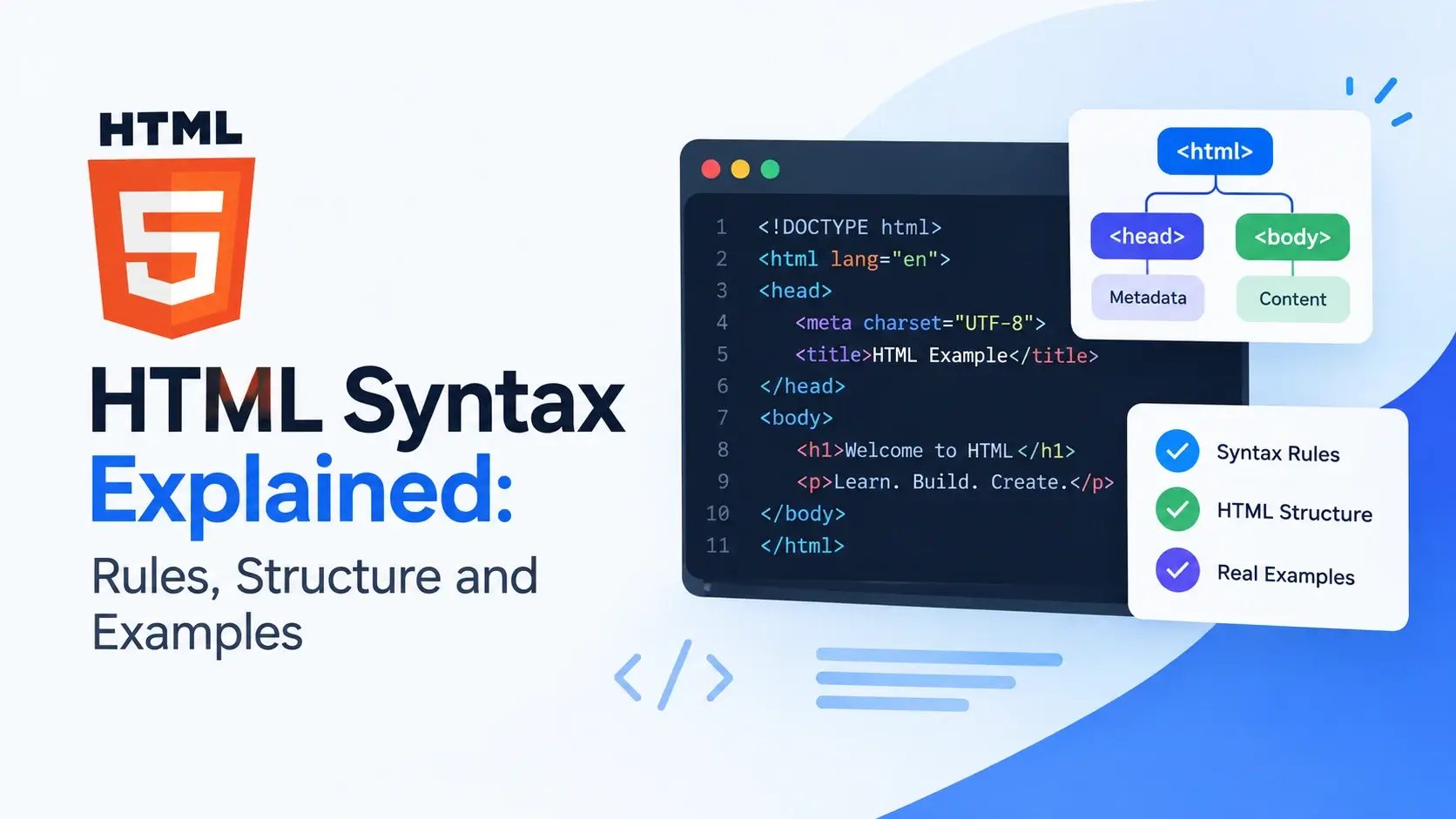
HTML looks simple — and it is. But its simplicity hides a precise set of rules that determine what a browser accepts, what it ignores, and how it renders your page. Those rules are called HTML syntax.
In this guide, you will learn the anatomy of an HTML element, the difference between tags and elements, how attributes and quotes work, how to nest correctly, and how the browser handles whitespace and comments. Every rule is paired with real code and a live preview.
What Is HTML Syntax?
Syntax is the grammar of a language. In English, that means putting words in a specific order with the right punctuation. In HTML, syntax is about angles, slashes, quotes, and nesting.
HTML has a relatively small set of syntax rules. Every HTML document is built from the same building blocks:
- Tags — angle-bracketed labels like
<p>and</p> - Attributes — name/value pairs inside an opening tag, like
href="..." - Content — text or nested elements between tags
- Entities — special character codes like
<for< - Comments — ignored notes wrapped in
<!-- -->
Once you understand these five pieces, you can read and write any HTML document — no matter how large or complex.
HTML’s syntax rules are forgiving. Browsers try hard to render pages even when the markup contains mistakes. That is convenient, but it is not an excuse to write sloppy HTML — clean syntax prevents subtle bugs.
The Anatomy of an HTML Element
An element is the fundamental building block of HTML. Most elements follow the same three-part structure: an opening tag, some content, and a closing tag.
<p>Hello, World!</p>Let’s break that down into its parts.
Three things to notice:
- The opening tag uses angle brackets and contains the element name.
- The closing tag is identical, but has a forward slash right after the opening bracket.
- The content sits between the two tags and can be plain text or other elements.
Here is an element with the same structure but with nested elements as its content:
<div>
    <h2>Title</h2>
    <p>A paragraph inside the div.</p>
</div>
The <div> element has an opening tag, content (the heading and paragraph),
and a closing tag. The nested elements are each complete elements themselves — each with
their own opening and closing tag.
An element can also have no content at all. For example, <div></div>
is a valid (but pointless) element with an opening tag, no content, and a closing tag.
Tags vs. Elements
The words “tag” and “element” are often used interchangeably, but they are technically different things.
| Term | Definition | Example |
|---|---|---|
| Tag | The bracketed instruction — the label inside angle brackets | <p> or </p> |
| Element | The complete unit — opening tag, content, and closing tag together | <p>Hello</p> |
Think of it this way: a tag is a label, and an element is the labeled box with something inside it. When a browser reads an element, it sees the opening tag, then processes whatever is inside, then looks for the closing tag.
Most developers use “tag” and “element” loosely in conversation, and that is fine. Just
remember that when someone says “the <p> tag,” they usually mean the
whole paragraph element.
Attributes: Adding Information to Tags
Attributes provide extra information about an element. They live inside the opening tag and follow a specific syntax: name, equals sign, quoted value.
<a href="https://inarlearn.com">Visit Inar Learn</a>Breaking down the attribute:
An element can have multiple attributes, separated by spaces. Order does not matter.
<img src="photo.jpg" alt="A mountain at sunrise" width="640" height="480">
Each attribute has a specific purpose. Some are universal (like id,
class, and style) and can be used on any element. Others only
apply to specific elements — like href on links and src on images.
Are quotation marks required?
Technically, no — but you should always use them. Here is why.
<img src=photo.jpg alt=Photo><img src="photo.jpg" alt="Photo">
Both render the same in most browsers — but only if the value contains no spaces. The moment
a value needs a space (like alt="A mountain at sunrise"), the unquoted version
breaks.
Always wrap attribute values in quotes. It costs nothing, prevents subtle bugs, and is required if you ever switch to XHTML.
Void Elements: Tags With No Closing Tag
Some elements have no content and therefore no closing tag. These are called void elements (sometimes called self-closing or empty elements). They are complete in a single tag.
<br>
<hr>
<img src="photo.jpg" alt="Photo">
<input type="text" placeholder="Enter your name">
<meta charset="UTF-8">
<link rel="stylesheet" href="styles.css">
Common void elements include:
<br>
A line break within a block of text.
<hr>
A thematic break — a horizontal rule.
<img>
An image embedded in the page.
<input>
A form input field.
<meta>
Metadata about the document.
<link>
A link to an external resource, usually a stylesheet.
Void elements are easy to spot: their content is provided through attributes, not by
children. An <img> element does not wrap any text — it just points to an
image file via the src attribute.
The trailing slash question
You may see void elements written with a trailing slash: <br /> instead of
<br>. This is valid HTML5, but it is a legacy of XHTML and is not
required.
<img src="photo.jpg" alt="Photo" /><img src="photo.jpg" alt="Photo">Both are accepted by every modern browser. Modern HTML5 convention is to omit the trailing slash, but there is no functional difference.
Writing <br></br> or <img></img> is
invalid. Void elements have no closing tag. Browsers will ignore it — but it is incorrect
syntax.
Nesting Rules: Elements Inside Elements
HTML elements can contain other elements. This is called nesting, and the rule is simple: every element must be fully closed before its parent closes.
Here is a correctly nested example:
<div>
    <p>
        This is a <strong>bold</strong> word.
    </p>
</div>
The <strong> opens and closes inside the <p>, which
opens and closes inside the <div>. Every element is closed before its
parent.
Here is the same content with incorrect nesting:
<div>
    <p>
        This is a <strong>bold</p></strong>
    </div>
The <strong> opens before the </p> but closes after
it. The elements overlap. Browsers try to recover from this by rearranging the tree — but the
rendered result may not match what you intended.
Visualizing nesting
HTML documents are trees. Each element is a node, and nested elements are children of their parent. This is why indentation matters for readability — it makes the tree visible.
Here is the same tree with more elements shown:
<!DOCTYPE html>
<html>
<body>
    <div>
        <h2>Title</h2>
        <p>A paragraph with <strong>emphasis</strong>.</p>
    </div>
</body>
</html>
The proper indentation makes the tree easy to see. The browser builds this same tree internally — this is the DOM (Document Object Model) you may have heard about.
Indent nested elements by two or four spaces. It does not affect rendering, but it makes your code dramatically easier to read and maintain.
Case Sensitivity and Quotation Marks
HTML has some specific rules about letter case and quotes that trip up many beginners.
Case sensitivity
HTML tags and attribute names are case-insensitive. That means these three lines are all identical to the browser:
<P>Hello</P>
<p>Hello</p>
<P>Hello</p>
However, writing tags in lowercase is the recommended convention. It matches the style of every modern HTML document, and it is required if you ever switch to XHTML.
Attribute values are a different story. Values are often case-sensitive — for
example, class="Main" and class="main" refer to different CSS
classes.
Lowercase tags and attributes are a convention, not a requirement. But every style guide and code review will expect it — so use lowercase.
Single vs. double quotes
HTML accepts both single and double quotes for attribute values:
<a href="https://inarlearn.com">Double quotes</a>
<a href='https://inarlearn.com'>Single quotes</a>
Double quotes are the modern convention, but they are not required. The one situation where the choice matters is when your value itself contains a quote character:
<!-- Correct: outer double, inner single -->
<div title="It's a beautiful day"></div>

<!-- Also correct: outer single, inner double -->
<div title='She said "hello"'></div>
Choose the outer quote style that avoids escaping the inner quotes. Never mix quotation styles within a single attribute value.
Whitespace and Line Breaks
One of HTML’s more surprising rules is how it treats whitespace — spaces, tabs, and line breaks.
In most cases, multiple consecutive whitespace characters are collapsed into a single space. This means the following three paragraphs render identically:
<p>Hello world</p>

<p>Hello    world</p>

<p>Hello
world</p>
The browser is indifferent to how many spaces or line breaks you use inside text content. All three render as “Hello world” with a single space.
Where whitespace matters
There are a few places where whitespace is preserved exactly:
- Inside
<pre>elements, whitespace is preserved as written - Inside
<textarea>form controls - Between inline elements — a single space between two inline tags renders as a space
<!DOCTYPE html>
<html lang="en">
<head>
    <meta charset="UTF-8">
    <title>Whitespace</title>
</head>
<body>
    <p>Normal text collapses whitespace.</p>

    <pre>
Line 1
    Line 2 (indented)
        Line 3 (more indented)
    </pre>
</body>
</html>
The <pre> element preserves everything — including indentation, extra
spaces, and line breaks. It is often used for displaying code or ASCII art.
If you need a non-collapsing space outside a <pre>, use the entity
— a non-breaking space. It will not collapse.
Character Entities and Reserved Characters
Some characters have special meaning in HTML. If you want to display them as text, you must use a character entity instead.
The three reserved characters are:
<— starts a tag>— ends a tag&— starts an entity
To display them as text, use their entity codes:
Here is an example where entities are required:
<p>Use the <div> element to group content.</p>
Without the entities, the browser would try to interpret the <div> as an
actual tag instead of displaying it as text.
Even a bare ampersand should ideally be written as & in HTML, unless
it starts a valid entity. Browsers are forgiving, but validators will flag it.
Comments in HTML
Comments let you leave notes in your code that the browser ignores entirely. They are useful for documenting sections, disabling code temporarily, or leaving reminders.
<!-- This is a comment. The browser will ignore it. -->

<!--
    Multi-line comments
    are also allowed.
-->

<p>Visible paragraph</p>
<!-- <p>This paragraph is hidden.</p> -->
A few important rules about comments:
- They start with
<!--and end with--> - They cannot be nested — you cannot put a comment inside another comment
- They are downloaded to the user’s browser along with the rest of the page
- They appear in “View Page Source” and in DevTools
Anything inside an HTML comment is sent to the user’s browser — anyone can view it with right-click → View Page Source. Never leave passwords, API keys, or private notes in HTML comments.
The Doctype: The First Line of Every HTML Page
Every HTML5 document starts with the same line:
<!DOCTYPE html>This is not a tag — it is a declaration. It tells the browser that the document uses modern HTML5 rules. Without it, browsers fall back to “quirks mode,” a legacy rendering mode that mimics bugs from the 1990s.
Compared to older doctypes, this one is remarkably short:
<!DOCTYPE HTML PUBLIC
"-//W3C//DTD HTML 4.01//EN"
"http://www.w3.org/TR/html4/strict.dtd"><!DOCTYPE html>That single line replaces paragraphs of declaration from earlier versions. It is one of the small but significant improvements HTML5 brought to the language.
<!DOCTYPE html>, <!doctype html>, and
<!DocType HTML> all work. The convention is to use
<!DOCTYPE html> in uppercase.
A Complete HTML Document
Now let’s put everything together into a valid, complete HTML document that demonstrates all the syntax rules we have covered.
<!DOCTYPE html>
<html lang="en">
<head>
<meta charset="UTF-8">
<meta name="viewport" content="width=device-width, initial-scale=1.0">
<title>HTML Syntax Example</title>
</head>
<body>
<!-- Header section -->
<header>
<h1>My First Page</h1>
<p>A simple demonstration of HTML syntax.</p>
</header>
<!-- Main content -->
<main>
<article>
<h2>What this page shows</h2>
<p>
This page demonstrates <strong>correct</strong>
HTML syntax, including nested elements.
</p>
<ul>
<li>Properly nested tags</li>
<li>Quoted attribute values</li>
<li>Void elements like <br> and <img></li>
</ul>
</article>
</main>
<!-- Footer -->
<footer>
<p>© 2025 Inar Learn</p>
</footer>
</body>
</html>
Every syntax rule from this guide is present in that example: the doctype, the root
<html> element with the lang attribute, proper nesting,
void elements, quoted attributes, comments, and character entities.
If you can read that page and understand every line, you have mastered the basics of HTML syntax.
Common HTML Syntax Mistakes
Most beginner problems come from a small set of repeated syntax mistakes. Here are the ones to watch for.
1. Forgetting to close tags
<p>Hello world

<div>
    <p>Still open</p>
<p>Hello world</p>

<div>
    <p>Properly closed</p>
</div>
2. Incorrect nesting
<p>This is <strong>important</p></strong><p>This is <strong>important</strong></p>3. Missing quotation marks around attribute values
<img src=photo.jpg alt=My photo><img src="photo.jpg" alt="My photo">4. Adding a closing tag to a void element
<br></br>
<img src="photo.jpg"></img><br>
<img src="photo.jpg" alt="Photo">5. Unescaped reserved characters
<p>The <div> tag groups content.</p><p>The <div> tag groups content.</p>6. Nested comments
<!-- Outer <!-- inner --> still outer --><!-- Outer comment only -->7. Mismatched opening and closing tags
<p>Hello</div><p>Hello</p>The W3C Markup Validation Service (validator.w3.org) will check any HTML page for syntax errors. It catches everything on this list automatically.
Frequently Asked Questions
1. What is HTML syntax?
HTML syntax is the set of rules that define how HTML elements, tags, and attributes are written. It includes how to open and close tags, how to write attributes, how to nest elements, and which characters are reserved.
2. Is HTML case-sensitive?
No. HTML tags and attribute names are case-insensitive, so <DIV> and
<div> are the same. However, writing tags in lowercase is the
recommended convention and is required in XHTML.
3. Do all HTML tags need a closing tag?
No. Void elements like img, br, input,
meta, and link do not have closing tags. All other HTML
elements should have an explicit closing tag.
4. Do HTML attributes always need quotation marks?
Quotation marks are technically optional when the value contains no spaces or special characters, but they are strongly recommended. Always use them for consistency and to avoid subtle bugs.
5. What is the difference between a tag and an element?
A tag is the bracketed instruction, such as <p> or
</p>. An element is the complete unit: the opening tag, its content,
and the closing tag.
6. Can HTML elements be nested?
Yes. Elements are commonly nested inside each other, but they must be properly nested. Every element must be closed before its parent is closed.
7. What is a void element in HTML?
A void element is an element that has no content and therefore no closing tag. Common
examples include img, br, hr,
input, meta, and link.
8. How do I write comments in HTML?
HTML comments begin with <!-- and end with -->.
Everything between them is ignored by the browser and not displayed on the page.
9. What is the difference between < and < in HTML?
The < character starts a tag in HTML, so it cannot be used as plain
text. It must be written as the entity < instead. The same applies
to > and &.
10. Does HTML care about whitespace?
In most cases, multiple spaces, tabs, and line breaks in HTML are collapsed into a
single space by the browser. Whitespace matters inside pre,
textarea, and between certain inline elements.
11. What is the most common HTML syntax mistake?
The most common mistake is forgetting to close a tag or nesting tags incorrectly. Both can cause unexpected rendering because browsers try to recover from the error differently.
12. Is HTML syntax strict like XHTML?
No. HTML5 has a tolerant parsing model that allows small syntax errors without breaking the page. XHTML was strict and required well-formed XML. Modern HTML is more forgiving, but writing correct syntax is still best practice.
Key Takeaways
- An HTML element is built from an opening tag, content, and a closing tag.
- A tag is the bracketed label; an element is the complete unit.
- Attributes are written as
name="value"inside the opening tag. - Always wrap attribute values in quotes — even when the browser does not require it.
- Void elements like
<br>,<img>, and<input>have no closing tag. - Elements must be properly nested: every child closes before its parent.
- Reserved characters like
<,>, and&must be written as entities. - Comments are written between
<!--and-->and are visible in page source. - Every HTML5 document starts with the single doctype
<!DOCTYPE html>.
What to Learn Next
Now that you understand HTML syntax, the next step is to learn the elements themselves. Start with HTML Elements and HTML Attributes for a deeper look at the building blocks.
For context on where HTML fits in the larger picture, see What Is HTML?, How Websites Work, and HTML vs CSS vs JavaScript. To learn about the runtime environment, explore How Web Browsers Work.
Practice Challenge
Write a small HTML page from scratch that puts everything from this guide to use. Your page should:
- Start with
<!DOCTYPE html> - Have a proper
<html>element with alangattribute - Include a
<head>with a<title>and a<meta charset> - Contain at least one properly nested element (like a
<p>with a<strong>inside it) - Include a void element like an
<img>or a<br> - Have an attribute on at least one element, with quotes
- Include an HTML comment explaining what the page is
- Use at least one character entity (like
©or<)
Once your page renders without errors, run it through the W3C Markup Validation Service. A clean validation result means you have written correct HTML syntax.

 Inar Learn