
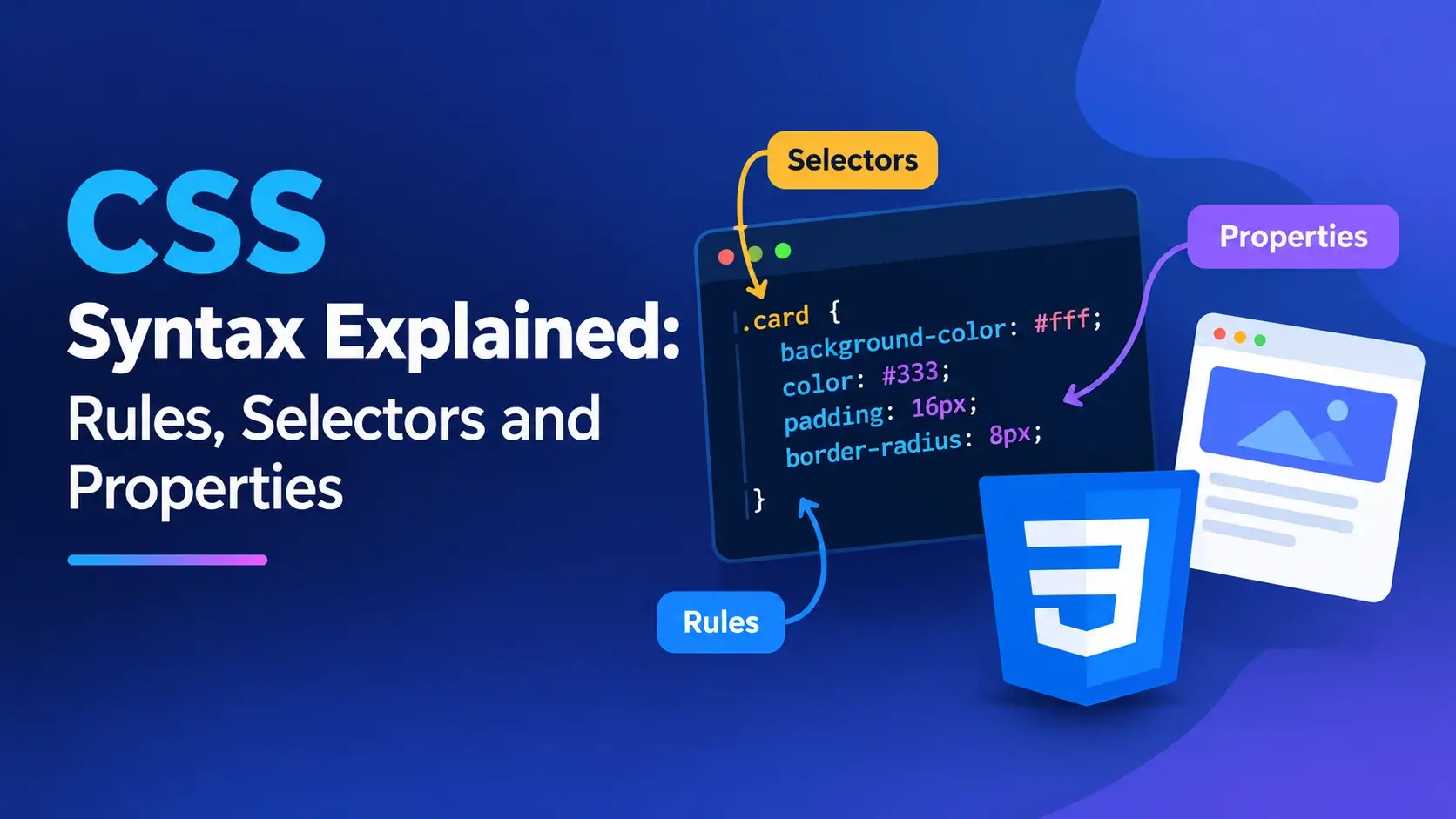
Every CSS rule you write — no matter how simple or how complex — is built from the same handful of syntactic parts. A selector, a pair of curly braces, a property, a colon, a value, and a semicolon. That is the whole language at its core.
This guide breaks CSS syntax apart piece by piece. You will see exactly what each part does, how the browser reads it, which selector forms exist, what counts as a valid value, and which small typos silently break entire stylesheets. Once this syntax feels familiar, every CSS reference and framework you encounter becomes readable.
property: value; pairs inside curly braces — and the
browser applies each rule to whichever elements the selector matches.
The Short Answer
Here is the smallest complete CSS rule you can write:
p { color: red; }Reading it left to right:
p— the selector. It targets every paragraph.{— the start of the declaration block.color— the property.:— the separator between property and value.red— the value.;— the terminator of the declaration.}— the end of the declaration block.
That is the complete grammar. Everything else in CSS is a variation on this pattern:
different selectors, more declarations, longer values, and special at-rules that begin
with @.
Every stylesheet you ever write — from a one-line tweak to a thousand-line design system — is built from selectors, declaration blocks, properties, and values. If you learn nothing else about CSS, learn this shape.
Anatomy of a CSS Rule
The rule below contains every part you need to recognize. Take it one section at a time.
The four parts
- Selector
-
The pattern that decides which elements the rule applies to.
.cardmatches any element whose class attribute containscard. - Declaration block
- Everything between the opening and closing curly braces. It contains one or more declarations, each ending with a semicolon.
- Property
-
The name of the aspect being changed, such as
color,font-size,padding, ordisplay. Property names come from the CSS specification and are not invented by the author. - Value
-
What the property is being set to. Values can be keywords (
red,block), numbers with units (16px,1.5rem), colors (#0891b2,rgb(8, 145, 178)), functions (calc(),var()), or more complex lists.
Multiple declarations
A block can hold as many declarations as you need. Each one must end with a semicolon:
.card {
    background: #ffffff;
    border-radius: 12px;
    padding: 24px;
    box-shadow: 0 4px 16px rgba(15, 23, 42, 0.08);
}
Whitespace and line breaks are entirely optional. CSS ignores them. The declarations above could be written on a single line and produce exactly the same result. Formatting is for humans, not the browser.
Technically the semicolon after the very last declaration in a block is optional. In practice, always include it. It makes declarations easy to reorder and prevents bugs when you append a new declaration later.
A Token-by-Token Legend
Every character in a CSS rule has a role. This is the full vocabulary of the syntax:
There is no punctuation in CSS that does not appear in this list. Every stylesheet — no matter how long — uses only these tokens, arranged into rules.
Selectors: Choosing What to Style
The selector is the first part of a rule, and it determines which elements the rule applies to. CSS has a wide range of selector forms, and they can be combined in almost any way.
The fundamental selector types
| Type | Syntax | Matches |
|---|---|---|
| Universal | * |
Every element in the document |
| Type | p |
Every <p> element |
| Class | .card |
Every element with class="card" |
| ID | #hero |
The single element with id="hero" |
| Attribute | [type="email"] |
Elements whose type attribute equals email |
| Pseudo-class | a:hover |
Links while the pointer is over them |
| Pseudo-element | p::first-line |
The first line of every paragraph |
Combinators: expressing relationships
Combinators link two selectors into a relationship. They do not match elements in isolation; they match elements based on where they sit in the document tree.
| Combinator | Syntax | Meaning |
|---|---|---|
| Descendant | nav a |
Any <a> inside a <nav>, at any depth |
| Child | ul > li |
Only <li> that are direct children of a <ul> |
| Adjacent sibling | h2 + p |
The <p> immediately following an <h2> |
| General sibling | h2 ~ p |
Every <p> that follows an <h2> under the same parent |
Grouping selectors
A comma lets you share one declaration block across multiple selectors:
h1,
h2,
h3 {
    color: #0f172a;
    line-height: 1.25;
}
This is equivalent to writing three separate rules with identical declarations. If one selector in a comma-separated list is invalid, the entire rule is discarded by the browser — an important detail to remember.
Chaining selectors
Placing selectors next to each other without a space means "an element that matches all of these at once":
button.primary { background: #0891b2; }
input[type="text"].is-invalid { border-color: #e11d48; }
button.primary means "a <button> element that also has
the class primary." It matches only elements that are both.
nav a and nava are completely different. The space is the
descendant combinator. Remove it and you have a type selector named
nava — which matches nothing.
Properties: What You Can Change
A property is the name of a style aspect. CSS defines hundreds of them, but they fall into a handful of categories.
Color and background
color, background-color, background-image, opacity.
Typography
font-family, font-size, font-weight, line-height, letter-spacing.
Box and spacing
width, height, padding, margin, border.
Layout
display, position, flex-direction, grid-template-columns.
Effects and motion
box-shadow, border-radius, transform, transition.
Custom properties
Author-defined names beginning with --, read with var().
Property names are almost always written in kebab-case — lowercase words separated by hyphens. This is not a stylistic choice; it is the naming convention the specification uses.
Unlike custom properties, standard CSS property names come from the specification.
Writing colour: red; or fontStyle: italic; has no effect —
the browser simply does not recognize those names and discards the declarations.
Values: What You Can Set Them To
A value is the second half of a declaration. CSS values come in several shapes, and knowing them makes the specification readable.
Keywords
Predefined words with specific meanings. Examples include red,
block, flex, absolute, bold,
transparent, inherit, and initial.
Numbers with units
Many properties expect a number followed by a unit. Writing the number alone is invalid for most of them.
font-size: 16;
width: 300;
margin-top: 0;font-size: 16px;
width: 300px;
margin-top: 0;
Note that 0 is the one number that can be written without a unit, because
zero pixels, zero ems, and zero percent are all the same length.
Colors
Colors can be written in several formats, all valid:
.example {
    color: red;                          /* keyword */
    color: #0891b2;                      /* hex */
    color: #08f;                         /* short hex */
    color: rgb(8 145 178);               /* rgb */
    color: rgba(8, 145, 178, 0.8);       /* rgba with alpha */
    color: hsl(191 82% 36%);             /* hsl */
    color: oklch(70% 0.15 220);          /* modern color space */
}
Functions
Some values are produced by functions. These are evaluated by the browser and their result is used as the value:
.example {
    width: calc(100% - 40px);
    color: var(--color-primary);
    background: linear-gradient(135deg, #06b6d4, #7c3aed);
    transform: rotate(45deg);
    background-image: url("photo.jpg");
}
Lists and multiple values
Some properties accept a list of values separated by spaces or commas. The order matters and each position has a defined meaning:
.example {
    font-family: "Inter", system-ui, sans-serif;    /* fallback list */
    margin: 16px 24px;                             /* top/bottom, left/right */
    box-shadow: 0 4px 16px rgba(0,0,0,.1);         /* x y blur color */
    transition: color 0.2s ease, opacity 0.3s ease; /* comma-separated list */
}
Global keywords
Four values work on every property and can be used to reset or inherit styling:
inherit— take the parent's computed value.initial— reset to the property's default value.unset— inherit if the property is inherited, otherwise initial.revert— reset to the value from the previous cascade origin.
CSS Units at a Glance
Units are one of the most common sources of confusion for beginners. This table covers the ones you will use most.
| Unit | Relative to | Typical use |
|---|---|---|
px |
Fixed pixel | Borders, hairlines, small precise values |
rem |
Root font size | Font sizes, spacing, layout dimensions |
em |
Current element's font size | Padding that scales with local text |
% |
Parent's corresponding size | Widths, positions, image scaling |
vw |
1% of viewport width | Full-width sections, fluid type |
vh |
1% of viewport height | Hero sections, full-screen layouts |
ch |
Width of the "0" character | Readable line lengths for text |
s / ms |
Seconds / milliseconds | Transitions and animations |
deg |
Degrees | Transforms and gradients |
fr |
A fraction of free space | Grid track sizing |
rem scales with the user's preferred font size, which respects their
accessibility settings. Using rem for typography and spacing is one of
the simplest accessibility wins available.
At-Rules: CSS Beyond Plain Rules
Not everything in CSS is a selector followed by a declaration block. Statements that
begin with @ are called at-rules, and they control how CSS
is imported, evaluated, or organized.
@media
Applies rules only when the environment matches a condition — most commonly viewport size:
@media (min-width: 768px) {
    .card {
        padding: 32px;
    }
}
@import
Loads another stylesheet. It must appear at the very top of the file, before any other rules:
@import url("base.css");
@import url("layout.css") screen and (min-width: 768px);
@supports
Applies rules only if the browser supports a given feature:
@supports (display: grid) {
    .layout { display: grid; }
}
@font-face and @keyframes
These at-rules define resources rather than apply styles. @font-face
declares a custom font. @keyframes defines an animation:
@font-face {
    font-family: "Inter";
    src: url("inter.woff2") format("woff2");
}

@keyframes pulse {
    from { opacity: 1; }
    to   { opacity: 0.5; }
}
@layer
Declares a cascade layer — a way to control the order in which groups of styles compete:
@layer reset, base, components, utilities;

@layer base {
    body { margin: 0; }
}
You cannot write .card @media or nest an at-rule inside a selector in a
meaningful way (though modern CSS now allows nested rules). At-rules are their own
statements and sit at the top level of a stylesheet, or nested inside other at-rules.
Custom Properties: A Syntax of Their Own
Custom properties — commonly called CSS variables — have their own syntax, and it is worth knowing well because it differs from ordinary properties.
Declaration
A custom property is declared with a name that begins with two dashes:
:root {
    --color-primary: #0891b2;
    --space-md: 1rem;
    --radius: 12px;
}
The name is author-defined — you can call it whatever you want — but it must start with
-- and it is case-sensitive. --color and --Color
are different properties.
Usage
To read a custom property, use the var() function:
.btn {
    background: var(--color-primary);
    padding: var(--space-md) calc(var(--space-md) * 1.5);
    border-radius: var(--radius);
}
Fallback values
var() accepts an optional second argument, used when the first is not
defined:
.btn {
    color: var(--color-text, #0f172a);
}
If --color-text is not defined anywhere, the fallback #0f172a
is used instead.
Unlike most properties, custom properties inherit by default. Defining them on
:root makes them available everywhere, and redefining them on a nested
element scopes the new value to that subtree only.
Comments
CSS supports only one kind of comment:
/* This is a comment. */
.card {
    color: #0891b2; /* inline comment */
}
Comments begin with /* and end with */. They can span multiple
lines. The browser ignores everything between the markers.
// This does not work in CSS
.card { color: red; }/* This works */
.card { color: red; }
CSS does not support // line comments. Writing one causes the browser to
treat the entire line as an invalid declaration and discard it — often including the
rule that follows if it was on the same line.
You cannot write /* outer /* inner */ still outer */. CSS comments do not
nest. The first */ closes the comment, and everything after it is
treated as normal CSS.
Shorthand vs Longhand
Many CSS properties have both a shorthand form and several longhand forms. Understanding the difference prevents a whole class of bugs.
Sets several properties at once
margin: 16px 24px;
font: italic 600 1rem/1.5 sans-serif;
background: #fff url("bg.jpg") no-repeat;Sets one property at a time
margin-top: 16px;
margin-right: 24px;
font-style: italic;
font-weight: 600;
font-size: 1rem;
line-height: 1.5;
The trap of shorthand
When you use a shorthand property, any longhand value you omit is reset to its initial value. This is the single biggest source of confusion around shorthand:
.btn {
    border: 1px solid #0891b2;
    border-radius: 10px;
}

.btn--outline {
    border: 2px dashed; /* This resets border-radius? No — */
                        /* It resets border-width, style, color only. */
}
The border shorthand only resets border-width,
border-style, and border-color. It does not touch
border-radius, because border-radius is a separate property.
But properties like font and background do reset
many related longhands, and that can silently wipe out values you set earlier.
If you set longhands first and then use a shorthand that touches the same properties, the shorthand wins for any value it specifies. To avoid surprises, either use only longhands or only shorthands within a single rule.
Common Syntax Errors
These are the mistakes that break CSS most often. Every one of them is silent — the browser discards the broken declaration without warning.
1. Missing semicolon
.card {
    color: red
    background: blue;
}.card {
color: red;
background: blue;
}
Without the semicolon after red, the browser merges the two declarations
into one invalid statement and discards both.
2. Missing colon
.card {
    color red;
}.card {
color: red;
}3. Missing units
.card {
    font-size: 16;
    width: 300;
}.card {
font-size: 16px;
width: 300px;
}4. Mismatched braces
.card {
    color: red;

.other {
    color: blue;
}.card {
color: red;
}
.other {
color: blue;
}A missing closing brace causes the browser to swallow every rule that follows it inside the unterminated block.
5. Invalid property name
.card {
    colour: red;      /* British spelling */
    fontStyle: italic; /* camelCase */
}.card {
color: red;
font-style: italic;
}6. Invalid selector
h1, h2, {
    color: red;
}
/* Trailing comma makes the
entire rule invalid */h1, h2 {
color: red;
}When a selector list is invalid, the entire rule is dropped — not just the broken selector. This is why a single typo in a comma-separated list can silently disable all the styles that were supposed to apply.
7. Quoting errors
font-family: "Helvetica Neue, sans-serif;
background: url("photo.jpg);font-family: "Helvetica Neue", sans-serif;
background: url("photo.jpg");Open DevTools, select an element, and look at the styles panel. Declarations the browser rejected are shown greyed out with a warning icon. This is the fastest way to confirm whether a rule was invalid or simply lost the cascade.
A Complete Stylesheet
Putting all the syntax together, here is a small but complete stylesheet that uses selectors, properties, values, units, custom properties, at-rules, and comments:
/* ---- Design tokens ---- */
:root {
    --color-primary: #0891b2;
    --color-accent: #7c3aed;
    --color-text: #0f172a;
    --space-sm: 0.5rem;
    --space-md: 1rem;
    --radius: 12px;
    --transition: 0.2s ease;
}

/* ---- Base ---- */
* {
    box-sizing: border-box;
}

body {
    margin: 0;
    font-family: "Inter", system-ui, sans-serif;
    line-height: 1.6;
    color: var(--color-text);
    background: #f5f7fb;
}

/* ---- Card ---- */
.card {
    background: #ffffff;
    border-radius: var(--radius);
    padding: calc(var(--space-md) * 1.5);
    box-shadow: 0 4px 16px rgba(15, 23, 42, 0.08);
    transition: transform var(--transition), box-shadow var(--transition);
}

.card:hover {
    transform: translateY(-2px);
    box-shadow: 0 12px 28px rgba(15, 23, 42, 0.12);
}

.card > .card__title {
    margin: 0 0 var(--space-sm);
    color: var(--color-primary);
    font-size: 1.25rem;
    font-weight: 600;
}

/* ---- Responsive ---- */
@media (min-width: 768px) {
    .card {
        padding: calc(var(--space-md) * 2);
    }
}
Every part of that stylesheet uses only the syntax covered in this guide: selectors
(type, class, universal, descendant, child, pseudo-class), declaration blocks, standard
properties, custom properties with var(), functions like
calc(), an at-rule, and comments.
When learning, read each rule as a sentence: "For every element with class card, set the background to white and round the corners to 12 pixels." If you can read the stylesheet aloud, you understand the syntax.
Best Practices
One declaration per line
Makes diffs readable and prevents accidental merges when editing.
Always end with a semicolon
Even on the last declaration. It prevents bugs when you add more later.
Name classes by purpose
.card and .alert survive redesigns. .red-box does not.
Use custom properties for tokens
Define colors, spacing, and radii once. Reference them everywhere with var().
Prefer relative units
rem, em, %, and ch scale with user settings.
Keep specificity low
Prefer single classes over IDs and deep descendant chains.
Comment sections, not lines
Use comments to label blocks of related rules, not to restate obvious code.
Validate your CSS
The W3C CSS Validator catches syntax errors browsers silently ignore.
Learn 20 properties deeply
Master display, position, flex,
grid, color, font-size, and the box model first.
Selector, block, property, colon, value, semicolon. Learn that one pattern and every CSS file in the world becomes readable.
Frequently Asked Questions
1. What is the basic syntax of a CSS rule?
A CSS rule consists of a selector followed by a declaration block in curly braces.
Inside the block are one or more declarations, each made of a property, a colon, a
value, and a terminating semicolon. For example:
.card { color: #0891b2; }
2. What are the three main parts of a CSS declaration?
A declaration has three parts: the property name (such as color), a
colon separator, and the value (such as #0891b2). A semicolon
terminates the declaration. Missing any of these causes the browser to discard the
declaration.
3. Do CSS declarations need semicolons?
Yes, every declaration inside a declaration block must end with a semicolon, except optionally the last one. Omitting a semicolon usually causes the browser to merge the declaration with the following one, breaking both.
4. What is a selector in CSS?
A selector is the part of a rule that tells the browser which elements to style. Selectors can target element types, classes, IDs, attributes, relationships between elements, and states such as hover or focus.
5. What is the difference between a class selector and an ID selector?
A class selector begins with a dot and can match any number of elements that share the class. An ID selector begins with a hash, must be unique in the document, and has higher specificity. In practice, classes are preferred for styling and IDs for fragment identifiers or JavaScript hooks.
6. What is an at-rule in CSS?
An at-rule is a special CSS statement that begins with the @ symbol and
controls how styles are applied, imported, or evaluated. Common at-rules include
@media, @import, @supports,
@font-face, @keyframes, and @layer.
7. What is the difference between shorthand and longhand properties?
A shorthand property sets several related longhand properties in one declaration,
such as font or margin. A longhand property sets a single
aspect, such as font-size or margin-top. Shorthand is more
concise but resets any longhand values not included in the shorthand to their initial
values.
8. Are CSS comments the same as JavaScript comments?
No. CSS only supports block comments written as /* ... */. It does not
support the // line comment syntax used in JavaScript. A
// in CSS is treated as an invalid declaration and ignored.
9. Are CSS property names case-sensitive?
No. Property names and most keywords are case-insensitive, so Color and
color are treated the same. However, class and ID names in HTML are
case-sensitive in HTML documents, and custom property names begin with two dashes and
are also case-sensitive.
10. What is the syntax for a CSS custom property?
A custom property is declared with a name that starts with two dashes, such as
--color-primary: #0891b2; and is read with the var()
function, such as color: var(--color-primary);. Custom properties
inherit and can be redefined at any scope.
11. Why is my CSS not working even though the syntax looks correct?
Common causes include a missing semicolon on a previous declaration, an invalid value that the browser silently discards, a selector that does not match any element, a specificity conflict, or a typo in the property name. DevTools shows which rules applied and which were rejected.
12. Do I need to memorize every CSS property?
No. There are hundreds of properties, and no one memorizes them all. Learn the syntax rules thoroughly, understand the most common properties, and look up the rest in the MDN documentation when needed.
Key Takeaways
- A CSS rule is a selector plus a declaration block wrapped in curly braces.
- A declaration is a property, a colon, a value, and a semicolon.
- Selectors include type, class, ID, attribute, pseudo-class, and pseudo-element forms.
- Combinators (space,
>,+,~) express relationships between elements. - Comma-separated selectors share one declaration block.
- Property names come from the specification and use kebab-case.
- Values can be keywords, numbers with units, colors, or functions.
- Units matter — most properties require them, except zero.
- At-rules begin with
@and control imports, media queries, and more. - Custom properties begin with
--and are read withvar(). - CSS comments use
/* */only — never//. - Shorthand properties reset their omitted longhands to initial values.
- A missing semicolon or brace can silently disable entire rules.
- DevTools is the fastest way to see which rules applied and which were rejected.
What to Learn Next
Now that CSS syntax is clear, the next step is to understand how those rules compete and combine. Start with How CSS Works: A Beginner's Guide and CSS Selectors Explained.
From there, explore CSS Specificity and the Cascade, The CSS Box Model, and CSS Units Explained. When you are ready to build layouts, read CSS Flexbox Guide and CSS Grid Guide, then move on to Responsive Web Design.
If you want the bigger picture, read HTML vs CSS and What Is CSS? A Beginner's Guide.
Practice Challenge
The fastest way to internalize CSS syntax is to write a rule, then deliberately break it in every way described above and watch what the browser does. This exercise takes about fifteen minutes.
- Create
index.htmlandstyles.cssin the same folder. - In the HTML, add a heading, a paragraph, a link, and a button. Give each element a class.
- Link the stylesheet with
<link rel="stylesheet" href="styles.css">. - Write a rule that styles the heading with a color and a font size in
rem. - Write a rule with a comma-separated selector that styles both the paragraph and the link.
- Write a rule that uses a descendant combinator to target the button inside a container.
- Add a
:hoverpseudo-class rule for the button. - Define two custom properties on
:rootand reference them in your rules. - Now deliberately break the file in six ways: remove a semicolon, remove a colon, omit a unit, remove a closing brace, misspell a property, and add a trailing comma to a selector list.
- Open DevTools and inspect the affected elements. Note which declarations were discarded and why.
- Fix each mistake one at a time, refreshing after each fix.
- Finally, add a media query that changes the heading size at
min-width: 768pxand resize the window to see it switch.
When you finish, you will have seen every part of CSS syntax — and every way it can fail silently — in your own code. Once that becomes familiar, reading any stylesheet becomes straightforward, and debugging stops being guesswork.

 Inar Learn