
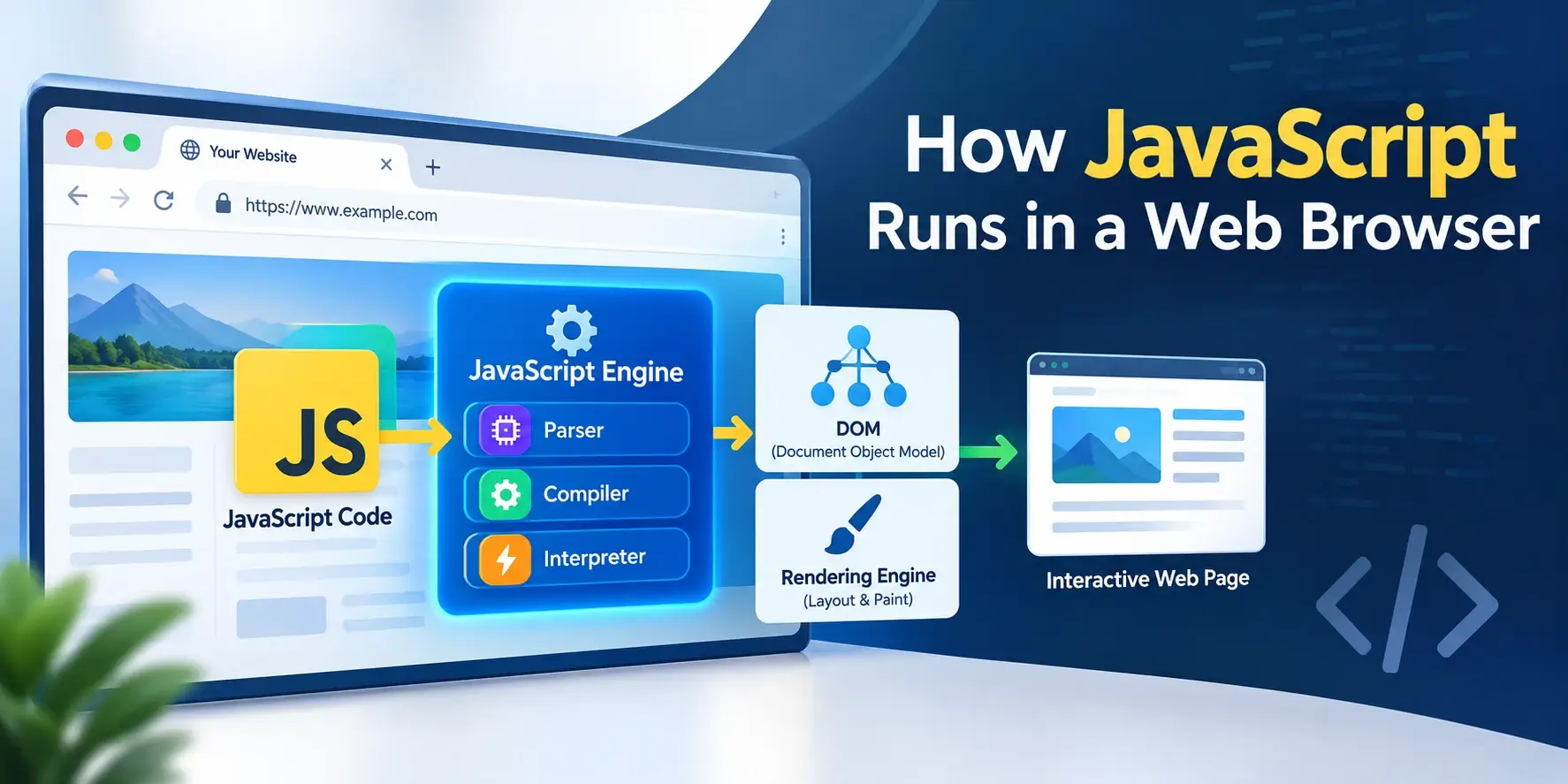
You type a URL and press Enter. A fraction of a second later, a page appears, its scripts have run, and a button responds to your click. Somewhere in between, a browser did a remarkable amount of work: it fetched files over the network, parsed HTML into a tree, turned CSS into another tree, combined them, calculated the position of every box on the page, painted pixels, and ran every line of JavaScript you wrote.
Most of that happens on one thread. The same thread that runs your for loop
also handles layout and painting, which is why a slow script freezes the whole page.
Understanding that arrangement explains almost everything about browser performance.
This guide walks through the whole journey: the browser’s process model, the parser and how scripts interrupt it, the difference between blocking, async, deferred, and module scripts, the rendering pipeline, and how Web Workers finally give JavaScript a second thread.
The Browser Is Not One Program
The first thing to understand is that a modern browser is not a single process. It is several, and the separation matters because it explains why one crashed tab does not take down the whole browser, and why some parts of the page can be busy while others stay responsive.
Browser process
The main controller. Manages the address bar, bookmarks, tabs, and the overall UI. There is only one.
Renderer process
One per tab (roughly). Contains the HTML parser, the CSS engine, the JavaScript engine, and the layout and paint code.
GPU process
Handles everything that goes to the screen — compositing layers, drawing, and hardware-accelerated animation.
Network process
Handles all HTTP requests, DNS lookups, TLS negotiation, and caching. Shared across tabs.
Plugin process
Runs plugins and embedded content in isolation, so a misbehaving plugin cannot crash the browser.
Utility processes
Small helper processes for storage, audio, printing, and other background services.
The renderer process is the one that matters for JavaScript. It is where everything in this article happens: parsing, execution, layout, and painting all live here.
Inside the renderer: the threads
JavaScript, HTML parsing, style calculation, layout, and painting all share the same thread. A script that takes 200ms stops everything else for 200ms. That is the single most important fact in this article.
The Journey of a Page Load
Here is the whole sequence, in order, from pressing Enter to seeing pixels.
<link> for CSS or a <script>,
it may have to pause while those files are fetched and processed. This is where the
blocking behaviour comes from.
JavaScript can interrupt any of these stages and force earlier ones to run again. Changing the DOM invalidates the render tree; changing a style invalidates layout; changing a color may only invalidate paint. That is the mechanism behind “layout thrashing,” covered later.
Parsing HTML and Building the DOM
The HTML parser is a streaming machine. It does not wait for the whole file to arrive — it processes bytes as they come in, building the DOM tree incrementally.
At each stage it produces something the next stage can consume. When it reaches a
<script> tag, everything changes.
The blocking script
By default, a <script> element does two blocking things at once. First,
the parser stops and waits for the file to download. Then the parser stops again while the
script runs.
<body>
    <h1>Hello</h1>

    <!-- The parser stops here: download, then run, then resume -->
    <script src="app.js"></script>

    <p>This paragraph is only parsed after app.js has finished.</p>
</body>
That is why the classic advice is to put scripts at the end of the body. By then, the rest of the HTML has already been parsed, so the script can safely query any element on the page.
If you place a large blocking script in the <head>, the parser stops
before it has parsed a single element of the body. The user stares at a blank page while
the file downloads. This is one of the most common causes of a slow-feeling site.
Blocking, async, defer, and Modules
The script element has two attributes that change its behaviour, plus a
type="module" mode that changes it again. The differences are about two things:
whether parsing pauses, and when the script runs.
Blocking
<script src=”app.js”></script>Parsing stops while the file downloads, then stops again while it runs.
Order is guaranteed. Nothing else happens in between.
Async
<script async src=”app.js”></script>Downloads in parallel with parsing. Runs as soon as it finishes — which may be before parsing is done.
Order is not guaranteed. Best for independent scripts.
Defer
<script defer src=”app.js”></script>Downloads in parallel. Runs after the HTML is fully parsed, in document order.
The safest choice for most scripts.
| Type | Pauses parsing? | When it runs | Order preserved? |
|---|---|---|---|
Plain <script> |
Yes, twice | Immediately, at its position | Yes |
async |
No | Whenever it finishes downloading | No |
defer |
No | After HTML parsing completes | Yes |
type="module" |
No | After parsing, like defer |
Yes |
See the difference on a timeline
These bars show what the main thread is doing over time for three different script setups.
In the blocking row, parsing genuinely stops. In the async row, parsing continues while the file downloads, and the script interrupts whenever it is ready. In the defer row, parsing runs to completion and the script runs afterwards, with nothing left to interrupt.
When to use which
- defer — the default for your own application scripts. It never blocks, and the order is guaranteed.
- async — for scripts that are completely independent: analytics, ads, third-party widgets. Nothing else depends on them.
- plain — rarely needed today. Sometimes used for a tiny inline script that must run before anything else, such as an anti-flash theme switcher.
- type=”module” — for modern applications. Deferred by default, scoped, strict, and it supports
import.
If you are unsure, use defer. It gives you parallel downloads, guaranteed
order, and a fully parsed DOM when the script runs. There is very little reason to use a
plain blocking script in new code.
ES Modules in the Browser
Modules changed how JavaScript is organized. A module is its own scope, it declares its
dependencies explicitly with import, and the browser resolves the whole graph
before running anything.
// utils.js — a module that exports things
export function formatPrice(value) {
    return '$' + value.toFixed(2);
}

export const TAX_RATE = 0.2;

// app.js — a module that imports them
import { formatPrice, TAX_RATE } from './utils.js';

const total = formatPrice(99.99 * (1 + TAX_RATE));
console.log(total);
And in the HTML, the script tag needs the module type:
<script type="module" src="app.js"></script>What modules change
What you get
Automatic defer — modules never block parsing.
Own scope — top-level variables do not leak to window.
Strict mode by default — silent bugs become errors.
Explicit dependencies — you can see what a file needs by reading its imports.
Loaded once — a module imported by three files still executes only once.
What to watch for
Must be served over HTTP, not opened from file:// — CORS blocks it.
Imports must include the file extension — ./utils.js, not ./utils.
Each module is a separate network request unless you bundle them.
Older browsers need a fallback with nomodule.
Modules are discovered by following imports. The browser fetches app.js,
parses it, discovers it imports utils.js, fetches that, discovers its
imports, and so on. Deeply nested modules can create a slow chain of requests, which is
why production builds usually bundle everything into one file.
CSS Is Render-Blocking
Stylesheets block rendering, and it is worth understanding why. The browser will not paint anything until it has the full CSSOM, because painting with incomplete styles would mean painting the page twice.
<link rel="stylesheet" href="main.css">

<!-- Browser paints the page unstyled -->
<!-- Then main.css arrives -->
<!-- Browser paints it again, styled -->

<!-- The user sees a flash of
unstyled content. --><link rel="stylesheet" href="main.css">
<!-- Browser waits for the CSS -->
<!-- Builds the CSSOM -->
<!-- Then paints once, correctly -->
<!-- One render, no flash. -->CSS also blocks scripts
There is a subtlety here that catches people out. A script that follows a stylesheet will wait for that stylesheet to load before running, even if the script is not blocked by parsing. The reason is that a script might query a computed style, and the browser cannot answer that question without the CSSOM.
<head>
    <!-- This stylesheet blocks the script below -->
    <link rel="stylesheet" href="theme.css">

    <!-- The browser waits for theme.css before running this,
         even though the script tag itself does not block parsing -->
    <script>
        const color = getComputedStyle(document.body).color;
    </script>
</head>
A stylesheet hosted on a slow third-party CDN can hold up every script that comes after it. If scripts are running later than expected, check the network waterfall — CSS is a common culprit.
The Main Thread at Work
Once the page has loaded, the main thread settles into a loop. It runs tasks from the task queue, drains microtasks between them, and periodically renders a frame.
Rendering does not happen after every task. The browser tries to render about sixty times per second, and if the main thread is busy it simply skips frames. That is what “the page feels janky” means.
Sixty frames per second means each frame has about 16.7 milliseconds. Within that budget the browser has to run your event handlers, recalculate styles, lay out, and paint. If your JavaScript alone takes 20ms, you have already missed the frame.
The main thread is shared
This example shows what happens when a synchronous script occupies the main thread. The spinner animates smoothly — until the blocking code runs, and then it stops dead.
<!DOCTYPE html>
<html lang="en">
<head>
    <meta charset="UTF-8">
    <title>Blocking the Main Thread</title>
    <style>
        body {
            font-family: system-ui, sans-serif;
            padding: 32px;
            background: #f8fafc;
            margin: 0;
            text-align: center;
        }
        .spinner {
            width: 60px;
            height: 60px;
            margin: 0 auto 20px;
            border: 6px solid #e2e8f0;
            border-top-color: #0891b2;
            border-radius: 50%;
            animation: spin 1s linear infinite;
        }
        @keyframes spin {
            to { transform: rotate(360deg); }
        }
        button {
            padding: 12px 24px;
            border: 0;
            border-radius: 10px;
            background: #0891b2;
            color: #fff;
            font: inherit;
            font-weight: 600;
            cursor: pointer;
        }
        button:hover { background: #0e7490; }
        .status {
            margin-top: 18px;
            font-size: 14px;
            color: #64748b;
            font-family: ui-monospace, monospace;
        }
    </style>
</head>
<body>

    <div class="spinner"></div>

    <button id="block">Block the main thread for 2s</button>

    <p class="status" id="status">The spinner is animating smoothly.</p>

    <script>
        const btn    = document.getElementById('block');
        const status = document.getElementById('status');

        btn.addEventListener('click', function () {
            status.textContent = 'Blocking now — the spinner will freeze…';

            // Give the browser one frame to update the status text
            requestAnimationFrame(function () {

                // Synchronous, blocking work
                const start = Date.now();
                while (Date.now() - start < 2000) {
                    // spin — the main thread is fully occupied
                }

                status.textContent = 'Done. The spinner resumed.';
            });
        });
    </script>

</body>
</html>
Click the button and watch the spinner. It stops completely for two seconds, along with everything else on the page. Then it resumes. That is the main thread being monopolized.
Open DevTools, switch to the Performance tab, and record while the button is clicked. You will see a long solid task with no frames rendered in between — the visual signature of a blocked main thread.
How JavaScript Triggers Rendering
When JavaScript changes the DOM or styles, the browser does not re-render immediately. It marks the relevant parts as dirty and re-runs the pipeline before the next frame.
transform or opacity. Cheapest of all — can run on the
compositor thread without the main thread.
| Change | Pipeline stages re-run | Cost |
|---|---|---|
| Adding an element | Style → Layout → Paint → Composite | Expensive |
width, margin, font-size |
Style → Layout → Paint → Composite | Expensive |
color, background, box-shadow |
Style → Paint → Composite | Moderate |
transform, opacity |
Composite only | Cheap |
Because transform and opacity can be handled by the compositor
alone, animating them keeps the main thread free. Animating left,
width, or margin forces layout on every frame and is the most
common cause of janky animation.
Layout Thrashing
There is a trap that catches almost everyone once. Reading certain properties from the DOM forces the browser to run layout immediately, because it has to give you an accurate answer. If you write, then read, then write, then read in a loop, you force layout on every iteration.
const boxes = document.querySelectorAll('.box');

boxes.forEach(function (box) {
    // Write
    box.style.width = box.offsetWidth + 10 + 'px';

    // Read — forces layout
    const h = box.offsetHeight;

    // Write again
    box.style.height = h + 10 + 'px';
});

// 100 boxes = 200 forced layouts.const boxes = document.querySelectorAll('.box');
// Read everything first
const sizes = Array.from(boxes).map(function (box) {
return {
w: box.offsetWidth,
h: box.offsetHeight
};
});
// Then write everything
boxes.forEach(function (box, i) {
box.style.width = sizes[i].w + 10 + 'px';
box.style.height = sizes[i].h + 10 + 'px';
});
// One layout total.Which properties force a layout
These reads all cause the browser to flush pending changes and recalculate layout:
offsetWidth,offsetHeight,offsetTop,offsetLeftclientWidth,clientHeight,clientTop,clientLeftscrollWidth,scrollHeight,scrollTop,scrollLeftgetBoundingClientRect()getComputedStyle()— for layout-dependent properties
Never mix reads and writes in the same loop. Read everything you need first, then perform all the writes. The browser will batch them into a single layout.
The Network Waterfall
The order in which the browser discovers and fetches resources determines how fast the page becomes usable. DevTools shows this as a waterfall, and reading one is a skill worth having.
Notice that utils.js cannot start until app.js has arrived and
been parsed, because that is when the browser discovers the import. That is the module
waterfall. It is also why bundlers exist.
What the waterfall tells you
- Long bars at the start — your server or your HTML is slow.
- Stair-stepped JavaScript — modules are loading one after another instead of in parallel.
- A gap before rendering — something render-blocking is holding up the first paint.
- Many small requests — consider bundling, or check whether you are loading resources you do not use.
Web Workers: A Second Thread
Everything so far has been about the limits of one thread. Web Workers are the escape hatch. A worker is a background thread that runs JavaScript in parallel with the main thread.
Main thread
- Owns the DOM
- Handles events and rendering
- Stays responsive
- Sends and receives messages
Worker thread
- No DOM access
- Runs heavy computation
- Runs in parallel
- Own global scope
The trade-off is clear: a worker gets its own thread but loses access to the DOM. It cannot
touch document or window, so it cannot update the page directly.
It sends messages back to the main thread instead.
A complete worker example
The worker code lives in its own file. It listens for messages and posts results back:
// worker.js — runs on its own thread

self.onmessage = function (event) {
    const limit = event.data;
    let sum = 0;

    // Heavy work — this would freeze the page
    // if it ran on the main thread
    for (let i = 0; i < limit; i++) {
        sum += Math.sqrt(i);
    }

    self.postMessage(sum);
};
And the main thread creates it, sends work to it, and receives the result:
// main.js — runs on the main thread

const worker = new Worker('worker.js');

worker.onmessage = function (event) {
    console.log('Result from worker:', event.data);
    // The page stayed responsive the whole time
};

worker.postMessage(50_000_000);
Data passed with postMessage is structured-cloned — copied, not shared. That
means you cannot pass a DOM node, a function, or an object with circular references. For
very large data, ArrayBuffer can be transferred rather than copied, which
moves ownership without duplication.
What workers are good for
Heavy computation
Image processing, cryptography, statistics, parsing large files.
Data crunching
Sorting, filtering, or aggregating thousands of records without freezing the UI.
Offscreen canvas
Drawing frames in a worker with OffscreenCanvas, keeping the main thread free.
Background fetching
Polling or synchronizing data without interfering with user interaction.
Each worker is a new thread with its own memory and global scope. Spawning one costs a few milliseconds, and communication costs more. Use workers for genuinely heavy work, not for small tasks that would finish faster on the main thread anyway.
The Page Lifecycle
A page is not simply loaded or unloaded. It moves through several states, and JavaScript can respond to each one.
document. Images and stylesheets may still be loading. This is when most scripts should run.
window. Images, stylesheets, fonts, and iframes are all done. Often later than people expect.
<!DOCTYPE html>
<html lang="en">
<head>
    <meta charset="UTF-8">
    <title>Page Lifecycle</title>
    <style>
        body { font-family: system-ui, sans-serif; padding: 24px; background: #f8fafc; font-size: 14px; }
        .line {
            background: #fff; border: 1px solid #e2e8f0; border-radius: 10px;
            padding: 10px 14px; margin-bottom: 6px;
            font-family: ui-monospace, monospace; font-size: 12.5px;
            display: flex; justify-content: space-between; gap: 12px;
        }
        .time { color: #64748b; font-size: 11px; }
        .hint { color: #64748b; margin-top: 16px; font-size: 13px; line-height: 1.6; }
    </style>
</head>
<body>

    <div id="output"></div>

    <p class="hint">
        Switch to another tab and come back — the visibilitychange event will fire
        both times.
    </p>

    <script>
        const out = document.getElementById('output');
        const start = performance.now();

        function log(name) {
            const elapsed = Math.round(performance.now() - start);
            const div = document.createElement('div');
            div.className = 'line';
            div.innerHTML =
                '<span>' + name + '</span>' +
                '<span class="time">+' + elapsed + 'ms</span>';
            out.appendChild(div);
        }

        log('script is running');

        document.addEventListener('DOMContentLoaded', function () {
            log('DOMContentLoaded — DOM is ready');
        });

        window.addEventListener('load', function () {
            log('load — all resources finished');
        });

        document.addEventListener('visibilitychange', function () {
            log('visibilitychange — hidden: ' + document.hidden);
        });
    </script>

</body>
</html>
A script waiting for load has to wait for every image and font. A script
waiting for DOMContentLoaded can run as soon as the HTML is parsed. In
practice, a deferred script does not need either — it already runs after parsing.
Debugging What the Browser Is Doing
DevTools exposes every stage described in this article. Knowing which panel answers which question saves enormous time.
| Question | Panel |
|---|---|
| Did the file even load? | Network — look for the request and its status code |
| What order did things load in? | Network — the waterfall view |
| What is blocking the first paint? | Performance — record a load and look for long tasks before render |
| What is slow on the main thread? | Performance — the flame chart shows every task and its duration |
| Which CSS rule is actually applying? | Elements → Styles — shows the cascade and computed values |
| Why did layout run? | Performance — enable “Layout Shift” and look at forced reflow warnings |
| Is memory growing? | Memory — take heap snapshots and compare |
| Are my event handlers attached? | Elements → Event Listeners |
The Coverage tab tells you what percentage of your CSS and JavaScript actually ran. On a mature site it is common to find that a large fraction of the JavaScript shipped is never executed. That is the fastest way to find something worth removing.
Common Mistakes
These are the patterns that most often make a page feel slow, and each one traces back to how the browser actually works.
1. Blocking scripts in the head
<head>
    <script src="app.js"></script>
</head>
<body>
    <h1>Content</h1>
</body>

<!-- The parser stops in the head.
     Nothing renders until app.js
downloads and runs. --><head>
<script src="app.js" defer></script>
</head>
<body>
<h1>Content</h1>
</body>
<!-- Downloads in parallel.
Runs after parsing.
The page renders immediately. -->2. Reading layout properties in a loop
items.forEach(function (item) {
    item.style.height =
        container.offsetHeight + 'px';
});

// Reading offsetHeight inside
// the loop forces the browser
// to recalculate layout each time.const h = container.offsetHeight;
items.forEach(function (item) {
item.style.height = h + 'px';
});
// One layout, one paint.3. Animating layout properties
.box {
    transition: left 0.3s ease,
                width 0.3s ease;
}

// Animating left and width forces
// style, layout, paint, and composite
// on every single frame..box {
transition: transform 0.3s ease,
opacity 0.3s ease;
}
// transform and opacity can be
// handled by the compositor alone.
// The main thread stays free.4. Running heavy work on the main thread
function processAll(records) {
    return records.map(function (r) {
        return expensiveTransform(r);
    });
}

// 50,000 records × 1ms each
// = 50 seconds of frozen UI.const worker = new Worker('process.js');
worker.onmessage = function (e) {
render(e.data);
};
worker.postMessage(records);
// The main thread stays
// completely responsive.5. Using load instead of DOMContentLoaded
window.addEventListener('load', function () {
    init();
});

// If one image is slow, init()
// waits for it. The user sees
// an unresponsive page.document.addEventListener(
'DOMContentLoaded',
function () { init(); }
);
// Or simply use a deferred script,
// which already runs at that point.6. Loading modules without bundling
<script type="module" src="app.js">

// app.js imports utils.js
// utils.js imports helpers.js
// helpers.js imports constants.js

// Four sequential requests
// before anything runs.<script type="module" src="bundle.js">
// The build step combined all
// four modules into one file.
// One request, no waterfall.Every one of these fixes has a cost in complexity. Open the Performance panel, record a real load, and find where the time is actually going before rewriting anything. Most pages have one or two dominant problems, not ten.
Best Practices
These follow directly from how the browser works. Each one is a small change with an outsized effect.
Defer your scripts
Use defer or type="module" so parsing never pauses. Almost always the right default.
Bundle for production
Modules are great in development. Combine them at build time to avoid a request waterfall.
Animate transform and opacity
They run on the compositor and leave the main thread free for everything else.
Batch reads and writes
Read all layout properties first, then write. Never interleave them in a loop.
Move heavy work to a worker
Anything taking more than a few milliseconds belongs off the main thread.
Lazy-load images
loading="lazy" defers offscreen images so they do not compete with what is visible.
Reserve space for images
Set width and height so layout does not shift when the image arrives.
Keep tasks under 50ms
A task longer than 50ms is officially a “long task” and blocks interaction.
Profile with DevTools
Record a real load. Fix the biggest problem first, then measure again.
Everything shares one main thread. Defer your scripts, keep tasks short, move heavy work
to a worker, and animate only transform and opacity.
Frequently Asked Questions
1. What happens when a browser loads a page?
The browser fetches the HTML, parses it into a DOM tree, parses the CSS into a CSSOM, combines them into a render tree, calculates layout, and paints pixels. JavaScript runs on the main thread alongside all of that and can change any of the structures as it goes.
2. What is the main thread?
The main thread is the single thread where the browser parses HTML, runs JavaScript, calculates styles, performs layout, and paints the page. Because JavaScript shares it with rendering, long-running scripts block the page from updating.
3. Does a script tag block HTML parsing?
Yes, by default. A plain script element without async or
defer pauses the HTML parser while the file downloads and then runs. That
is why scripts are usually placed at the end of the body, or marked
defer so they download in parallel and run after parsing.
4. What is the difference between async and defer?
Both download the script in parallel with parsing. defer waits until the
HTML is fully parsed before running, and preserves the order of multiple scripts.
async runs the script as soon as it finishes downloading, which means the
order is not guaranteed.
5. What is the difference between blocking, async, and deferred scripts?
A blocking script pauses HTML parsing while it downloads and runs. An async script downloads in parallel and runs whenever it finishes, potentially interrupting parsing. A deferred script downloads in parallel and runs after parsing completes, in document order.
6. Are ES modules deferred by default?
Yes. A script with type="module" is deferred automatically. It downloads
in parallel, runs after parsing, preserves the order of its dependencies, and runs in
strict mode with its own scope.
7. What is the DOM?
The DOM — Document Object Model — is the browser’s in-memory tree of your HTML. Every element becomes a node object that JavaScript can read, change, add, or remove. Changes to the DOM are what cause the browser to re-render.
8. What is the CSSOM?
The CSSOM is the browser’s in-memory representation of all the CSS that applies to the page. It is combined with the DOM to produce the render tree, which the browser uses for layout and painting. JavaScript cannot read the CSSOM directly, but it can change it by modifying styles or class names.
9. What is the render tree?
The render tree is what the browser builds by combining the DOM and the CSSOM. It
contains only the elements that will actually be displayed — elements with
display: none are excluded — along with their computed styles.
10. What are the steps in the rendering pipeline?
The pipeline is: parse HTML and CSS, build the DOM and CSSOM, combine them into a render tree, calculate layout (positions and sizes), paint (fill in pixels), and composite layers to the screen. JavaScript can trigger any of these steps by changing the DOM or styles.
11. What is a Web Worker?
A Web Worker is a separate background thread that runs JavaScript in parallel with the main thread. Workers cannot touch the DOM directly, so they communicate with the main thread by posting messages. They are how you move heavy computation off the thread that renders the page.
12. Why does a heavy script freeze the page?
Because JavaScript runs on the same thread the browser uses for layout and painting. While a synchronous script is running, no events are handled and no frames are rendered. The page appears frozen until the script finishes and the main thread is free again.
Key Takeaways
- A browser is multiple processes; each tab has its own renderer.
- The renderer’s main thread handles parsing, JavaScript, layout, and painting.
- A plain
<script>blocks parsing twice — for download and for execution. asyncdownloads in parallel but runs whenever it is ready, order not guaranteed.deferdownloads in parallel and runs after parsing, in order.type="module"is deferred by default and has its own scope.- CSS is render-blocking, and it also blocks scripts that follow it.
- The rendering pipeline is style, layout, paint, composite.
- Animating
transformandopacityskips layout and paint entirely. - Mixing layout reads and writes in a loop causes layout thrashing.
- Web Workers run JavaScript on a second thread but cannot access the DOM.
- If a task takes more than 50ms, it is officially blocking interaction.
What to Learn Next
Now that you know how the browser runs your code, the natural next step is the execution model underneath it. Read How JavaScript Works for the call stack, the event loop, and the queues.
From there, explore Async and Await Explained, Working with the DOM, and JavaScript Events. When you are ready to measure and improve, read JavaScript Performance and Web Performance Fundamentals.
If you are still connecting the pieces, read What Is JavaScript?, JavaScript vs TypeScript, and HTML vs CSS for the surrounding context.
Practice Challenge
The best way to see the main thread at work is to occupy it and watch what happens. This exercise takes about twenty-five minutes.
- Create
index.htmlwith a CSS spinner, a button, and a status paragraph. Load a deferred script. - In the script, make the button run a synchronous loop for two seconds. Click it and watch the spinner freeze.
- Open DevTools, go to the Performance panel, and record while clicking. Find the long task on the flame chart and note its duration.
- Now change the script tag from
deferto no attribute, and move it into the<head>. Reload and watch how much later the content appears. - Add
asyncinstead. Reload a few times and note that the timing varies, because the script runs whenever it finishes downloading. - Write a second script that also needs the DOM. With
asyncon both, note that the order is not guaranteed — then switch both todeferand confirm it is. - Add a
modulescript that imports a second file. Watch the network waterfall and count the sequential requests. - Create a list of 500 boxes and write a loop that reads
offsetHeightand then writesstyle.heighton each one. Record it in the Performance panel and look for forced reflow warnings. - Rewrite the loop to read everything first, then write everything. Record again and compare the layout count.
- Change an animation from
lefttotransform: translateX()and record both. Note the difference in paint and layout work. - Finally, move the heavy loop into a Web Worker. Confirm the spinner keeps animating while the worker is busy, and that the result arrives by message.
If you complete those steps, you have watched the main thread freeze and recover, seen the difference between blocking, async, and deferred loading in the network waterfall, triggered layout thrashing and fixed it, and moved real work onto a second thread. Those four things — how scripts load, what shares the main thread, how the rendering pipeline responds, and how to escape it with a worker — are the whole story of JavaScript in a browser.

 Inar Learn