
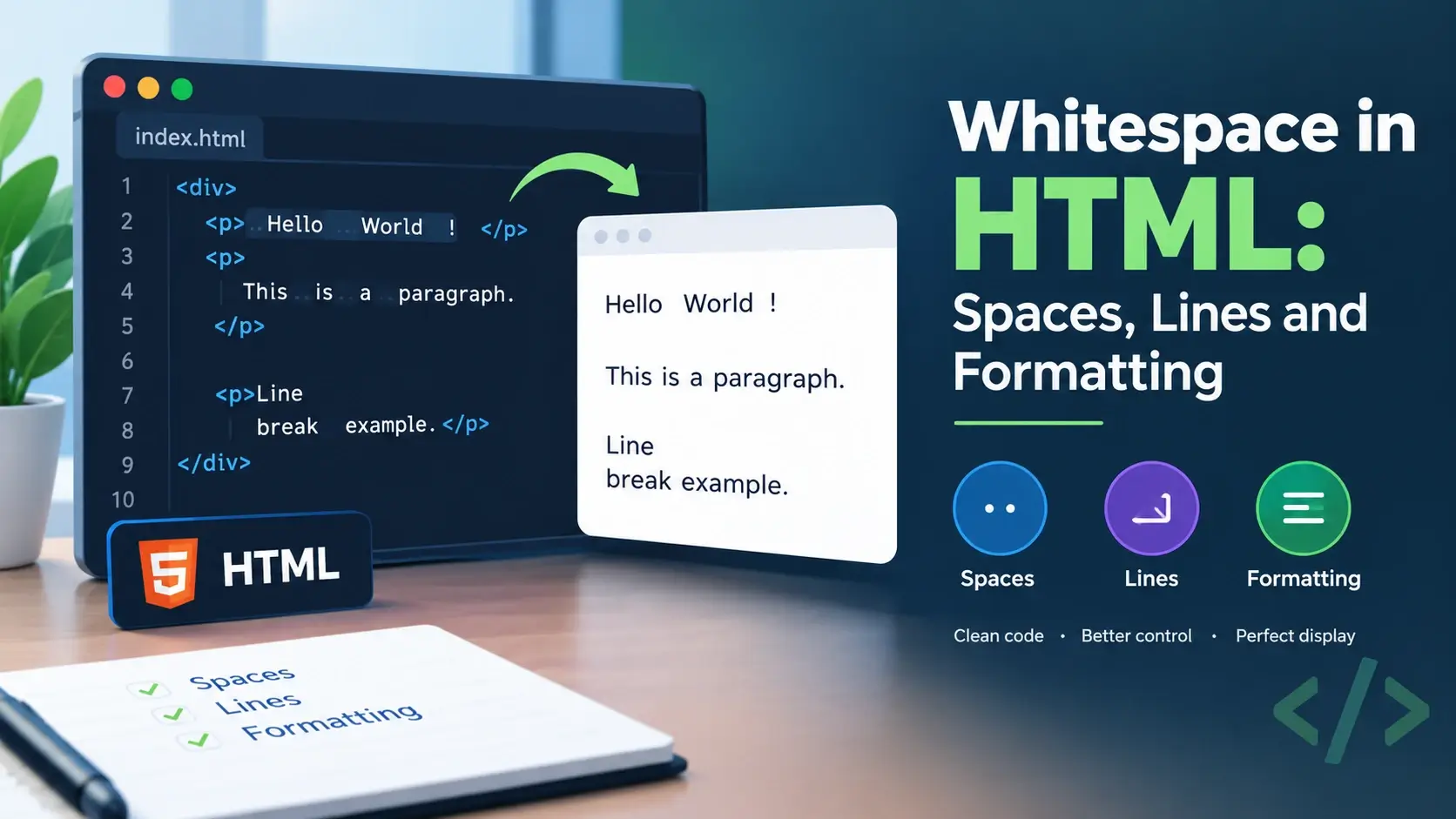
You type three spaces between two words, but the browser shows one. You press Enter five times in your source code, but the page looks exactly the same. This surprises almost every beginner — and it is one of the most important behaviors in HTML to understand.
In this guide, you will learn how HTML treats spaces, tabs, and newlines, why the browser collapses whitespace, when whitespace matters, and how to preserve it exactly when you need to. Every concept comes with a real example and a side-by-side comparison.
What Is Whitespace in HTML?
In HTML, whitespace refers to any character that adds space without adding a visible mark. There are three main whitespace characters you will encounter:
Space
The regular space character you type with the spacebar.
Tab
The tab character, usually produced by the Tab key in your editor.
Newline
A line break in the source file, produced by the Enter or Return key.
All three are treated the same way by the browser. This is different from many programming languages, where tabs and spaces can mean different things. In HTML, they are simply "whitespace."
<p>Hello     world</p>
<p>Hello	world</p>
<p>Hello
world</p>
Each of those three paragraphs renders identically: Hello world with a single space between the two words. Multiple spaces, a tab, and a newline all collapse to the same thing.
Whitespace exists in your source file for human readability. The browser reads it, but it does not render the layout the way you typed it.
How the Browser Collapses Whitespace
When a browser parses an HTML file, it walks through the text and normalizes runs of whitespace. The rule is simple: any sequence of one or more whitespace characters is replaced by a single space.
This is called whitespace collapsing. It applies in almost every context: inside paragraphs, inside headings, between list items, and around inline elements.
Before and after collapsing
Here is a source snippet with obvious extra whitespace, followed by what the browser actually renders:
Every space, tab, and newline between "The" and "quick", and between "brown" and "fox" was
collapsed. The only thing that stayed as-is was the entity , which
is a different character entirely (we will cover it shortly).
Leading and trailing whitespace
Whitespace at the beginning or end of an element's content is also stripped in most cases. This paragraph has whitespace on both sides of its content:
<p>
    Hello world
</p>
The newline and spaces before "Hello" and after "world" are removed. The rendered paragraph shows only Hello world.
Whitespace collapsing is what makes HTML practical to write. Without it, formatting your code with indentation would add unwanted spaces everywhere on the page.
Indentation and Source Formatting
Because whitespace collapses, you can format your HTML any way you like. Indentation is purely for human readers — the browser does not care.
These three snippets all produce exactly the same rendered output:
<!-- All on one line -->
<div><p>Hello</p></div>

<!-- Two-space indentation -->
<div>
  <p>Hello</p>
</div>

<!-- Heavy indentation -->
<div>
                <p>Hello</p>
</div>
The browser ignores the difference entirely. That is why HTML developers can adopt any indentation style they like without worrying about the rendered result.
Why indentation still matters
Even though the browser ignores it, indentation matters to humans. Well-indented code makes the nesting hierarchy visible at a glance. This is a strong convention in professional code.
<article><header>
<h1>Title</h1></header><section>
<p>Text</p></section></article><article>
<header>
<h1>Title</h1>
</header>
<section>
<p>Text</p>
</section>
</article>Choose two spaces or four spaces per nesting level and be consistent. Most code editors can auto-format HTML on save — Prettier is a popular choice for this.
Where Whitespace Actually Matters
Whitespace collapsing is not universal. There are several important contexts where the browser preserves whitespace exactly as you wrote it.
Inside <pre>
Preserves every space, tab, and newline exactly as written.
Inside <textarea>
Preserves whitespace so users can format text the way they typed it.
Between inline elements
A space between two inline elements on the same line is preserved as one space.
Inside entities
Non-breaking spaces do not collapse — each one stays as one space.
With CSS white-space
The CSS property white-space can change how whitespace behaves.
In attribute values
Whitespace inside a quoted attribute value is preserved as written.
Each of these is worth understanding, and the rest of this guide walks through them in detail.
Preserving Whitespace with <pre>
The <pre> element is the primary way to preserve whitespace in HTML.
Everything inside it is rendered exactly as written — every space, every tab, every newline.
<!DOCTYPE html>
<html lang="en">
<head>
    <meta charset="UTF-8">
    <title>Preformatted Text</title>
    <style>
        body { font-family: system-ui, sans-serif; padding: 24px; background: #f8fafc; }
        pre { background: #0b1020; color: #dbe3f4; padding: 16px; border-radius: 8px; overflow-x: auto; }
    </style>
</head>
<body>
    <h1>Preformatted Text</h1>

    <pre>
        Line 1
            Line 2 (indented)
                Line 3 (more indented)

        Line 4 after a blank line
    </pre>
</body>
</html>
Every space and line break in the source is preserved in the rendering. This is why
<pre> is the standard way to display code, ASCII art, poetry, or any
content where exact formatting matters.
Combining pre with code
The most common pattern is wrapping code samples in <pre> and
<code> together:
<!DOCTYPE html>
<html lang="en">
<head>
    <meta charset="UTF-8">
    <title>Code Sample</title>
    <style>
        body { font-family: system-ui, sans-serif; padding: 24px; background: #f8fafc; }
        pre {
            background: #0b1020;
            color: #dbe3f4;
            padding: 16px;
            border-radius: 8px;
            overflow-x: auto;
            font-family: monospace;
            font-size: 14px;
            line-height: 1.6;
        }
    </style>
</head>
<body>
    <h1>A Code Example</h1>

    <pre><code>function greet(name) {
    if (name) {
        console.log("Hello, " + name);
    }
}</code></pre>
</body>
</html>
The <pre> preserves the whitespace, and the <code>
marks the content as code. This is the standard combination used by every documentation
site and code editor on the web.
A <pre> element preserves the newline right after the opening tag,
which shows up as a blank first line. Many developers put the content on the same line as
the opening tag, or strip the leading newline in code.
Non-Breaking Spaces:
A regular space collapses when repeated and allows the browser to break the line at that
point. A non-breaking space ( ) does neither — it stays as a space
and prevents a line break from happening there.
<!DOCTYPE html>
<html lang="en">
<head>
<meta charset="UTF-8">
<title>Non-Breaking Spaces</title>
<style>
body { font-family: system-ui, sans-serif; padding: 24px; background: #f8fafc; max-width: 400px; }
p { background: #fff; padding: 12px 16px; border-radius: 8px; border: 1px solid #e2e8f0; }
</style>
</head>
<body>
<p>This collapses: 10 kg</p>
<p>This does not: 10 kg</p>
<p>10 kg stays together and will not wrap at the space.</p>
</body>
</html>
The first paragraph collapses the spaces. The second preserves them because each one is a
non-breaking space entity. The third uses a single between "10" and
"kg" so the two stay together even when the line is narrow.
When to use
- Keeping a number and its unit together, like "10 kg" or "5 km".
- Preventing a line break inside a short brand or product name.
- Forcing additional spaces in a line of text where you want more than one.
- Preserving a small amount of spacing without using
<pre>.
is a hack for spacing, not a layout tool. Using dozens of them
to indent content is fragile and hard to maintain. Use CSS padding or margins instead.
Controlling Whitespace with CSS
The CSS white-space property lets you override how whitespace is rendered.
This is a common technique when you want the effect of <pre> without
the monospace font.
The default behavior. Collapses whitespace and wraps lines when needed.
Collapses whitespace but does not wrap lines. Text stays on one line.
Preserves whitespace exactly. Behaves like the pre element. Does not wrap.
Preserves whitespace but wraps lines when the container is too narrow.
Collapses spaces but preserves newlines. Good for user-submitted content.
Like pre-wrap but does not collapse trailing whitespace at line ends.
CSS example: pre-line for user text
<!DOCTYPE html>
<html lang="en">
<head>
    <meta charset="UTF-8">
    <title>white-space: pre-line</title>
    <style>
        body { font-family: system-ui, sans-serif; padding: 24px; background: #f8fafc; }
        .message {
            white-space: pre-line;
            background: #fff;
            padding: 16px 20px;
            border-radius: 10px;
            border: 1px solid #e2e8f0;
            max-width: 500px;
        }
    </style>
</head>
<body>
    <h1>A user message</h1>
    <div class="message">Hello,

Thanks for the quick reply.

I'll check and get back to you.

– Sam</div>
</body>
</html>
With white-space: pre-line, the newlines between paragraphs are preserved, but
extra spaces within a line are still collapsed. This is often the right choice for chat
messages, comments, or any user-submitted text.
Use pre-wrap when you want both spaces and newlines preserved. Use
pre-line when you want only newlines preserved and spaces collapsed.
Whitespace Between Inline Elements
Whitespace behaves specially between inline elements. When two inline elements are separated by any whitespace in the source — a space, a tab, or a newline — the browser renders a single space between them.
<!DOCTYPE html>
<html lang="en">
<head>
    <meta charset="UTF-8">
    <title>Inline Whitespace</title>
    <style>
        body { font-family: system-ui, sans-serif; padding: 24px; background: #f8fafc; }
        span {
            background: #0891b2;
            color: #fff;
            padding: 4px 10px;
            border-radius: 6px;
            font-size: 14px;
        }
        .row { margin-bottom: 12px; font-size: 0; }
        .row span { font-size: 14px; }
    </style>
</head>
<body>
    <h1>Whitespace between inline elements</h1>

    <p>With whitespace in source:</p>
    <div class="row">
        <span>One</span>
        <span>Two</span>
        <span>Three</span>
    </div>

    <p>Without whitespace in source:</p>
    <div class="row" style="font-size: 0;"><span>One</span><span>Two</span><span>Three</span></div>
</body>
</html>
The first row has visible gaps between the buttons because each newline in the source collapses to a space. The second row has the same markup but with all whitespace removed between the spans — and the buttons touch.
Removing gaps between inline elements
There are several techniques to remove these gaps when you want inline elements to sit flush against each other:
- Remove whitespace in the source. Put the tags directly next to each other.
- Use HTML comments. Insert
<!-- -->between elements to absorb the whitespace. - Set
font-size: 0on the parent. Reset the font size on the children. - Use flexbox. This is the modern solution and eliminates the problem entirely.
The "inline-block whitespace gap" is one of the most famous quirks in HTML. Any inline or inline-block element separated by whitespace will show a small gap. Flexbox is the modern fix.
Line Breaks in the Source vs. on the Page
A newline in your source file does not create a line break on the page. The only way to
create a real line break in rendered HTML is to use the <br> element or
to split content into separate block elements.
<p>Line one
Line two
Line three</p><p>Line one<br>
Line two<br>
Line three</p>
In the first version, the three lines of source render as one continuous sentence. In the
second version, the <br> elements create actual line breaks.
When to use <br>
The <br> element is appropriate for line breaks within a single piece
of content, like a poem, an address, or a mailing label. It is not appropriate for spacing
out paragraphs or sections — CSS margins and block elements are the right tools for that.
Using multiple <br> tags to create vertical space is a common
beginner mistake. It produces fragile, hard-to-maintain markup. Use CSS margins instead.
Whitespace Inside Attributes
Whitespace behaves differently inside attribute values. When an attribute value is surrounded by quotes, the whitespace inside those quotes is preserved exactly as written.
<!-- Space after the tag name is required -->
<div class="card"></div>

<!-- Space inside the value is preserved -->
<div title="Hello   world"></div>

<!-- Multiple classes are separated by spaces -->
<div class="card featured highlighted"></div>
The title attribute in the second example contains three spaces between
"Hello" and "world" — and a tooltip will show all three. But the class
attribute is a special case: class names are separated by spaces, and multiple consecutive
spaces are treated as one.
Spaces around the equals sign
<img src = "photo.jpg"
alt = "Photo"><img src="photo.jpg"
alt="Photo">Both forms are valid, but the convention is no spaces around the equals sign. This is easier to read and matches the style used by every major HTML style guide.
One place where whitespace is required is between attributes. Each attribute must be separated from the next by at least one space — otherwise the browser cannot tell where one attribute ends and the next begins.
Whitespace in Tables
Tables are a subtle case for whitespace. The browser collapses whitespace within table
cells, but the whitespace between table tags (like between <tr> and
<td>) does not create visible gaps.
<!DOCTYPE html>
<html lang="en">
<head>
<meta charset="UTF-8">
<title>Table Whitespace</title>
<style>
body { font-family: system-ui, sans-serif; padding: 24px; background: #f8fafc; }
table { border-collapse: collapse; width: 100%; max-width: 400px; }
th, td { border: 1px solid #cbd5e1; padding: 8px 12px; text-align: left; }
th { background: #f1f5f9; }
</style>
</head>
<body>
<h1>Whitespace inside cells</h1>
<table>
<tr>
<th>Name</th>
<th>Value</th>
</tr>
<tr>
<td>Spaces</td>
<td>hello world</td>
</tr>
<tr>
<td>Non-breaking</td>
<td>hello world</td>
</tr>
</table>
</body>
</html>Inside the first cell, "hello" and "world" collapse to a single space. Inside the second cell, the non-breaking spaces preserve the spacing. The whitespace between the table tags themselves does not appear on the page.
You can indent table rows and cells for readability without affecting the rendered table. The browser strips the whitespace between cell tags.
Common Whitespace Mistakes
A handful of whitespace mistakes show up again and again in beginner code. Here are the ones to watch for.
1. Expecting source newlines to create visible line breaks
<p>Line one
Line two</p><p>Line one<br>
Line two</p>2. Using multiple <br> for vertical spacing
<p>First</p>
<br><br><br>
<p>Second</p><p style="margin-bottom: 32px;">
First
</p>
<p>Second</p>3. Using for indentation
<p> Indented text</p><p style="padding-left: 40px;">
Indented text
</p>4. Forgetting that <pre> preserves everything
<pre>
    function greet() { }
</pre><pre>function greet() {
// code
}</pre>5. Whitespace gaps between inline-block elements
<span>One</span>
<span>Two</span>
<span>Three</span><span>One</span><span>Two</span><span>Three</span>6. Expecting spaces inside class attributes to preserve
<div class="card    featured">

<!-- Same as: -->
<div class="card featured"><div class="card featured"></div>7. Inconsistent indentation across the file
<div>
  <p>Indented with 2 spaces</p>
    <span>Indented with 4</span>
</div><div>
<p>Two spaces</p>
<span>Two spaces</span>
</div>Set up auto-formatting in your editor so indentation stays consistent across the whole project. Prettier and similar tools handle this automatically.
Best Practices for Whitespace in HTML
A few habits make your HTML cleaner and more predictable.
Indent consistently
Two or four spaces per nesting level. Be consistent across the file.
Do not rely on source formatting
The layout of your source has no effect on the layout of the page.
Use CSS for spacing
Margins, padding, and gap — not or <br>.
Use <pre> for preformatted content
Code, ASCII art, or any content where exact formatting matters.
Watch inline gaps
Understand when whitespace between inline elements produces a visible gap.
Let a formatter handle it
Use Prettier or your editor's built-in formatter to keep files clean.
Write your source for humans, and control the visual layout with CSS. Never rely on whitespace in the source to produce visual spacing on the page.
Frequently Asked Questions
1. Does HTML ignore whitespace?
HTML collapses multiple consecutive whitespace characters (spaces, tabs, and line breaks) into a single space when rendering text. It does not ignore them entirely — a single space is preserved, but the exact number and type of characters is not.
2. How do you add multiple spaces in HTML?
Regular spaces collapse when repeated. To force multiple spaces, use the non-breaking
space entity for each additional space, use a
<pre> element, or apply the CSS white-space: pre
property.
3. What is the difference between a regular space and ?
A regular space collapses when repeated and allows the browser to wrap the line. A
non-breaking space ( ) does not collapse and prevents the browser
from breaking the line at that point.
4. Does a newline in HTML create a line break?
No. A newline in the HTML source is treated as whitespace and collapses to a single
space. To create an actual line break in the rendered page, use the
<br> element.
5. What does the <pre> element do?
The <pre> element preserves all whitespace exactly as written —
including multiple spaces, tabs, and line breaks. It renders text in a monospace font
by default.
6. How does CSS affect whitespace in HTML?
The CSS white-space property controls how whitespace is rendered. Values
like pre, pre-wrap, pre-line, and
nowrap override the default behavior of collapsing whitespace.
7. Does indentation affect how HTML renders?
No. Indentation in the source has no effect on how the page is rendered. It is purely for human readability and code maintenance.
8. Why do spaces disappear between inline elements in HTML?
Spaces between inline elements are preserved as a single space. When a newline or multiple spaces appear between inline elements, they collapse to one space. If you remove all whitespace between them, the elements visually touch with no gap.
9. How do I prevent a line break between two words?
Use a non-breaking space ( ) between the two words. This keeps
them on the same line and prevents the browser from wrapping between them.
10. Does whitespace affect SEO in HTML?
No. Search engines normalize whitespace when reading content, so extra spaces or newlines have no effect on rankings. What matters is that the text content itself is clear and well-structured.
11. Do browsers treat tabs and spaces the same way?
Yes. In regular HTML content, tabs, spaces, and newlines are all treated as whitespace
and collapse together into a single space. Inside a <pre> element,
they are preserved exactly as written.
12. How can I display code on a web page with proper indentation?
Wrap the code in a <pre> element to preserve whitespace, and often
a nested <code> element to mark it as code. This preserves the
exact indentation and line breaks from the source.
Key Takeaways
- HTML collapses any run of spaces, tabs, and newlines into a single space when rendering.
- Source layout does not affect page layout — you can indent freely without visible consequences.
- Source newlines do not create line breaks on the page. Use
<br>instead. <pre>preserves all whitespace exactly — used for code, ASCII art, and poetry. forces a space that will not collapse or allow a line break.- CSS
white-spacecontrols how whitespace is rendered:pre,pre-wrap,pre-line,nowrap. - Whitespace between inline elements produces a visible one-space gap — a well-known HTML quirk.
- Whitespace inside quoted attribute values is preserved; spaces around the equals sign are discouraged.
- Indentation matters for humans, not the browser. Be consistent to keep code readable.
- Use CSS for spacing — never
or multiple<br>tags.
What to Learn Next
Now that you understand whitespace handling in HTML, the next step is to strengthen your foundational skills. Start with HTML Syntax Explained and HTML Nesting Explained for the underlying rules.
For deeper coverage, explore HTML Elements, HTML Attributes, and HTML Comments. To see how the browser parses and renders whitespace, read How Web Browsers Work and How Websites Work.
Practice Challenge
Build a small HTML page that demonstrates how whitespace behaves in different contexts. Your page should include:
- A paragraph where multiple spaces in the source collapse to one on the page
- The same text using
to preserve the multiple spaces - A
<pre>block showing indented code or ASCII art with the formatting preserved - Two inline buttons separated by whitespace, and two more with no whitespace between them
- A block of text with
white-space: pre-linepreserving newlines - A paragraph where a line break from the source is replaced by a
<br>element
Once your page renders, compare the different sections side by side. You will see the exact
effect of whitespace collapsing, non-breaking spaces, <pre>, and CSS
white-space — all in one page.
If you can explain why each section renders the way it does, you have mastered one of the most subtle and important behaviors in HTML.

 Inar Learn