
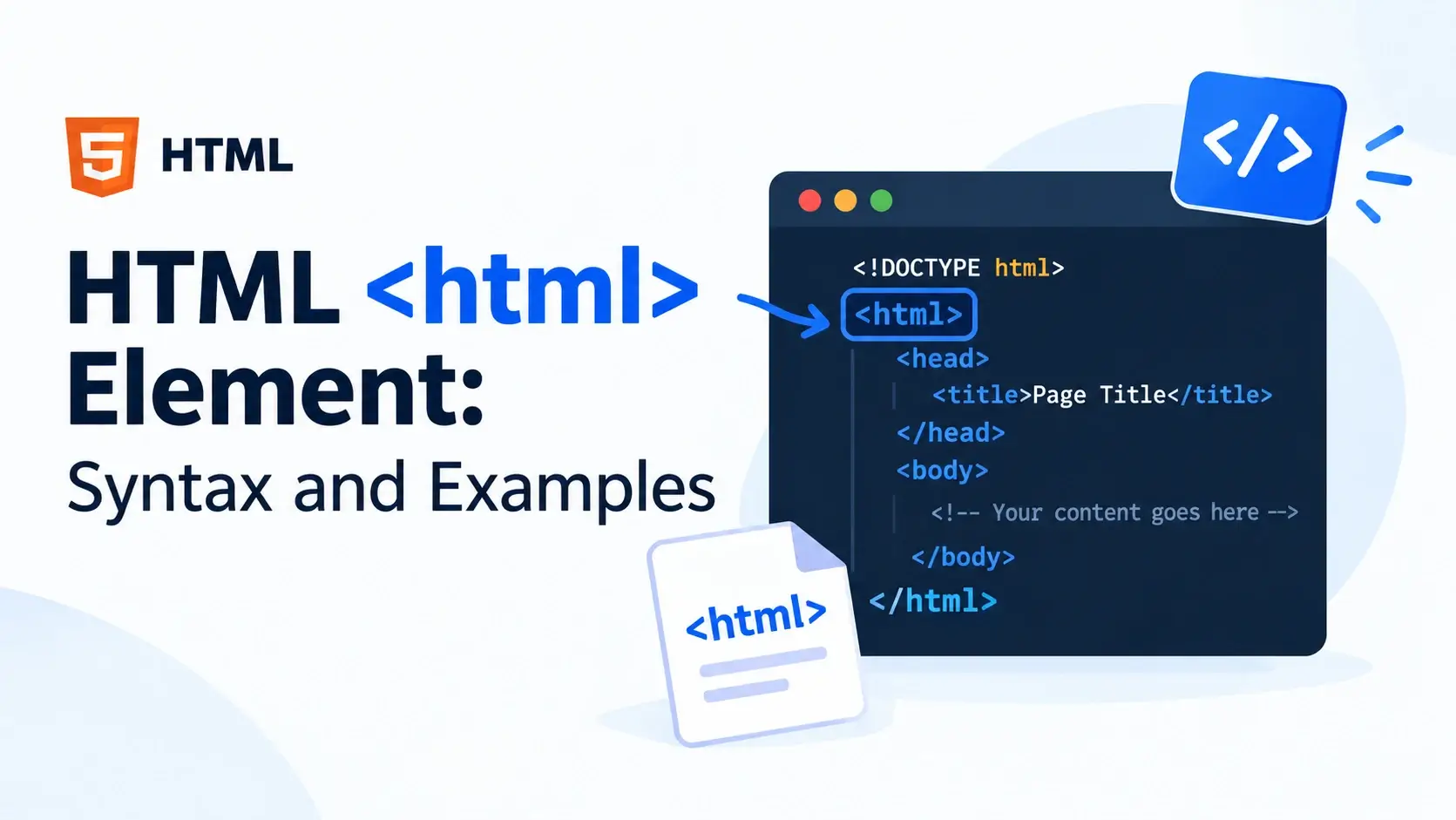
Every HTML document has a single root element that wraps everything else. It is called
the <html> element, and it is the outermost container on every page on
the web. Nothing — not the head, not the body, not a single character of visible content —
lives outside it.
In this guide, you will learn what the <html> element does, its exact
syntax, the two attributes that make it useful (the essential lang and the
less-known dir), how it fits into the document tree, and the mistakes that
beginners make with it.
<html> element is the root
element of every HTML document — it contains the head and the body, and the
lang attribute on it declares the page’s primary language.
What Is the <html> Element?
The <html> element is the root element of an HTML document. It comes
immediately after the DOCTYPE declaration and wraps the entire page. Every other element
— including <head> and <body> — must be nested inside
it.
When a browser loads an HTML file, the first thing it looks for is the root element. If it is not there, the browser inserts one automatically, because the DOM tree requires a root.
A minimal document with an <html> element looks like this:
<!DOCTYPE html>
<html lang="en">
<head>
    <meta charset="UTF-8">
    <title>My Page</title>
</head>
<body>
    <p>Hello, world!</p>
</body>
</html>
What the element represents
The root of the tree
Every HTML document is a tree. The <html> element is the top of that tree.
A container for everything
The head and the body are both direct children of the <html> element.
A place to declare language
The lang attribute on <html> tells the browser the page’s primary language.
A place to set text direction
The dir attribute sets left-to-right or right-to-left text for the whole document.
The <html> element itself is not visible on the page. It has no
visual effect. Its job is structural and semantic — it organizes the document and
carries information about the page as a whole.
Syntax and Anatomy
The <html> element is a normal, non-void element. It has an opening tag,
content (the head and the body), and a closing tag.
<html lang="en" dir="ltr">
    <!-- head and body go here -->
</html>
The opening tag can carry attributes. The most common are lang and
dir. Here is what each part looks like:
The <html> element is not void. It has content (the head and the
body), so it requires both an opening tag and a closing tag. Writing
<html /> is invalid.
Where the <html> Element Sits
The <html> element comes right after the DOCTYPE and wraps every other
element in the document. Here is the tree it builds:
Notice the two direct children of <html>: the <head>
and the <body>. Those are the only two elements that belong at that
level.
The <html> element has exactly two valid children: a single
<head> and a single <body>. Placing content
directly inside <html> — outside the head and body — is invalid.
The lang Attribute: The Most Important Attribute on <html>
The lang attribute is the single most important attribute you can put on the
<html> element. It declares the primary language of the document.
<html lang="en">
That "en" is a language code. It tells browsers, search engines, and
assistive technologies that the page is written in English.
Why the lang attribute matters
- Screen readers use it to choose the correct pronunciation rules. Without it, an English page read by a Spanish screen reader may be nearly unintelligible.
- Search engines use it to match pages to users in the correct language and region.
- Browsers use it to pick the correct font, hyphenation, and quote-style rules.
- Translation tools use it to detect when a page should be translated.
Common language codes
Language codes follow the BCP 47 standard. Two-letter ISO 639-1 codes are the most common form. Here are the ones you will use most often:
If your content is not specific to a single region, use the two-letter code:
lang="en". If you want to signal a specific region for spellings or
formats, use the extended code: lang="en-GB" for British English, or
lang="en-US" for American English.
Language codes are case-insensitive but lowercase is the convention
Browsers accept lang="EN", lang="en", and lang="En"
as the same. But the convention is lowercase for the primary language and title case for
region subtags: lang="en-US".
<!-- Convention -->
<html lang="en-US">

<!-- Also valid, but not the convention -->
<html lang="EN-us">
The dir Attribute: Text Direction
The dir attribute on <html> sets the text direction for
the entire document. It accepts three values.
| Value | Meaning | Used for |
|---|---|---|
ltr |
Left-to-right | English, French, German, Spanish, Hindi, and most languages |
rtl |
Right-to-left | Arabic, Hebrew, Persian, Urdu, and others |
auto |
Browser decides | When the direction is not known in advance |
Right-to-left languages
For RTL languages, set both lang and dir:
<html lang="ar" dir="rtl">This tells the browser that the page’s primary language is Arabic and that text flows right-to-left. The browser handles the rest automatically — alignment, scroll direction, list markers, and more.
If you omit dir, the browser assumes left-to-right. For English and most
Western languages, you do not need to specify it. Only RTL languages require an explicit
dir="rtl".
Bidirectional content
Real pages often mix languages. A page in Arabic might include an English product name, or
a page in English might include a Hebrew quotation. In these cases, use the
dir attribute on the specific element that needs it, not on the whole page.
<html lang="ar" dir="rtl">
<body>
    <p>هذا نص بالعربية</p>
    <p dir="ltr" lang="en">This English sentence stays left-to-right.</p>
</body>
</html>
The dir="ltr" on the second paragraph overrides the page’s default direction
for that paragraph only.
Other Attributes on <html>
Beyond lang and dir, the <html> element
accepts every global attribute. A few are worth knowing.
class
Useful for theming. A class="dark" on <html> is the standard way to toggle dark mode across a page.
id
Rarely needed, but can be used for scoping styles or scripts that target the whole document.
style
Inline styles applied to the whole document. Usually better handled by setting background or color on the body.
hidden
Hides the entire document. Rarely useful, but valid.
data-*
Custom data attributes. Sometimes used to pass configuration to JavaScript on page load.
xml:lang
XHTML legacy. Do not use it in HTML5. Use lang instead.
Example: dark mode toggle with a class on html
<!DOCTYPE html>
<html lang="en" class="dark">
<head>
    <meta charset="UTF-8">
    <title>Dark Mode Example</title>
    <style>
        html.dark body {
            background: #0b1020;
            color: #e2e8f0;
        }
        html.dark a {
            color: #67e8f9;
        }
        body {
            font-family: system-ui, sans-serif;
            padding: 24px;
            transition: background 0.3s ease, color 0.3s ease;
        }
    </style>
</head>
<body>
    <h1>Dark Mode Example</h1>
    <p>The dark theme is applied via a class on the html element.</p>
    <p><a href="https://inarlearn.com/">Inar Learn</a></p>
</body>
</html>
This is a common pattern in modern web development. The .dark class on
<html> lets CSS rules scope themselves to the entire document — no need
to add the class to every element individually.
A Complete Document
Here is a full, well-formed HTML document showing the <html> element in
its proper place with the standard lang attribute.
<!DOCTYPE html>
<html lang="en">
<head>
    <meta charset="UTF-8">
    <meta name="viewport" content="width=device-width, initial-scale=1.0">
    <title>A Complete HTML Document</title>
</head>
<body>

    <h1>Welcome</h1>

    <p>
        This document uses the html element as its root,
        with the lang attribute set to English.
    </p>

</body>
</html>
That is the whole pattern. Every page you write follows it.
Copy this pattern into a file called template.html and reuse it every time
you start a new page. After a few projects, you will type it from memory without
thinking.
Common Mistakes with <html>
A handful of mistakes come up again and again with the <html> element.
Here are the ones to watch for.
1. Forgetting the lang attribute
<html>
<head>...</head>
<body>...</body>
</html><html lang="en">
<head>...</head>
<body>...</body>
</html>2. Missing the closing tag
<html lang="en">
<head>...</head>
<body>...</body>

<!-- Missing </html> --><html lang="en">
<head>...</head>
<body>...</body>
</html>3. Placing content directly inside <html>
<html lang="en">
<head>...</head>
<p>Content directly in html</p>
<body>...</body>
</html><html lang="en">
<head>...</head>
<body>
<p>Content in body</p>
</body>
</html>4. Using xml:lang instead of lang
<html xmlns="http://www.w3.org/1999/xhtml"
xml:lang="en" lang="en"><html lang="en">
The xml:lang and xmlns attributes were required in XHTML. They
are unnecessary in HTML5 and should be removed.
5. Using a placeholder value for lang
<html lang="english">
<html lang="en_EN">
<html lang="eng"><html lang="en">
<html lang="en-US">
<html lang="en-GB">6. Adding a second <html> element
<html lang="en">
<html>
...
</html>
</html><html lang="en">
...
</html>7. Self-closing the html element
<html lang="en" />

<!-- This does not work — html has
content, so it needs a closing tag --><html lang="en">
...
</html>8. Setting lang to the wrong language
<html lang="fr">
<body>
    <p>This text is in English.</p>
</body><html lang="en">
<body>
<p>This text is in English.</p>
</body>
Screen readers trust the lang attribute. If you say the page is in French but
the content is in English, the reading will be nearly unintelligible.
The W3C Markup Validation Service will flag a missing lang attribute, an
invalid language code, and a misplaced <html> element. Running pages
through it before publishing is a habit worth building.
Best Practices
A few habits make the <html> element work reliably across every page in
a project.
Always include lang
Every page should declare its primary language. It is one of the most impactful things you can do for accessibility.
Use the two-letter code by default
lang="en" is enough for most sites. Add a region only when it matters: lang="en-GB".
Set dir only when needed
For English and most languages, leave it out. Only use dir="rtl" for right-to-left languages.
Use classes for theming
A class on <html> is the standard way to toggle themes like dark mode across the page.
Keep it as a template
Save a boilerplate HTML file with <html lang="en"> ready to go. Consistency starts with structure.
Validate your HTML
Run every page through validator.w3.org to catch missing attributes and misplaced elements early.
Every page needs one <html> element with a lang
attribute. Everything else is optional.
Frequently Asked Questions
1. What is the html element in HTML?
The <html> element is the root element of an HTML document. Every
other element — the head and the body — must be nested inside it. It tells the browser
where the document begins and ends.
2. Is the html element required?
Yes, effectively. Browsers will still render a page without an explicit
<html> tag by inserting one automatically, but omitting it is
invalid HTML and can affect how styles and scripts are applied.
3. What is the lang attribute on html?
The lang attribute declares the primary language of the document, using
a language code like en for English or fr for French. It
helps screen readers pronounce content correctly and helps search engines target the
right audience.
4. Is lang required on the html element?
It is not strictly required by the spec, but it is strongly recommended. The W3C and most accessibility guidelines expect every page to declare a primary language. Screen readers may use the wrong pronunciation without it.
5. What is the dir attribute on html?
The dir attribute sets the text direction for the document. Use
dir="ltr" for left-to-right languages like English, or
dir="rtl" for right-to-left languages like Arabic and Hebrew.
6. Can I have more than one html element?
No. A document can have exactly one <html> element, and it must be
the root of the document tree. A second <html> element inside the
first would be invalid.
7. Where does the html element go in a file?
The <html> element comes right after the
<!DOCTYPE html> declaration. It wraps the entire document — both
the head and the body.
8. What does the lang attribute accept?
The lang attribute accepts a BCP 47 language tag, such as
en, en-US, en-GB, fr,
de, es, ar, hi, or
zh-Hans. Two-letter codes are most common, with optional region subtags
separated by hyphens.
9. Does the html element affect SEO?
The lang attribute on the <html> element helps search
engines identify the language of a page, which can improve targeting in the correct
regions. The element itself has no direct ranking effect, but it is part of a
well-structured page.
10. Do I need to add classes or ids to html?
Usually not. Classes and ids on the <html> element are uncommon,
but they can be useful for theming — for example, a .dark class on
<html> to toggle dark mode across the entire page.
11. What happens if I forget to close the html element?
Browsers close it automatically at the end of the document. But writing the closing tag explicitly is required for valid HTML and helps your editor format the file correctly.
12. What languages use dir=”rtl”?
Languages such as Arabic, Hebrew, Persian, and Urdu are written right-to-left and use
dir="rtl". The default for most other languages is dir="ltr".
Key Takeaways
- The
<html>element is the root element of every HTML document. - It comes right after the DOCTYPE and wraps the entire page — head and body alike.
- It has exactly two valid children: one
<head>and one<body>. - Every page should have a
langattribute declaring the primary language. - Use
dir="rtl"only for right-to-left languages; the default isltr. - The
langattribute is critical for screen readers, search engines, and translation tools. - Language codes follow the BCP 47 standard:
en,en-US,fr,ar, and so on. - A
classon<html>is a standard way to toggle themes like dark mode. - The element is not void — it always has an opening and closing tag.
- Validate your HTML to catch a missing
lang, an invalid language code, or a misplaced element.
What to Learn Next
Now that you understand the <html> element, the next step is to learn
the two elements it contains. Start with
HTML DOCTYPE: What It Is and Why You Need It
for the declaration that comes just before it, then explore
HTML File Structure and
HTML Syntax Explained.
For deeper coverage, explore HTML Elements, HTML Attributes, and HTML Nesting Explained. To understand how the browser builds the DOM tree from these elements, read How Web Browsers Work and How Websites Work.
Practice Challenge
Write a small HTML page that exercises the <html> element in a few
different ways. Your page should:
- Start with
<!DOCTYPE html> - Use an
<html>element with alangattribute set to your language - Include a
<head>with a title and a<meta charset> - Include a
<body>with a heading and a paragraph - Have a valid closing
</html>at the end of the file
Once your page renders, open DevTools, inspect the top of the DOM, and confirm that the
<html> element is the root and that the <head> and
<body> are its only children.
As a final step, run the page through the W3C validator. A clean result means your document structure is correct — and you have mastered the outermost layer of every HTML page.

 Inar Learn